mcp-superassistant
Brings MCP to ChatGPT, DeepSeek, Perplexity, Grok, Gemini, Google AI Studio, OpenRouter, DeepSeek, T3 Chat and more...
Safety scan
A static text scan, not a guarantee. Select the badge to see what was scanned and every finding.
Check it deeper on your machine
It has changed since its scan on 11 Nov 2026.
As a Claude Code plugin, install it and then ask Claude Code:
/plugin marketplace add keithmackay/mackayi/plugin install scanskillsafety@mackayiDo a deep scan of https://github.com/srbhptl39/mcp-superassistant with scanskillsafety
Or from a terminal, clone it and run it:
git clone https://github.com/keithmackay/scanskillsafety-skill ~/.claude/skills/scanskillsafetynode ~/.claude/skills/scanskillsafety/cli.cjs --deep 'https://github.com/srbhptl39/mcp-superassistant'
It checks the exact commit: every file, its packages against OSV (api.osv.dev), how it compares with this page's scan (findsafeskills.com receives the repository's address), and, if you agree, Claude reading every file with your own Claude subscription. It never runs the code.
Badge for your README

Markdown
[](/listings/srbhptl39--mcp-superassistant)HTML
<a href="/listings/srbhptl39--mcp-superassistant"><img src="/api/listings/srbhptl39--mcp-superassistant/badge.svg" alt="findsafeskills safety rating" /></a>Install
What was scanned
The files the safety scan read, as written by the repository's author and shown as plain text. Lines with a finding are marked.
README.md · README · 345 lines
View this file on GitHub (read at the repository's current version: the scan did not record which commit it read)
This file has changed since it was scanned, so this is not exactly the text that was scanned, and no line is marked. The findings are listed with the safety scan above.
- <div align="center">
- <!-- <img src="chrome-extension/public/icon-34.png" alt="MCP SuperAssistant Logo" width="100" height="100"> -->
- <h1>MCP SuperAssistant Chrome Extension</h1>
- </div>
- <p align="center">
- Brings MCP to ChatGPT, Perplexity, Grok, Gemini, Google AI Studio, OpenRouter, Kimi, Github Copilot, Mistral and more...
- </p>
- <p align="center">
- <a href="https://mcpsuperassistant.ai/" target="_blank"><strong>🌐 Visit Official Website</strong></a>
- </p>
- <!--  -->
- <div align="center">
- <img src="chrome-extension/public/Cover5.jpg" alt="MCP SuperAssistant Cover" width="800">
- </div>
- <div align="center">
- 
- 
- 
- 
- 
- 
- </div>
- ## Installation
- <div align="center" style="display: flex; justify-content: center; gap: 20px; align-items: center;">
- <a href="https://chromewebstore.google.com/detail/mcp-superassistant/kngiafgkdnlkgmefdafaibkibegkcaef?hl=en"><img src="https://developer.chrome.com/static/docs/webstore/branding/image/HRs9MPufa1J1h5glNhut.png" alt="Chrome Web Store" width="200" height="auto" style="vertical-align: middle;" /></a>
- <a href="https://addons.mozilla.org/en-US/firefox/addon/mcp-superassistant/"><img src="https://blog.mozilla.org/addons/files/2015/11/get-the-addon.png" alt="Firefox Add-ons" width="200" height="auto" style="vertical-align: middle;" /></a>
- </div>
- <br>
- ## Overview
- MCP SuperAssistant is a Chrome and Firefox extension that brings Model Context Protocol (MCP) tools to the AI chat sites you already use, such as ChatGPT, Claude, Gemini, Perplexity and Grok. Tool calls written by the AI show up as compact cards you can run with one click, and the results go back into the conversation.
- ## Currently Supported Platforms
- - [ChatGPT](https://chatgpt.com/) (signed in or signed out)
- - [Claude](https://claude.ai/)
- - [Google Gemini](https://gemini.google.com/)
- - [Perplexity](https://perplexity.ai/)
- - [Grok](https://grok.com/) and [Grok on X](https://x.com/i/grok)
- - [Google AI Studio](https://aistudio.google.com/)
- - [OpenRouter Chat](https://openrouter.ai/chat)
- - [DeepSeek](https://chat.deepseek.com/)
- - [T3 Chat](https://t3.chat/)
- - [GitHub Copilot](https://github.com/copilot)
- - [Mistral AI](https://chat.mistral.ai/)
- - [Kimi](https://kimi.com/) ([kimi.ai](https://www.kimi.ai/))
- - [Qwen Chat](https://chat.qwen.ai/)
- - [Z Chat](https://chat.z.ai/)
- ## Demo Video
- Kimi.com
- [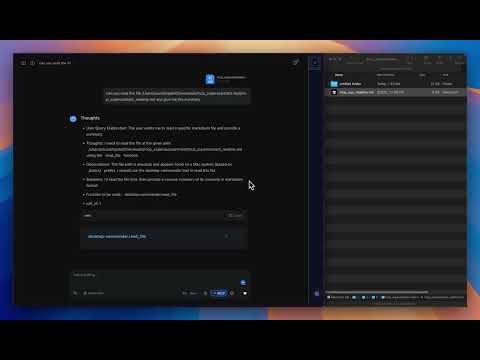](https://www.youtube.com/watch?v=jnBPh2jzunM)
- ChatGPT
- [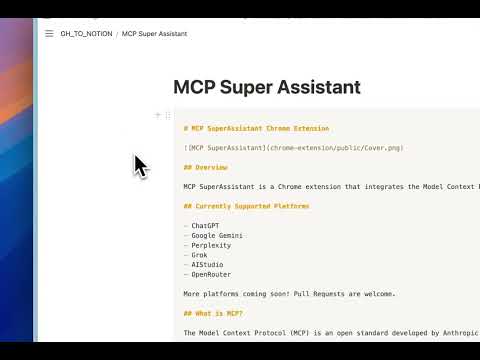](https://www.youtube.com/watch?v=PY0SKjtmy4E)
- Watch the demo to see MCP SuperAssistant in action!
- [MCP SuperAssistant Demo Playlist](https://www.youtube.com/playlist?list=PLOK1DBnkeaJFzxC4M-z7TU7_j04SShX_w)
- ## Setup Tutorial
- [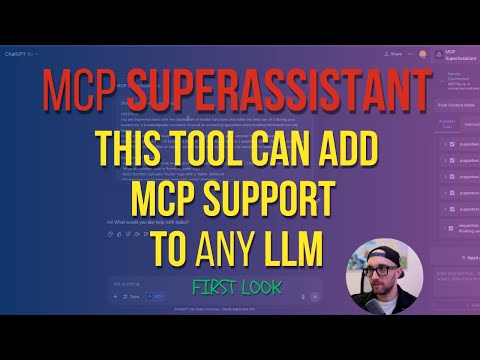](https://www.youtube.com/watch?v=h9f_GX1Ef20&pp=ygUTbWNwIHN1cGVyIGFzc2lzdGFudA%3D%3D)
- **New to MCP SuperAssistant?** Watch this complete setup guide to get started in minutes!
- [View Setup Tutorial](https://www.youtube.com/watch?v=h9f_GX1Ef20&pp=ygUTbWNwIHN1cGVyIGFzc2lzdGFudA%3D%3D)
- ## What is MCP?
- The Model Context Protocol (MCP) is an open standard developed by Anthropic that connects AI assistants to systems where data actually lives, including content repositories, business tools, and development environments. It serves as a universal protocol that enables AI systems to securely and dynamically interact with data sources in real time.
- ## Key Features
- - **Multiple AI Platform Support**: Works with every site in the list above, in Chrome and Firefox
- - **Compact tool cards**: Each tool call renders as one quiet row (name, description, Run). Parameters, the raw call, run history and results stay folded until you open them
- - **Instruction chips**: The MCP instructions sit in a small chip in the chat bar instead of filling your message; your own text stays readable in the sent message
- - **Flicker-free rendering**: Cards replace the raw tool-call text before the page paints, so reloading a chat shows no raw JSON
- - **Tool Execution**: Execute MCP tools with a single click
- - **Tool Result Integration**: Seamlessly insert tool execution results back into the AI conversation
- - **Tab & page context**: Attach open tabs or capture the current page into the chat (optional; asks for browser access in a small window first)
- - **Browser tools** (optional): Let the AI read and, if you allow it, control your tabs, with a block list for sensitive sites
- - **Auto-Execute Mode**: Automatically execute detected tools
- - **Auto-Submit Mode**: Automatically submit chat input after result insertion
- - **Push Content Mode**: Option to push page content instead of overlaying
- - **Preferences Persistence**: Remembers sidebar position, size, and settings
- - **Dark/Light Mode Support**: Adapts to the AI platform's theme
- ```mermaid
- flowchart TD
- A[AI Chat Interface] -->|Generate| B[Tool Calls]
- B -->|Detect| C[Extension Detects Tool Calls]
- C -->|Send via SSE| D[MCP Local Proxy Server]
- D -->|Forward| E[Actual MCP Server]
- E -->|Return Results| D
- D -->|Return Results| C
- C -->|Insert| F[Add Results Back to Chat]
- ```
- ### Connecting to Local Proxy Server
- To connect the Chrome extension to a local server for proxying connections:
- #### Run MCP SuperAssistant Proxy via npx:
- 1. Create a `config.json` file with your MCP server details. For example, to use the [Desktop Commander](https://github.com/wonderwhy-er/DesktopCommanderMCP):
- **Example config.json:**
- ```json
- {
- "mcpServers": {
- "desktop-commander": {
- "command": "npx",
- "args": [
- "-y",
- "@wonderwhy-er/desktop-commander"
- ]
- }
- }
- }
- ```
- config.json also support other MCP server configurations like remote MCP server URLs.
- Try composio mcp, zappier mcp, or smithery or any other remote MCP server.
- **Or use existing config file location from Cursor or other tools:**
- ```
- macOS: ~/Library/Application Support/Claude/claude_desktop_config.json
- Windows: %APPDATA%\Claude\claude_desktop_config.json
- ```
- 2. Start the MCP SuperAssistant Proxy server using one of the following commands:
- ```bash
- npx -y @srbhptl39/mcp-superassistant-proxy@latest --config ./config.json --outputTransport sse
- ```
- or
- ```bash
- npx -y @srbhptl39/mcp-superassistant-proxy --config ./config.json --outputTransport streamableHttp
- ```
- or
- ```bash
- npx -y @srbhptl39/mcp-superassistant-proxy --config ./config.json --outputTransport ws
- ```
- **View all available options:**
- ```bash
- npx -y @srbhptl39/mcp-superassistant-proxy@latest --help
- ```
- This is useful for:
- - Proxying remote MCP servers
- - Adding CORS support to remote servers
- - Providing health endpoints for monitoring
- #### Connection Steps:
- 1. Start the proxy server using one of the commands above
- 2. Open the MCP SuperAssistant sidebar in one of the supported AI platforms, this should show the sidebar UI
- 3. Click on the server status indicator (usually showing as "Disconnected")
- 4. Enter the local server URL (default: `http://localhost:3006/sse`)
- URL format depends on the --outputTransport method used:
- - For SSE: `http://localhost:3006/sse`
- - For Streamable HTTP: `http://localhost:3006/mcp`
- - For WebSocket: `ws://localhost:3006/message`
- - Choose the appropriate transport method (SSE or Streamable HTTP or WebSocket)
- - You can add any remote MCP server URL here as well, if it supports CORS or is proxied via this local proxy server. Try [Composio mcp](https://mcp.composio.dev/), [Zappier mcp](https://zapier.com/mcp), or [smithery](https://smithery.ai/) or any other remote MCP server.
- 5. Click "Connect" to establish the connection
- 6. The status indicator should change to "Connected" if successful
- ## Usage
- Example Workflow:
- 1. Navigate to a supported AI platform example chatgpt.
- 2. The MCP SuperAssistant sidebar will appear on the right side of the page
- 3. Configure your MCP Tools to enable and disable the tools you want to use.
- 4. In the message prompt area, hover the 'MCP' button to see the available tools and their descriptions.
- 5. MCP SuperAssistant requires to add an MCP working instructions prompt to the chat, to give details of its new capabilities and how to use the tools. Use the 'Insert' or attach button to add the instructions prompt. It appears as a small "MCP Instructions" chip in the chat bar and is sent along with your next message.
- 6. Once the instructions prompt is added, Now you can ask it to read files or any related MCP tool operations.
- 7. When AI wants to use any tool it will show a compact tool call card with the tool name; open it with the chevron to see the parameters.
- 8. User can manually execute the tool call by clicking on the "RUN" button on the tool call card, or if Auto-Execute mode is enabled, it will execute automatically.
- 9. Automation can be achieved by enabling Auto-Execute and Auto-Submit modes, by clicking on the 'MCP' button and configuring the Auto modes.
- ## Tips & Tricks
- 1. **Turn off search mode** (chatgpt, perplexity) in AI chat interfaces for better tool call prompt experience and to prevent MCP SuperAssistant from getting derail.
- 2. **Turn on Reasoning mode** (chatgpt, perplexity, grok) in AI chat interfaces, which will help the AI to understand the context better and generate the correct tool calls.
- 3. Use newer high-end models as they are better at understanding the context and generating the correct tool calls.
- 4. Copy the MCP instructions prompt and paste it in the AI chat system prompt (Google AI Studio).
- 5. Mention the specific tools you want to use in your conversation.
- 6. Use the MCP Auto toggles to control the tool execution.
- ## Common Issues with MCP SuperAssistant
- This page covers the most common issues users encounter with MCP SuperAssistant and provides solutions to resolve them.
- ### 1. Extension Not Detecting Tool Calls
- - Make sure the extension is enabled in your browser.
- - Make sure the **mcp prompt instructions are properly attached or inserted** in the chat, before starting any chat.
- - Check that your AI platform supports tool calls and that the feature is enabled.
- - Refresh the page or restart your browser if the issue persists.
- ### 2. Tool Execution Fails
- - Ensure your proxy server is running and the URL is correct in the sidebar server settings.
- - check your config.json file for any errors or formatting issues.
- - Check your network connectivity and firewall settings.
- ### 3. Connection Issues
- - Ensure that your MCP server is running and accessible.
- - Check the server URL in the extension settings.
- - First start the npx mcp-SuperAssistant-proxy server and then reload/restart the extension from chrome://extensions/ page.
- - Check the proxy server logs for any errors or issues.
- - Ensure that your firewall or antivirus software is not blocking the connection.
- - Make sure the server shows the proper connected status and exposes the `/sse` endpoint.
- ### 4. Incorrect tool call format
- - There are times model does not generate correct tool call format as requested, this makes the tool detection to fail.
- In such cases, use better models which are meant for tool calling or have better tool calling capabilities.
- - Use the custom instructions prompt, which can be found in the MCP SuperAssistant sidebar.
- - Ask explicitily to use the tools by mentioning them in the prompt.
- - This Below is an example of correct MCP function call format, which is rendered by MCP SuperAssistant extension:
- ```
- ```jsonl
- {"type": "function_call_start", "name": "function_name", "call_id": 1}
- {"type": "description", "text": "Short 1 line of what this function does"}
- {"type": "parameter", "key": "parameter_1", "value": "value_1"}
- {"type": "parameter", "key": "parameter_2", "value": "value_2"}
- {"type": "function_call_end", "call_id": 1}
- ```
- ```
- ### Manual Installation (Development)
- #### Release Version
- 1. Download the latest release from [Releases](https://github.com/srbhptl39/MCP-SuperAssistant/releases)
- 2. Unzip the downloaded file
- 3. Navigate to `chrome://extensions/` in Chrome
- 4. Enable "Developer mode"
- 5. Click "Load unpacked" and select the unzipped directory
- 6. Follow [Connecting to Local Proxy Server](#connecting-to-local-proxy-server) to connect to your MCP server
- ## Development
- ### Prerequisites
- - Node.js 22.12+
- - pnpm 9.15.1 (`corepack enable`)
- ### Setup
- ```bash
- # Install dependencies
- pnpm install
- # Start development server
- pnpm dev
- # Build for production
- pnpm build
- # Create zip package for distribution
- pnpm zip
- # Firefox build and package
- pnpm build:firefox
- pnpm zip:firefox
- ```
- Settings (MCP server, browser access, page capture and usage statistics) live on the extension's options page.
- Usage statistics are sent only when `CEB_POSTHOG_KEY` (PostHog) and/or `CEB_GA_MEASUREMENT_ID` + `CEB_GA_API_SECRET` (Google Analytics 4) are set in `.env`, so local builds and forks send nothing by default. Unpacked installs also stay silent unless you run `chrome.storage.local.set({ telemetryDebug: true })` in the service worker console.
- ## Privacy
- **Usage statistics.** MCP SuperAssistant sends anonymous usage statistics to PostHog (EU region) and/or Google Analytics 4, depending on the release. Each install has a random id that is not linked to you, your accounts or your device. We send: the extension version, browser and operating system; which supported AI site was used; daily counts of feature use (tool runs, auto-execute, browser tools, tab attach, page capture, input chips, sidebar); whether the local MCP proxy connected; and coded error types. We never send chat content, page content, URLs, page titles, tool names, tool arguments or results. PostHog events are sent with IP-based geolocation disabled. You can turn this off in the extension's options under "Usage statistics". Firefox users can also turn it off under Permissions and data in about:addons.
- **Remote configuration.** The extension fetches feature flags and notices from Firebase Remote Config, which uses its own random installation id to do so.
- ## Contributing
- Contributions are welcome! Please feel free to submit a Pull Request.
- 1. Fork the repository
- 2. Create your feature branch (`git checkout -b feature/amazing-feature`)
- 3. Commit your changes (`git commit -m 'Add some amazing feature'`)
- 4. Push to the branch (`git push origin feature/amazing-feature`)
- 5. Open a Pull Request
- ## Author
- ### [Saurabh Patel](https://github.com/srbhptl39)
- ## Sponsor & Support
- This project is developed entirely in my spare time, driven by a passion for AI and the Model Context Protocol (MCP). As a full-time professional, balancing work commitments with open-source development makes it challenging to contribute regularly and maintain the pace of updates.
- Your support helps me dedicate more time to:
- - 🐛 Fixing bugs and addressing issues
- - ✨ Adding new features and platform support
- - 📚 Improving documentation and tutorials
- - 🔄 Keeping dependencies up-to-date
- - 💬 Responding to community requests
- **Support this project:**
- - ⭐ Star the repository to show your appreciation
- - 💖 [Sponsor on GitHub](https://github.com/sponsors/srbhptl39) to help sustain development
- - 🐦 Follow me on [Twitter](https://twitter.com/srbhptl39) (@srbhptl39) for updates
- - 📧 For private support or custom implementations, reach out via [Twitter](https://twitter.com/srbhptl39)
- Every contribution, big or small, helps keep this project alive and thriving! 🙏
- ## License
- This project is licensed under the MIT License - see the LICENSE file for details.
- ## Acknowledgments
- - Inspired by the [Model Context Protocol (MCP)](https://modelcontextprotocol.io/) by Anthropic
- - Thanks to [Cline](https://github.com/cline/cline) for idea inspiration
- - Built with [Chrome Extension Boilerplate with React + Vite](https://github.com/Jonghakseo/chrome-extension-boilerplate-react-vite)
- ## Star History
- [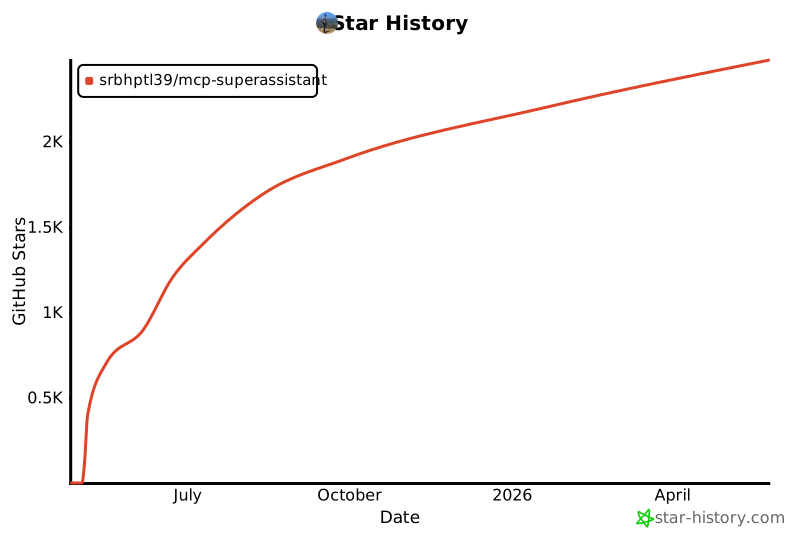](https://www.star-history.com/#srbhptl39/MCP-SuperAssistant&Date)
Ratings and comments
Sign in to rate this skill.
Sign inFree to use. If it’s helped, pass it on.