skyvern
Automate browser based workflows with AI
Safety scan
A static text scan, not a guarantee. Select the badge to see what was scanned and every finding.
Check it deeper on your machine
It has changed since its scan on 11 Nov 2026.
As a Claude Code plugin, install it and then ask Claude Code:
/plugin marketplace add keithmackay/mackayi/plugin install scanskillsafety@mackayiDo a deep scan of https://github.com/Skyvern-AI/skyvern with scanskillsafety
Or from a terminal, clone it and run it:
git clone https://github.com/keithmackay/scanskillsafety-skill ~/.claude/skills/scanskillsafetynode ~/.claude/skills/scanskillsafety/cli.cjs --deep 'https://github.com/Skyvern-AI/skyvern'
It checks the exact commit: every file, its packages against OSV (api.osv.dev), how it compares with this page's scan (findsafeskills.com receives the repository's address), and, if you agree, Claude reading every file with your own Claude subscription. It never runs the code.
Badge for your README

Markdown
[](/listings/skyvern-ai--skyvern)HTML
<a href="/listings/skyvern-ai--skyvern"><img src="/api/listings/skyvern-ai--skyvern/badge.svg" alt="findsafeskills safety rating" /></a>Install
Install instructions from the README
As written by the repo's author. findsafeskills has not verified these steps.
Skyvern Cloud
[Skyvern Cloud](https://app.skyvern.com) is a managed cloud version of Skyvern that allows you to run Skyvern without worrying about the infrastructure. It allows you to run multiple Skyvern instances in parallel and comes bundled with anti-bot detection mechanisms, proxy network, and CAPTCHA solvers.
If you'd like to try it out, navigate to [app.skyvern.com](https://app.skyvern.com) and create an account.
Run Locally (UI + Server)
Choose your preferred setup method:
> **Database default**: `skyvern quickstart` and `skyvern run server` default to a SQLite database at `~/.skyvern/data.db` so the pip path works without Postgres or Docker. To use Postgres instead, pass `--database-string` for an existing database (or omit `--no-postgres` so `quickstart` starts its own Postgres container). Docker Compose always uses the bundled Postgres service.
Option A: pip install (Recommended for Python-managed local setup)
Dependencies needed: - [Python 3.11, 3.12, or 3.13](https://www.python.org/downloads/)
Additionally, for Windows: - [Rust](https://rustup.rs/) - VS Code with C++ dev tools and Windows SDK
1. Install Skyvern
pip install "skyvern[all]"
2. Run Skyvern
skyvern quickstart
The pip quickstart uses SQLite by default. To use a local Postgres container instead, run `skyvern quickstart` (Postgres container is started unless you pass `--no-postgres`), or connect to an existing database with `--database-string=postgresql+psycopg://user:pass@host:5432/dbname`.
Option B: Docker Compose
Use this option if you want everything containerized (Postgres, API, UI) and don't want to install Python/Node locally.
1. Install [Docker Desktop](https://www.docker.com/products/docker-desktop/) 2. Clone the repository:
git clone https://github.com/skyvern-ai/skyvern.git && cd skyvern
3. Configure your LLM provider in `.env` (the `quickstart --docker-compose` command below will create it from `.env.example` if missing):
   cp .env.example .env  # if not already created
   # edit .env to add your LLM API key
4. Start everything:
docker compose up -d
5. Open http://localhost:8080
Troubleshooting
**`(sqlite3.OperationalError) table organizations already exists`** — You hit a known bug in `pip install skyvern==1.0.31`. Fix:
rm ~/.skyvern/data.db   # remove the leftover SQLite file
pip install --upgrade skyvern   # 1.0.32+ contains the fix
skyvern quickstart
If you are still on 1.0.31 and cannot upgrade, install via uv instead:
uv pip install skyvern
**`pip install skyvern` fails with ResolutionImpossible (litellm / fastmcp)** — You hit a dependency-resolution conflict in 1.0.31. Either upgrade to 1.0.32+ or use uv: `uv pip install skyvern`.
SDK
**Skyvern is a Playwright extension that adds AI-powered browser automation.** It gives you the full power of Playwright with additional AI capabilities—use natural language prompts to interact with elements, extract data, and automate complex multi-step workflows.
**Installation:** - Python SDK / cloud API: `pip install skyvern` - Local server + packaged UI: `pip install "skyvern[all]"` then run `skyvern quickstart` - Local server + packaged UI with Postgres: `pip install "skyvern[all]"` then run `skyvern quickstart --database-string=postgresql+psycopg://user:pass@host:5432/dbname` - Packaged UI for an existing API: `pip install "skyvern[ui]"` then set `VITE_API_BASE_URL` (and `VITE_SKYVERN_API_KEY` if your API requires a key) and run `skyvern run ui` - TypeScript: `npm install @skyvern/client`
AI-Powered Page Commands
Skyvern adds four core AI commands directly on the page object:
| Command | Description | |---------|-------------| | `page.act(prompt)` | Perform actions using natural language (e.g., "Click the login button") | | `page.extract(prompt, schema)` | Extract structured data from the page with optional JSON schema |
What was scanned
The files the safety scan read, as written by the repository's author and shown as plain text. Lines with a finding are marked.
README.md · README · 599 lines
View this file on GitHub (read at the repository's current version: the scan did not record which commit it read)
This file has changed since it was scanned, so this is not exactly the text that was scanned, and no line is marked. The findings are listed with the safety scan above.
- <!-- DOCTOC SKIP -->
- <h1 align="center">
- <a href="https://www.skyvern.com">
- <picture>
- <source media="(prefers-color-scheme: dark)" srcset=".github/assets/readme/skyvern_logo.png"/>
- <img height="120" src=".github/assets/readme/skyvern_logo_blackbg.png"/>
- </picture>
- </a>
- <br />
- </h1>
- <p align="center">
- 🐉 Automate Browser-based workflows using LLMs and Computer Vision 🐉
- </p>
- <p align="center">
- <a href="https://www.skyvern.com/"><img src="https://img.shields.io/badge/Website-blue?logo=googlechrome&logoColor=black"/></a>
- <a href="https://www.skyvern.com/docs/"><img src="https://img.shields.io/badge/Docs-yellow?logo=gitbook&logoColor=black"/></a>
- <a href="https://discord.gg/fG2XXEuQX3"><img src="https://img.shields.io/discord/1212486326352617534?logo=discord&label=discord"/></a>
- <!-- <a href="https://pepy.tech/project/skyvern" target="_blank"><img src="https://static.pepy.tech/badge/skyvern" alt="Total Downloads"/></a> -->
- <a href="https://github.com/skyvern-ai/skyvern"><img src="https://img.shields.io/github/stars/skyvern-ai/skyvern" /></a>
- <a href="https://github.com/Skyvern-AI/skyvern/blob/main/LICENSE"><img src="https://img.shields.io/github/license/skyvern-ai/skyvern"/></a>
- <a href="https://twitter.com/skyvernai"><img src="https://img.shields.io/twitter/follow/skyvernai?style=social"/></a>
- <a href="https://www.linkedin.com/company/95726232"><img src="https://img.shields.io/badge/Follow%20 on%20LinkedIn-8A2BE2?logo=linkedin"/></a>
- </p>
- [Skyvern](https://www.skyvern.com) automates browser-based workflows using LLMs and computer vision. It provides a Playwright-compatible SDK that adds AI functionality on top of playwright, as well as a no-code workflow builder to help both technical and non-technical users automate manual workflows on any website, replacing brittle or unreliable automation solutions.
- <p align="center">
- <img src=".github/assets/readme/geico_shu_recording_cropped.gif"/>
- </p>
- Traditional approaches to browser automations required writing custom scripts for websites, often relying on DOM parsing and XPath-based interactions which would break whenever the website layouts changed.
- Instead of only relying on code-defined XPath interactions, Skyvern relies on Vision LLMs to learn and interact with the websites.
- # How it works
- Skyvern was inspired by the Task-Driven autonomous agent design popularized by [BabyAGI](https://github.com/yoheinakajima/babyagi) and [AutoGPT](https://github.com/Significant-Gravitas/AutoGPT) -- with one major bonus: we give Skyvern the ability to interact with websites using browser automation libraries like [Playwright](https://playwright.dev/).
- Skyvern uses a swarm of agents to comprehend a website, and plan and execute its actions:
- <picture>
- <source media="(prefers-color-scheme: dark)" srcset=".github/assets/readme/skyvern_2_0_system_diagram.png" />
- <img src=".github/assets/readme/skyvern_2_0_system_diagram.png" />
- </picture>
- This approach has a few advantages:
- 1. Skyvern can operate on websites it's never seen before, as it's able to map visual elements to actions necessary to complete a workflow, without any customized code
- 1. Skyvern is resistant to website layout changes, as there are no pre-determined XPaths or other selectors our system is looking for while trying to navigate
- 1. Skyvern is able to take a single workflow and apply it to a large number of websites, as it's able to reason through the interactions necessary to complete the workflow
- A detailed technical report can be found [here](https://www.skyvern.com/blog/skyvern-2-0-state-of-the-art-web-navigation-with-85-8-on-webvoyager-eval/).
- # Demo
- <!-- Redo demo -->
- https://github.com/user-attachments/assets/5cab4668-e8e2-4982-8551-aab05ff73a7f
- # Quickstart
- ## Skyvern Cloud
- [Skyvern Cloud](https://app.skyvern.com) is a managed cloud version of Skyvern that allows you to run Skyvern without worrying about the infrastructure. It allows you to run multiple Skyvern instances in parallel and comes bundled with anti-bot detection mechanisms, proxy network, and CAPTCHA solvers.
- If you'd like to try it out, navigate to [app.skyvern.com](https://app.skyvern.com) and create an account.
- ## Run Locally (UI + Server)
- Choose your preferred setup method:
- > **Database default**: `skyvern quickstart` and `skyvern run server` default to a SQLite database at `~/.skyvern/data.db` so the pip path works without Postgres or Docker. To use Postgres instead, pass `--database-string` for an existing database (or omit `--no-postgres` so `quickstart` starts its own Postgres container). Docker Compose always uses the bundled Postgres service.
- ### Option A: pip install (Recommended for Python-managed local setup)
- Dependencies needed:
- - [Python 3.11, 3.12, or 3.13](https://www.python.org/downloads/)
- Additionally, for Windows:
- - [Rust](https://rustup.rs/)
- - VS Code with C++ dev tools and Windows SDK
- #### 1. Install Skyvern
- ```bash
- pip install "skyvern[server]"
- ```
- The `server` extra installs the local API server. `pip install skyvern` without it installs only the client SDK. The pip package does not include the web UI; for the UI, use [Docker Compose](#option-b-docker-compose) or a source checkout.
- #### 2. Run Skyvern
- ```bash
- skyvern quickstart
- ```
- The pip quickstart uses SQLite by default. To use a local Postgres container instead, run `skyvern quickstart` (Postgres container is started unless you pass `--no-postgres`), or connect to an existing database with `--database-string=postgresql+psycopg://user:pass@host:5432/dbname`.
- ### Option B: Docker Compose
- Use this option if you want everything containerized (Postgres, API, UI) and don't want to install Python/Node locally.
- 1. Install [Docker Desktop](https://www.docker.com/products/docker-desktop/)
- 2. Clone the repository:
- ```bash
- git clone https://github.com/skyvern-ai/skyvern.git && cd skyvern
- ```
- 3. Configure your LLM provider in `.env` (the `quickstart --docker-compose` command below will create it from `.env.example` if missing):
- ```bash
- cp .env.example .env # if not already created
- # edit .env to add your LLM API key
- ```
- 4. Start everything:
- ```bash
- docker compose up -d
- ```
- 5. Open http://localhost:8080
- ### Troubleshooting
- **`(sqlite3.OperationalError) table organizations already exists`** — You hit a known bug in `pip install skyvern==1.0.31`. Fix:
- ```bash
- rm ~/.skyvern/data.db # remove the leftover SQLite file
- pip install --upgrade skyvern # 1.0.32+ contains the fix
- skyvern quickstart
- ```
- If you are still on 1.0.31 and cannot upgrade, install via uv instead:
- ```bash
- uv pip install skyvern
- ```
- **`pip install skyvern` fails with ResolutionImpossible (litellm / fastmcp)** — You hit a dependency-resolution conflict in 1.0.31. Either upgrade to 1.0.32+ or use uv: `uv pip install skyvern`.
- ## SDK
- **Skyvern is a Playwright extension that adds AI-powered browser automation.** It gives you the full power of Playwright with additional AI capabilities—use natural language prompts to interact with elements, extract data, and automate complex multi-step workflows.
- **Installation:**
- - Python SDK / cloud API: `pip install skyvern`
- - Python SDK with browser and page commands, including `Skyvern.local()`: `pip install "skyvern[local]"`
- - Local API server: `pip install "skyvern[server]"` then run `skyvern quickstart`
- - Local API server with your own Postgres: `pip install "skyvern[server]"` then run `skyvern quickstart --database-string=postgresql+psycopg://user:pass@host:5432/dbname`
- - Web UI: not included in the pip package. Use [Docker Compose](#option-b-docker-compose), or run `skyvern run ui` from a source checkout.
- - TypeScript: `npm install @skyvern/client`
- ### AI-Powered Page Commands
- Skyvern adds four core AI commands directly on the page object:
- | Command | Description |
- |---------|-------------|
- | `page.act(prompt)` | Perform actions using natural language (e.g., "Click the login button") |
- | `page.extract(prompt, schema)` | Extract structured data from the page with optional JSON schema |
- | `page.validate(prompt)` | Validate page state, returns `bool` (e.g., "Check if user is logged in") |
- | `page.prompt(prompt, schema)` | Send arbitrary prompts to the LLM with optional response schema |
- Additionally, `page.agent` provides higher-level workflow commands:
- | Command | Description |
- |---------|-------------|
- | `page.agent.run_task(prompt)` | Execute complex multi-step tasks |
- | `page.agent.login(credential_type, credential_id)` | Authenticate with stored credentials (Skyvern, Bitwarden, 1Password) |
- | `page.agent.download_files(prompt)` | Navigate and download files |
- | `page.agent.run_workflow(workflow_id)` | Execute pre-built workflows |
- ### AI-Augmented Playwright Actions
- All standard Playwright actions support an optional `prompt` parameter for AI-powered element location:
- | Action | Playwright | AI-Augmented |
- |--------|------------|--------------|
- | Click | `page.click("#btn")` | `page.click(prompt="Click login button")` |
- | Fill | `page.fill("#email", "a@b.com")` | `page.fill(prompt="Email field", value="a@b.com")` |
- | Select | `page.select_option("#country", "US")` | `page.select_option(prompt="Country dropdown", value="US")` |
- | Upload | `page.upload_file("#file", "doc.pdf")` | `page.upload_file(prompt="Upload area", files="doc.pdf")` |
- **Three interaction modes:**
- ```python
- # 1. Traditional Playwright - CSS/XPath selectors
- await page.click("#submit-button")
- # 2. AI-powered - natural language
- await page.click(prompt="Click the green Submit button")
- # 3. AI fallback - tries selector first, falls back to AI if it fails
- await page.click("#submit-btn", prompt="Click the Submit button")
- ```
- ### Core AI Commands - Examples
- ```python
- # act - Perform actions using natural language
- await page.act("Click the login button and wait for the dashboard to load")
- # extract - Extract structured data with optional JSON schema
- result = await page.extract("Get the product name and price")
- result = await page.extract(
- prompt="Extract order details",
- schema={"order_id": "string", "total": "number", "items": "array"}
- )
- # validate - Check page state (returns bool)
- is_logged_in = await page.validate("Check if the user is logged in")
- # prompt - Send arbitrary prompts to the LLM
- summary = await page.prompt("Summarize what's on this page")
- ```
- ### Quick Start Examples
- **Run via UI:**
- ```bash
- skyvern run all
- ```
- From a source checkout, navigate to http://localhost:8080 to run tasks through the web interface. A pip install does not include the web UI, so there `skyvern run all` starts only the API server at http://localhost:8000.
- To run only the UI against an existing Skyvern API, clone this repository, install Node.js, and set the
- environment variables below before running `skyvern run ui` from the repository root:
- - `VITE_API_BASE_URL` (e.g. `http://localhost:8000/api/v1`) — points the UI at your Skyvern API
- - `VITE_SKYVERN_API_KEY` — the API key if your API requires one
- - `VITE_WSS_BASE_URL` — WebSocket endpoint (inferred from `VITE_API_BASE_URL` if unset)
- - `VITE_ARTIFACT_API_BASE_URL` — base URL for artifact downloads
- - `VITE_BROWSER_STREAMING_MODE` — browser viewport streaming mode
- **Python SDK:**
- ```python
- from skyvern import Skyvern
- # Local mode
- skyvern = Skyvern.local()
- # Or connect to Skyvern Cloud
- skyvern = Skyvern(api_key="your-api-key")
- # Launch browser and get page
- browser = await skyvern.launch_cloud_browser()
- page = await browser.get_working_page()
- # Mix Playwright with AI-powered actions
- await page.goto("https://example.com")
- await page.click("#login-button") # Traditional Playwright
- await page.agent.login(credential_type="skyvern", credential_id="cred_123") # AI login
- await page.click(prompt="Add first item to cart") # AI-augmented click
- await page.agent.run_task("Complete checkout with: John Snow, 12345") # AI task
- ```
- **TypeScript SDK:**
- ```typescript
- import { Skyvern } from "@skyvern/client";
- const skyvern = new Skyvern({ apiKey: "your-api-key" });
- const browser = await skyvern.launchCloudBrowser();
- const page = await browser.getWorkingPage();
- // Mix Playwright with AI-powered actions
- await page.goto("https://example.com");
- await page.click("#login-button"); // Traditional Playwright
- await page.agent.login("skyvern", { credentialId: "cred_123" }); // AI login
- await page.click({ prompt: "Add first item to cart" }); // AI-augmented click
- await page.agent.runTask("Complete checkout with: John Snow, 12345"); // AI task
- await browser.close();
- ```
- **Simple task execution:**
- ```python
- from skyvern import Skyvern
- skyvern = Skyvern()
- task = await skyvern.run_task(prompt="Find the top post on hackernews today")
- print(task)
- ```
- ## Advanced Usage
- ### Control your own browser (Chrome)
- Let Skyvern control your existing Chrome browser — with all your cookies, logins, and extensions.
- #### Step 1: Enable remote debugging in Chrome
- 1. Open Chrome and navigate to `chrome://inspect/#remote-debugging`
- 2. Click **Enable** to start the debugging server
- 3. You should see: **Server running at: 127.0.0.1:9222**
- > [!TIP]
- > The `skyvern init browser` command can do this automatically — it opens `chrome://inspect/#remote-debugging`, waits for you to enable it, and saves the config.
- #### Step 2: Connect Skyvern
- **Option A — Python Code:**
- ```python
- from skyvern import Skyvern
- skyvern = Skyvern(
- base_url="http://localhost:8000",
- api_key="YOUR_API_KEY",
- browser_address="http://127.0.0.1:9222",
- )
- task = await skyvern.run_task(
- prompt="Find the top post on hackernews today",
- )
- ```
- **Option B — Skyvern Service:**
- Add two variables to your .env file:
- ```bash
- BROWSER_TYPE=cdp-connect
- BROWSER_REMOTE_DEBUGGING_URL=http://127.0.0.1:9222
- ```
- Restart Skyvern service `skyvern run all` and run the task through UI or code
- ### Connect Skyvern Cloud to your local browser
- Let Skyvern Cloud control a Chrome browser running on your machine — with all your existing cookies, logins, and extensions. Useful for automating sites where you're already logged in or behind a VPN.
- ```bash
- # One command to start Chrome + create a tunnel to Skyvern Cloud
- skyvern browser serve --tunnel
- ```
- Then use the tunnel URL in your task:
- ```python
- from skyvern import Skyvern
- skyvern = Skyvern(api_key="your-api-key")
- task = await skyvern.run_task(
- prompt="Download the latest invoice from my account",
- browser_address="https://abc123.ngrok-free.dev",
- )
- ```
- > [!WARNING]
- > Always use `--api-key` when exposing your browser via a tunnel. Without it, anyone with the URL has full control of your browser. See the [security docs](https://www.skyvern.com/docs/optimization/browser-tunneling#security).
- See the [full documentation](https://www.skyvern.com/docs/optimization/browser-tunneling) for all options, manual tunnel setup, and troubleshooting.
- ### Get consistent output schema from your run
- You can do this by adding the `data_extraction_schema` parameter:
- ```python
- from skyvern import Skyvern
- skyvern = Skyvern()
- task = await skyvern.run_task(
- prompt="Find the top post on hackernews today",
- data_extraction_schema={
- "type": "object",
- "properties": {
- "title": {
- "type": "string",
- "description": "The title of the top post"
- },
- "url": {
- "type": "string",
- "description": "The URL of the top post"
- },
- "points": {
- "type": "integer",
- "description": "Number of points the post has received"
- }
- }
- }
- )
- ```
- ### Helpful commands to debug issues
- ```bash
- # Launch the Skyvern Server Separately*
- skyvern run server
- # Launch the Skyvern UI
- skyvern run ui
- # Check status of the Skyvern service
- skyvern status
- # Stop the Skyvern service
- skyvern stop all
- # Stop the Skyvern UI
- skyvern stop ui
- # Stop the Skyvern Server Separately
- skyvern stop server
- ```
- # Performance & Evaluation
- Skyvern has SOTA performance on the [WebBench benchmark](webbench.ai) with a 64.4% accuracy. The technical report + evaluation can be found [here](https://www.skyvern.com/blog/web-bench-a-new-way-to-compare-ai-browser-agents/)
- <p align="center">
- <img src=".github/assets/readme/performance/webbench_overall.png"/>
- </p>
- ## Performance on WRITE tasks (eg filling out forms, logging in, downloading files, etc)
- Skyvern is the best performing agent on WRITE tasks (eg filling out forms, logging in, downloading files, etc), which is primarily used for RPA (Robotic Process Automation) adjacent tasks.
- <p align="center">
- <img src=".github/assets/readme/performance/webbench_write.png"/>
- </p>
- # Skyvern Features
- ## Skyvern Tasks
- Tasks are the fundamental building block inside Skyvern. Each task is a single request to Skyvern, instructing it to navigate through a website and accomplish a specific goal.
- Tasks require you to specify a `url`, `prompt`, and can optionally include a `data schema` (if you want the output to conform to a specific schema) and `error codes` (if you want Skyvern to stop running in specific situations).
- <p align="center">
- <img src=".github/assets/readme/skyvern_2_0_screenshot.png"/>
- </p>
- ## Skyvern Workflows
- Workflows are a way to chain multiple tasks together to form a cohesive unit of work.
- For example, if you wanted to download all invoices newer than January 1st, you could create a workflow that first navigated to the invoices page, then filtered down to only show invoices newer than January 1st, extracted a list of all eligible invoices, and iterated through each invoice to download it.
- Another example is if you wanted to automate purchasing products from an e-commerce store, you could create a workflow that first navigated to the desired product, then added it to a cart. Second, it would navigate to the cart and validate the cart state. Finally, it would go through the checkout process to purchase the items.
- Supported workflow features include:
- 1. Browser Task
- 1. Browser Action
- 1. Data Extraction
- 1. Validation
- 1. For Loops
- 1. File parsing
- 1. Sending emails
- 1. Text Prompts
- 1. HTTP Request Block
- 1. Custom Code Block
- 1. Uploading files to block storage
- 1. (Coming soon) Conditionals
- <p align="center">
- <img src=".github/assets/readme/block_example_v2.png"/>
- </p>
- ## Livestreaming
- Skyvern allows you to livestream the viewport of the browser to your local machine so that you can see exactly what Skyvern is doing on the web. This is useful for debugging and understanding how Skyvern is interacting with a website, and intervening when necessary
- ## Form Filling
- Skyvern is natively capable of filling out form inputs on websites. Passing in information via the `navigation_goal` will allow Skyvern to comprehend the information and fill out the form accordingly.
- ## Data Extraction
- Skyvern is also capable of extracting data from a website.
- You can also specify a `data_extraction_schema` directly within the main prompt to tell Skyvern exactly what data you'd like to extract from the website, in jsonc format. Skyvern's output will be structured in accordance to the supplied schema.
- ## File Downloading
- Skyvern is also capable of downloading files from a website. All downloaded files are automatically uploaded to block storage (if configured), and you can access them via the UI.
- ## Authentication
- Skyvern supports a number of different authentication methods to make it easier to automate tasks behind a login. If you'd like to try it out, please reach out to us [via email](mailto:founders@skyvern.com) or [discord](https://discord.gg/fG2XXEuQX3).
- <p align="center">
- <img src=".github/assets/readme/secure_password_task_example.png"/>
- </p>
- ### 🔐 2FA Support (TOTP)
- Skyvern supports a number of different 2FA methods to allow you to automate workflows that require 2FA.
- Examples include:
- 1. QR-based 2FA (e.g. Google Authenticator, Authy)
- 1. Email based 2FA
- 1. SMS based 2FA
- 🔐 Learn more about 2FA support [here](https://www.skyvern.com/docs/credentials/totp).
- ### Password Manager Integrations
- Skyvern currently supports the following password manager integrations:
- - [x] Bitwarden
- - [x] Custom Credential Service (HTTP API)
- - [ ] 1Password
- - [ ] LastPass
- ## Model Context Protocol (MCP)
- Skyvern supports the Model Context Protocol (MCP) to allow you to use any LLM that supports MCP.
- See the MCP documentation [here](https://www.skyvern.com/docs/integrations/mcp#mcp-server)
- ## Zapier / Make.com / N8N Integration
- Skyvern supports Zapier, Make.com, and N8N to allow you to connect your Skyvern workflows to other apps.
- * [Zapier](https://www.skyvern.com/docs/integrations/zapier)
- * [Make.com](https://www.skyvern.com/docs/integrations/make.com)
- * [N8N](https://www.skyvern.com/docs/integrations/n8n)
- 🔐 Learn more about 2FA support [here](https://www.skyvern.com/docs/credentials/totp).
- # Real-world examples of Skyvern
- We love to see how Skyvern is being used in the wild. Here are some examples of how Skyvern is being used to automate workflows in the real world. Please open PRs to add your own examples!
- ## Invoice Downloading on many different websites
- [Book a demo to see it live](https://meetings.hubspot.com/skyvern/demo)
- <p align="center">
- <img src=".github/assets/readme/invoice_downloading.gif"/>
- </p>
- ## Automate the job application process
- [💡 See it in action](https://app.skyvern.com/tasks/create/job_application)
- <p align="center">
- <img src=".github/assets/readme/job_application_demo.gif"/>
- </p>
- ## Automate materials procurement for a manufacturing company
- [💡 See it in action](https://app.skyvern.com/tasks/create/finditparts)
- <p align="center">
- <img src=".github/assets/readme/finditparts_recording_crop.gif"/>
- </p>
- ## Navigating to government websites to register accounts or fill out forms
- [💡 See it in action](https://app.skyvern.com/tasks/create/california_edd)
- <p align="center">
- <img src=".github/assets/readme/edd_services.gif"/>
- </p>
- <!-- Add example of delaware entity lookups x2 -->
- ## Filling out random contact us forms
- [💡 See it in action](https://app.skyvern.com/tasks/create/contact_us_forms)
- <p align="center">
- <img src=".github/assets/readme/contact_forms.gif"/>
- </p>
- ## Retrieving insurance quotes from insurance providers in any language
- [💡 See it in action](https://app.skyvern.com/tasks/create/bci_seguros)
- <p align="center">
- <img src=".github/assets/readme/bci_seguros_recording.gif"/>
- </p>
- [💡 See it in action](https://app.skyvern.com/tasks/create/geico)
- <p align="center">
- <img src=".github/assets/readme/geico_shu_recording_cropped.gif"/>
- </p>
- # Contributor Setup
- Make sure to have [uv](https://docs.astral.sh/uv/getting-started/installation/) installed.
- 1. Run this to create your virtual environment (`.venv`)
- ```bash
- uv sync --group dev
- ```
- 2. Perform initial server configuration
- ```bash
- uv run skyvern quickstart
- ```
- 3. Navigate to `http://localhost:8080` in your browser to start using the UI
- *The Skyvern CLI supports Windows, WSL, macOS, and Linux environments.*
- # Documentation
- More extensive documentation can be found on our [📕 docs page](https://www.skyvern.com/docs). Please let us know if something is unclear or missing by opening an issue or reaching out to us [via email](mailto:founders@skyvern.com) or [discord](https://discord.gg/fG2XXEuQX3).
- # Supported LLMs
- | Provider | Supported Models |
- | -------- | ------- |
- | OpenAI | GPT-5.5, GPT-5.4, GPT-5, GPT-4.1, o3, o4-mini |
- | Anthropic | Claude 4.7 Opus, Claude 4.6 (Sonnet, Opus), Claude 4.5 (Haiku, Sonnet, Opus) |
- | Azure OpenAI | Any GPT models deployed to your Azure subscription |
- | AWS Bedrock | Claude 4.7, Claude 4.6 (Sonnet, Opus), Claude 4.5 (Sonnet, Opus) |
- | Gemini | Gemini 3.1 Pro, Gemini 3 Flash, Gemini 2.5 Pro/Flash |
- | Ollama | Run any locally hosted model via [Ollama](https://github.com/ollama/ollama) |
- | OpenRouter | Access models through [OpenRouter](https://openrouter.ai) |
- | OpenAI-compatible | Any custom API endpoint that follows OpenAI's API format (via [liteLLM](https://docs.litellm.ai/docs/providers/openai_compatible)) |
- For detailed LLM configuration including all available model keys, environment variables, and multi-model setups, see the [LLM Configuration docs](https://www.skyvern.com/docs/self-hosted/llm-configuration).
- # Contributing
- We welcome PRs and suggestions! Don't hesitate to open a PR/issue or to reach out to us [via email](mailto:founders@skyvern.com) or [discord](https://discord.gg/fG2XXEuQX3).
- Please have a look at our [contribution guide](CONTRIBUTING.md) and
- ["Help Wanted" issues](https://github.com/skyvern-ai/skyvern/issues?q=is%3Aopen+is%3Aissue+label%3A%22help+wanted%22) to get started!
- If you want to chat with the skyvern repository to get a high level overview of how it is structured, how to build off it, and how to resolve usage questions, check out [Code Sage](https://sage.storia.ai?utm_source=github&utm_medium=referral&utm_campaign=skyvern-readme).
- # Telemetry
- By Default, Skyvern collects basic usage statistics to help us understand how Skyvern is being used. If you would like to opt-out of telemetry, please set the `SKYVERN_TELEMETRY` environment variable to `false`.
- # License
- Skyvern's open source repository is supported via a managed cloud. All of the core logic powering Skyvern is available in this open source repository licensed under the [AGPL-3.0 License](LICENSE), with the exception of anti-bot measures available in our managed cloud offering.
- If you have any questions or concerns around licensing, please [contact us](mailto:support@skyvern.com) and we would be happy to help.
- # Star History
- [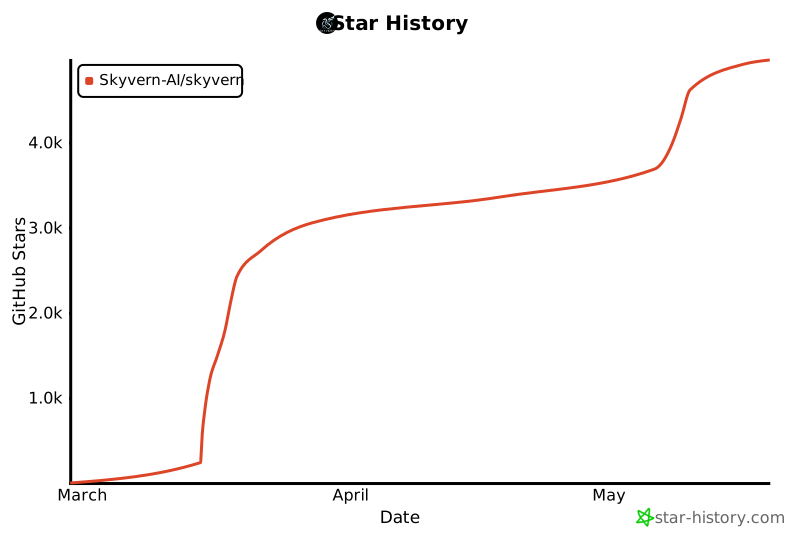](https://star-history.com/#Skyvern-AI/skyvern&Date)
Ratings and comments
Sign in to rate this skill.
Sign inFree to use. If it’s helped, pass it on.