stitch-mcp
Universal MCP Server for Google Stitch. Connect AI agents to your UI designs.
Safety scan
A static text scan, not a guarantee. Select the badge to see what was scanned and every finding.
Badge for your README

Markdown
[](/listings/kargatharaakash--stitch-mcp)HTML
<a href="/listings/kargatharaakash--stitch-mcp"><img src="/api/listings/kargatharaakash--stitch-mcp/badge.svg" alt="findsafeskills safety rating" /></a>Install
Install instructions from the README
As written by the repo's author. findsafeskills has not verified these steps.
1. Prerequisite: Google Cloud
You need a Google Cloud project with the Stitch API enabled.
# Login to your Google Cloud
gcloud auth login

# Set your project (replace with your actual project ID)
gcloud config set project YOUR_PROJECT_ID
gcloud auth application-default set-quota-project YOUR_PROJECT_ID

# Enable the magic
gcloud beta services mcp enable stitch.googleapis.com
2. Install the Credentials
This gives `stitch-mcp` permission to talk to Google on your behalf.
gcloud auth application-default login
3. Add to Your AI Editor
Copy and paste this into your MCP config file:
**For Claude Desktop**: `~/Library/Application Support/Claude/claude_desktop_config.json`
**For Cursor**: Settings > MCP > Add New Server
{
  "mcpServers": {
    "stitch": {
      "command": "npx",
      "args": ["-y", "stitch-mcp"],
      "env": {
         "GOOGLE_CLOUD_PROJECT": "YOUR_PROJECT_ID"
      }
    }
  }
}What was scanned
The files the safety scan read, as written by the repository's author and shown as plain text. Lines with a finding are marked.
README.md · README · 107 lines
View this file on GitHub (read at the repository's current version: the scan did not record which commit it read)
- # Stitch MCP
- <div align="center">
- [](https://www.npmjs.com/package/stitch-mcp)
- [](https://opensource.org/licenses/MIT)
- [](https://modelcontextprotocol.io)
- **Universal MCP Server for Google Stitch**
- </div>
- Build amazing UI/UX designs instantly with AI. Works seamlessly with Cursor, Claude, Antigravity, and any MCP-compatible editor.
- Created by **Aakash Kargathara**.
- ---
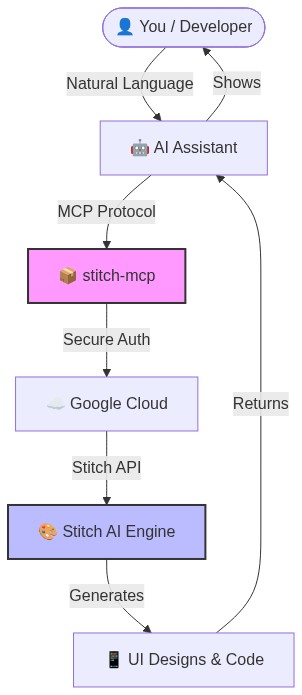
- ## 🚀 How It Works
- 
- ## ✨ Why this is cool
- - **Zero Config**: Just login once and it works everywhere.
- - **Universal**: Works on Windows, Mac, and Linux.
- - **Free**: Google Stitch API is free to use.
- ## �️ Quick Setup (2 Minutes)
- ### 1. Prerequisite: Google Cloud
- You need a Google Cloud project with the Stitch API enabled.
- ```bash
- # Login to your Google Cloud
- gcloud auth login
- # Set your project (replace with your actual project ID)
- gcloud config set project YOUR_PROJECT_ID
- gcloud auth application-default set-quota-project YOUR_PROJECT_ID
- # Enable the magic
- gcloud beta services mcp enable stitch.googleapis.com
- ```
- ### 2. Install the Credentials
- This gives `stitch-mcp` permission to talk to Google on your behalf.
- ```bash
- gcloud auth application-default login
- ```
- ### 3. Add to Your AI Editor
- Copy and paste this into your MCP config file:
- **For Claude Desktop**:
- `~/Library/Application Support/Claude/claude_desktop_config.json`
- **For Cursor**:
- Settings > MCP > Add New Server
- ```json
- {
- "mcpServers": {
- "stitch": {
- "command": "npx",
- "args": ["-y", "stitch-mcp"],
- "env": {
- "GOOGLE_CLOUD_PROJECT": "YOUR_PROJECT_ID"
- }
- }
- }
- }
- ```
- ## 🛠️ Available Tools
- | Tool Name | What it does |
- |-----------|--------------|
- | **`extract_design_context`** | 🧠 Scans a screen to extract "Design DNA" (Fonts, Colors, Layouts). Use this to keep style consistent. |
- | **`fetch_screen_code`** | 💾 Downloads the raw HTML/Frontend code of a screen. |
- | **`fetch_screen_image`** | 🖼️ Downloads the high-res screenshot of a screen. |
- | **`generate_screen_from_text`** | ✨ Generates a NEW screen based on your prompt (and context). |
- | **`create_project`** | 📁 Creates a new workspace/project folder. |
- | **`list_projects`** | 📋 Lists all your available Stitch projects. |
- | **`list_screens`** | 📱 Lists all screens within a specific project. |
- | **`get_project`** | 🔍 Retrieves details of a specific project. |
- | **`get_screen`** | ℹ️ Gets metadata for a specific screen. |
- ## 💡 Pro Tip: The "Designer Flow"
- To generate consistent UI, use this 2-step flow:
- 1. **Extract**: "Get design context from the Home Screen..."
- 2. **Generate**: "Using that context, generate a Chat Screen..."
- This ensures your new screen matches your existing design system perfectly.
- ## 📄 License
- **Apache 2.0** - Open source and free to use.
- ## Star History
- [](https://www.star-history.com/#Kargatharaakash/stitch-mcp&type=date&legend=top-left)
- ---
- *Built with ❤️ by Aakash Kargathara*
Ratings and comments
Sign in to rate this skill.
Sign inFree to use. If it’s helped, pass it on.