rhinomcp
RhinoMCP connects Rhino 3D to AI Agent through the Model Context Protocol (MCP)
Safety scan
A static text scan, not a guarantee. Select the badge to see what was scanned and every finding.
Badge for your README

Markdown
[](/listings/jingcheng-chen--rhinomcp)HTML
<a href="/listings/jingcheng-chen--rhinomcp"><img src="/api/listings/jingcheng-chen--rhinomcp/badge.svg" alt="findsafeskills safety rating" /></a>Install
Install instructions from the README
As written by the repo's author. findsafeskills has not verified these steps.
These steps run a script from the network that findsafeskills does not scan.
Three steps: install the Rhino plugin, connect your AI client, then start the bridge in Rhino.
1. Install the Rhino plugin
In Rhino, open **Tools → Package Manager**, search for **`rhinomcp`**, and click **Install**. Restart Rhino.
2. Connect your AI client
Option A: ask your AI assistant to install it (recommended)
If you use an agentic assistant (Codex, Claude Code, Cursor, Cline, and the like), paste this prompt:
Please install https://github.com/jingcheng-chen/rhinomcp as a local MCP server named `rhino`.
Option B: Install the mcp server or manually edit the config yourself
**Codex**, in one command:
codex mcp add rhino --env RHINO_MCP_HOST=127.0.0.1 -- uvx rhinomcp@latest
**Claude Code**, in one command:
claude mcp add rhino -- uvx rhinomcp@latest
**ChatGPT:** use Codex for the local setup above. ChatGPT apps/MCP connectors currently connect to remote MCP servers, not local stdio commands like `uvx rhinomcp`. If you want to build a ChatGPT app around RhinoMCP, use ChatGPT developer mode with a remote or tunneled MCP endpoint.
You can also manually edit the config yourself:
{
  "mcpServers": {
    "rhino": {
      "command": "uvx",
      "args": ["rhinomcp@latest"],
      "env": {
        "RHINO_MCP_HOST": "127.0.0.1"
      }
    }
  }
}> [!IMPORTANT] > The launcher `uvx` comes from [**uv**](https://docs.astral.sh/uv/). If you don't have it yet: > macOS `brew install uv` · Windows `powershell -c "irm https://astral.sh/uv/install.ps1 | iex"` > > Run **only one** RhinoMCP server at a time (Codex, Claude, Cursor, etc. — not several at once).
<details> <summary>Auto-restart the server with your AI client (optional)</summary>
To clean up a stale `rhinomcp` process each time your client launches:
**macOS / Linux**
{
  "mcpServers": {
    "rhino": {
      "command": "sh",
      "args": ["-c", "killall rhinomcp 2>/dev/null; uvx rhinomcp@latest"]
    }
  }
}**Windows**
{
  "mcpServers": {
    "rhino": {
      "command": "cmd",
      "args": ["/c", "taskkill /F /IM rhinomcp.exe 2>nul & uvx rhinomcp@latest"]
    }
  }
}</details>
3. Start the Rhino bridge
With Rhino open, type **`mcpstart`** in the command line. This starts the TCP bridge the server connects to (`mcpstop` ends it). Run it once per Rhino session.
`mcpstatus` prints the port, the document and the connected clients. On Windows, `mcpwindow` opens the tray window that lists every running Rhino (see "Several Rhino instances at once").
<details> <summary>Several Rhino instances at once</summary>
Each Rhino runs its own bridge on its own port. Without a port, `mcpstart` takes the first free one from 1999 to 2008, so the first Rhino keeps 1999 and the next one gets 2000. To pin a port, use `-mcpstart Port=2000` (in a startup macro: `_-mcpstart _Port=2000 _Enter`), or start Rhino with the `RHINO_MCP_PORT` environment variable set. The port appears in the command line, in `mcpstatus` and, on Windows, at the start of the window title (`[MCP:2000] Rhinoceros 8`).
Give the MCP client one server entry per instance, differing only in `RHINO_MCP_PORT`:
{
  "mcpServers": {
    "rhino":   { "command": "uvx", "args": ["rhinomcp"], "env": { "RHINO_MCP_PORT": "1999" } },
    "rhino-2": { "command": "uvx", "args": ["rhinomcp"], "env": { "RHINO_MCP_PORT": "2000" } }
  }
}If the port is taken, `mcpstart` says so and starts nothing rather than reaching the wrong Rhino.
On Windows, `mcpstart` also puts a RhinoMCP icon in the notification area. One icon serves every Rhino: click it (or run `mcpwindow`) for a list of the running instances with their port, the MCP entry that reaches each one (read from `~/.claude.json`), the open Rhino and Grasshopper documents, and the connected clients with their latest command. Clicking an instance brings that Rhino to the front. Each Rhino writes its state to `%LOCALAPPDATA%\RhinoMCP\instances`; the icon goes away once
What was scanned
The files the safety scan read, as written by the repository's author and shown as plain text. Lines with a finding are marked.
.claude-plugin/marketplace.json · Manifest · 15 lines
View this file on GitHub (read at the repository's current version: the scan did not record which commit it read)
- {
- "name": "rhinomcp",
- "owner": {
- "name": "Jingcheng Chen"
- },
- "description": "Claude Code plugins for RhinoMCP, the MCP bridge between AI agents and Rhino 3D.",
- "plugins": [
- {
- "name": "rhinomcp",
- "source": "./cc-plugin",
- "description": "Rhino modeler, inspector and Grasshopper builder agents plus /scene and /snapshot commands for the RhinoMCP server.",
- "version": "0.5.1"
- }
- ]
- }
README.md · README · 415 lines
View this file on GitHub (read at the repository's current version: the scan did not record which commit it read)
- <div align="center">
- <img src="docs/assets/rhinomcp_logo.svg" alt="RhinoMCP Logo" width="140">
- # RhinoMCP
- **Control Rhino 3D and Grasshopper with AI, in plain language.**
- RhinoMCP connects Rhino to AI agents through the [Model Context Protocol](https://modelcontextprotocol.io),
- so assistants like Claude and Cursor can model geometry, read your document, and build
- Grasshopper definitions for you, just by chatting.
- [](https://pypi.org/project/rhinomcp/)
- [](https://www.rhino3d.com/)
- [](https://www.python.org/)
- [](https://modelcontextprotocol.io/)
- [](LICENSE)
- [Quick start](#quick-start) · [What it can do](#what-it-can-do) · [Usage](#usage) · [Examples](#example-prompts) · [Tool reference](#tool-reference)
- **English** · [简体中文](README.zh-CN.md)
- </div>
- ---
- ## Highlights
- For development of the autonomous improvement experiments, start with the
- [continuation guide](experiments/CONTINUE.md).
- - Describe what you want and the assistant builds it in Rhino.
- - It reads your document and can capture the viewport, so it works from what is actually on screen.
- - It scripts Grasshopper for you: finding components, wiring them, setting sliders, and solving.
- - A single plugin and a single config entry cover both Rhino and Grasshopper.
- - When you need more control, it can run native Rhino commands, RhinoScript-Python, or RhinoCommon C#.
- > [!NOTE]
- > RhinoMCP targets **Rhino 8** on Windows and macOS.
- ## Demos
- <table>
- <tr>
- <td width="50%" align="center">
- [](https://youtu.be/pi6dbqUuhI4)
- **Two-way interaction:** the AI both creates and reads geometry.
- </td>
- <td width="50%" align="center">
- [](https://youtu.be/NFOF_Pjp3qY)
- **Custom scripts:** the AI writes and runs scripts inside Rhino.
- </td>
- </tr>
- </table>
- Prefer a walkthrough? Nate made a showcase and install [tutorial on YouTube](https://www.youtube.com/watch?v=z2IBP81ABRM).
- ## What it can do
- ### <img width="30" height="30" src="https://img.icons8.com/color/48/rhinoceros-6.png" alt="rhinoceros-6"/> Rhino
- | Area | What the AI can do |
- | ------------------- | -------------------------------------------------------------------------------------------------------------------------------------- |
- | Create geometry | Points, lines, polylines, circles, arcs, ellipses, curves, boxes, spheres, cones, cylinders, and surfaces, one at a time or in batches |
- | Transform & edit | Move, rotate, scale, recolor, rename, and delete objects |
- | Advanced modeling | Loft, extrude, sweep, offset, pipe; boolean union, difference, and intersection |
- | Curve operations | Project, intersect, and split curves |
- | Layers & attributes | Create, delete, and switch layers; read and write object attributes |
- | Inspect & select | Document summaries, object info, and filtered selection (by name, color, or category, with AND / OR logic) |
- | See the model | Capture the viewport so the AI gets visual feedback |
- | Analyze | Measure length, area, volume, bounding boxes, and more |
- | Go deeper | Run any Rhino command, execute RhinoScript-Python, or run RhinoCommon C#, with built-in RhinoScript docs lookup |
- ### <img width="30" height="30" src="https://img.icons8.com/officel/80/grasshopper.png" alt="grasshopper"/> Grasshopper
- | Area | What the AI can do |
- | ----------------- | ----------------------------------------------------------------------------------------------------- |
- | Find components | Search the installed component library and inspect a component's inputs and outputs before placing it |
- | Build canvases | Add, position, lay out, update, and delete components |
- | Wire it up | Connect and disconnect parameters between components |
- | Set & read values | Drive sliders, toggles, panels, and value lists; read structured data back out of outputs |
- | Solve | Run the solution and surface runtime warnings and errors |
- | Build in one shot | Construct and wire a whole graph, or mutate an existing one, in a single batched operation |
- ## Quick start
- Three steps: install the Rhino plugin, connect your AI client, then start the bridge in Rhino.
- ### 1. Install the Rhino plugin
- In Rhino, open **Tools → Package Manager**, search for **`rhinomcp`**, and click **Install**. Restart Rhino.
- ### 2. Connect your AI client
- #### Option A: ask your AI assistant to install it (recommended)
- If you use an agentic assistant (Codex, Claude Code, Cursor, Cline, and the like), paste this prompt:
- ```
- Please install https://github.com/jingcheng-chen/rhinomcp as a local MCP server named `rhino`.
- ```
- #### Option B: Install the mcp server or manually edit the config yourself
- **Codex**, in one command:
- ```bash
- codex mcp add rhino --env RHINO_MCP_HOST=127.0.0.1 -- uvx rhinomcp@latest
- ```
- **Claude Code**, in one command:
- ```bash
- claude mcp add rhino -- uvx rhinomcp@latest
- ```
- **ChatGPT:** use Codex for the local setup above. ChatGPT apps/MCP connectors currently connect
- to remote MCP servers, not local stdio commands like `uvx rhinomcp`. If you want to build a
- ChatGPT app around RhinoMCP, use ChatGPT developer mode with a remote or tunneled MCP endpoint.
- You can also manually edit the config yourself:
- ```json
- {
- "mcpServers": {
- "rhino": {
- "command": "uvx",
- "args": ["rhinomcp@latest"],
- "env": {
- "RHINO_MCP_HOST": "127.0.0.1"
- }
- }
- }
- }
- ```
- > [!IMPORTANT]
- > The launcher `uvx` comes from [**uv**](https://docs.astral.sh/uv/). If you don't have it yet:
- > macOS `brew install uv` · Windows `powershell -c "irm https://astral.sh/uv/install.ps1 | iex"`
- >
- > Run **only one** RhinoMCP server at a time (Codex, Claude, Cursor, etc. — not several at once).
- <details>
- <summary>Auto-restart the server with your AI client (optional)</summary>
- To clean up a stale `rhinomcp` process each time your client launches:
- **macOS / Linux**
- ```json
- {
- "mcpServers": {
- "rhino": {
- "command": "sh",
- "args": ["-c", "killall rhinomcp 2>/dev/null; uvx rhinomcp@latest"]
- }
- }
- }
- ```
- **Windows**
- ```json
- {
- "mcpServers": {
- "rhino": {
- "command": "cmd",
- "args": ["/c", "taskkill /F /IM rhinomcp.exe 2>nul & uvx rhinomcp@latest"]
- }
- }
- }
- ```
- </details>
- ### 3. Start the Rhino bridge
- With Rhino open, type **`mcpstart`** in the command line. This starts the TCP bridge the server
- connects to (`mcpstop` ends it). Run it once per Rhino session.
- `mcpstatus` prints the port, the document and the connected clients. On Windows, `mcpwindow` opens
- the tray window that lists every running Rhino (see "Several Rhino instances at once").
- <details>
- <summary>Several Rhino instances at once</summary>
- Each Rhino runs its own bridge on its own port. Without a port, `mcpstart` takes the first free one
- from 1999 to 2008, so the first Rhino keeps 1999 and the next one gets 2000. To pin a port, use
- `-mcpstart Port=2000` (in a startup macro: `_-mcpstart _Port=2000 _Enter`), or start Rhino with the
- `RHINO_MCP_PORT` environment variable set. The port appears in the command line, in `mcpstatus`
- and, on Windows, at the start of the window title (`[MCP:2000] Rhinoceros 8`).
- Give the MCP client one server entry per instance, differing only in `RHINO_MCP_PORT`:
- ```json
- {
- "mcpServers": {
- "rhino": { "command": "uvx", "args": ["rhinomcp"], "env": { "RHINO_MCP_PORT": "1999" } },
- "rhino-2": { "command": "uvx", "args": ["rhinomcp"], "env": { "RHINO_MCP_PORT": "2000" } }
- }
- }
- ```
- If the port is taken, `mcpstart` says so and starts nothing rather than reaching the wrong Rhino.
- On Windows, `mcpstart` also puts a RhinoMCP icon in the notification area. One icon serves every
- Rhino: click it (or run `mcpwindow`) for a list of the running instances with their port, the MCP
- entry that reaches each one (read from `~/.claude.json`), the open Rhino and Grasshopper documents,
- and the connected clients with their latest command. Clicking an instance brings that Rhino to the
- front. Each Rhino writes its state to `%LOCALAPPDATA%\RhinoMCP\instances`; the icon goes away once
- no Rhino runs a server.
- </details>
- ### Staying up to date
- RhinoMCP has three parts that update separately:
- - **Python server.** `uvx rhinomcp@latest` asks PyPI for the newest release every time your
- client starts the server; plain `uvx rhinomcp` keeps the first version it downloaded. If you
- work offline, install it once with `uv tool install rhinomcp` and run `uv tool upgrade rhinomcp`
- when convenient.
- - **Rhino plugin.** Installed through the Package Manager, Rhino checks for updates at startup and
- installs them when "Automatically update packages when Rhino starts" is enabled; the new version
- loads on the next restart. A plugin installed by dragging a `.rhp` into Rhino is not updated.
- - **AI client.** It reads the tool list when it launches the server, so restart the client (or
- reconnect the server) after an update.
- The server reads the plugin's version when it connects and warns in its log when the two differ.
- A tool that needs a newer plugin fails with an update instruction instead of silently doing
- something else, and `describe_capabilities` reports both versions.
- ### Claude Code plugin (optional)
- This repository is also a Claude Code plugin marketplace. The `rhinomcp` plugin adds three agents
- (`rhino-modeler`, `rhino-inspector` and `grasshopper-builder`) and two commands: `/scene`
- summarizes the open document and `/snapshot [display mode]` captures the viewport and reports what
- it shows.
- ```bash
- claude plugin marketplace add jingcheng-chen/rhinomcp
- claude plugin install rhinomcp@rhinomcp
- ```
- Inside a Claude Code session the same steps are `/plugin marketplace add jingcheng-chen/rhinomcp`
- and `/plugin install rhinomcp@rhinomcp`. The plugin does not start the MCP server: configure it
- as `rhino` as described in step 2 above, since the agents call tools named `mcp__rhino__*`.
- ## Usage
- With the bridge running and your client connected, you'll see the RhinoMCP tools. From there, just
- chat: ask the assistant to model something, inspect your scene, or build a Grasshopper graph.
- <img src="docs/assets/rhino_plugin_instruction.jpg" alt="mcpstart in the Rhino command line"></td>
- <img src="docs/assets/claude_example.jpg" alt="RhinoMCP tools in Claude"></td>
- For Grasshopper, you only need Rhino open with `mcpstart` running. The assistant can open or create
- the Grasshopper document itself, then build the definition. For example: _"create a point attractor
- pattern with cylinders that have different heights."_
- ## Example prompts
- > Create 6×6×6 boxes on a 10-unit grid from the origin, sizes ramping from 1 to 5,
- > with a blue-to-red gradient color based on size. Use RhinoScript Python.
- > Make a Rhinoceros animal out of cubic blocks in cartoon colors. Then change its head to red,
- > and rotate the selected object 90° around the Z axis.
- > Create a point attractor pattern in Grasshopper: a grid of cylinders whose heights change with
- > their distance from an attractor point, with a slider to move the point.
- ## Tool reference
- <details>
- <summary><b>Rhino tools</b></summary>
- | Tool | Purpose |
- | ------------------------------------------------------------------------------------------------------------- | ------------------------------------------------------ |
- | `create_object` / `create_objects` | Create one or many objects |
- | `modify_object` / `modify_objects` | Transform or edit one or many objects |
- | `delete_object` | Delete an object |
- | `boolean_union` / `boolean_difference` / `boolean_intersection` | Boolean operations |
- | `loft` / `extrude_curve` / `sweep1` / `offset_curve` / `pipe` | Advanced surface and solid modeling |
- | `project_curve` / `intersect_curves` / `split_curve` | Curve operations |
- | `analyze_objects` | Measure length, area, volume, bounding boxes, and more |
- | `select_objects` | Select by ids, layer, type, hidden, locked, name, color, custom attributes; AND / OR |
- | `get_objects` | List by ids, layer, type, bbox or selection; hidden and locked switches; paged |
- | `get_object_info` / `get_selected_objects_info` | Query objects |
- | `get_object_attributes` / `update_object_attributes` | Read and write object attributes |
- | `create_layer` / `delete_layer` / `get_or_set_current_layer` | Layer management |
- | `get_context` | Bounded snapshot: units, layer, selection, camera |
- | `get_document_summary` | Overview of the current document |
- | `capture_viewport` | Image + metadata; display mode, camera, framing, JPEG |
- | `set_camera` | Set camera location, target, up, lens, projection |
- | `zoom_to` | Frame all, the selection, object ids or a layer |
- | `run_command` | Run any native Rhino command |
- | `execute_rhinoscript_python_code` | Execute RhinoScript-Python |
- | `execute_rhinocommon_csharp_code` | Execute RhinoCommon C# |
- | `search_rhinoscript_functions` / `get_rhinoscript_docs` / `list_rhinoscript_modules` / `get_module_functions` | RhinoScript API docs lookup |
- | `get_commands` | List available commands |
- | `undo` / `redo` | Undo and redo |
- </details>
- <details>
- <summary><b>Grasshopper tools</b></summary>
- | Tool | Purpose |
- | --------------------------------------------------------------------- | ------------------------------------------------- |
- | `gh_create_document` / `gh_get_document_info` / `gh_get_canvas_state` | Document and canvas inspection |
- | `gh_search_components` / `gh_batch_search_components` | Search the component library |
- | `gh_list_component_categories` / `gh_get_available_components` | Browse installed components |
- | `gh_get_component_type_info` / `gh_get_component_info` | Inspect a component type or instance |
- | `gh_list_components` | List components on the canvas |
- | `gh_add_component` / `gh_update_component` / `gh_delete_component` | Add, update, or delete components |
- | `gh_layout_components` | Auto-lay-out the canvas |
- | `gh_clear_canvas` | Clear the canvas |
- | `gh_connect_components` / `gh_disconnect_components` | Wire or unwire parameters |
- | `gh_set_parameter_value` / `gh_get_parameter_value` | Drive inputs, read outputs |
- | `gh_run_solution` / `gh_expire_solution` | Solve or expire the solution |
- | `gh_build_graph` / `gh_mutate_graph` | Build or mutate a whole graph in one batched call |
- | `gh_get_graph` / `gh_clear_graph` | Inspect or clear objects by graph id |
- </details>
- ## How it works
- ```
- AI client ──MCP (stdio)──► rhinomcp (Python) ──TCP 127.0.0.1:1999──► Rhino plugin ──► Rhino + Grasshopper
- ```
- 1. `server/`: a Python [MCP](https://modelcontextprotocol.io) server (official Python SDK 2.x) that exposes each tool and forwards it to Rhino.
- 2. `plugin/`: a RhinoCommon C# plugin that runs a TCP listener inside Rhino and executes commands on the main thread. Start and stop it with the `mcpstart` / `mcpstop` Rhino commands.
- 3. `contracts/`: JSON Schema definitions that keep the wire protocol between the two tiers in sync.
- `IMPLEMENTATION.md` has a deeper tour of the code.
- ## Security
- The Python server and the Rhino plugin talk over an unauthenticated TCP loopback link
- (`127.0.0.1:1999`). Tools such as `run_command`, `execute_rhinoscript_python_code`, and
- `execute_rhinocommon_csharp_code` give the model an open execution surface inside Rhino. This is
- fine for local agent use. Do not expose it beyond the loopback interface without adding
- authentication.
- <details>
- <summary>Operator switches (environment variables)</summary>
- | Variable | Default | Effect |
- | ------------------------------ | ----------- | ----------------------------------------------------------------------------- |
- | `RHINO_MCP_HOST` | `127.0.0.1` | Connect target. Refuses non-loopback hosts unless `RHINO_MCP_ALLOW_REMOTE=1`. |
- | `RHINO_MCP_PORT` | `1999` | TCP port. Also read by `mcpstart` in Rhino. |
- | `RHINO_MCP_ENABLE_RUN_COMMAND` | `1` | Set `0` to disable the `run_command` tool. |
- | `RHINO_MCP_ENABLE_RHINOSCRIPT` | `1` | Set `0` to disable RhinoScript-Python execution. |
- | `RHINO_MCP_ENABLE_CSHARP` | `1` | Set `0` to disable RhinoCommon C# execution. |
- | `RHINO_MCP_VALIDATE` | `warn` | Pre-flight schema validation: `off` / `warn` / `strict`. |
- | `RHINO_MCP_TIMEOUT` | `15.0` | Socket timeout in seconds. |
- | `RHINO_MCP_DEBUG` | `0` | Verbose logging. |
- </details>
- ## For developers
- <details>
- <summary>Build, test, and publish</summary>
- **Python server** (run from `server/`)
- ```bash
- uv venv && uv pip install -e ".[dev]" # set up
- uv run pytest # run tests (no Rhino needed; uses a mock server)
- uv run ruff check src/rhinomcp # lint
- uv run python ../contracts/test_schemas.py # validate JSON schemas
- uv build && uv publish # publish to PyPI
- ```
- **C# plugin**
- ```bash
- dotnet restore plugin/rhinomcp.sln
- dotnet build plugin/rhinomcp.sln --configuration Release
- ```
- To publish the plugin: build in Release, copy `manifest.yml` into `bin/Release`, then run
- `yak build` and `yak push rhinomcp_xxxx.yak`.
- </details>
- ## Contributing
- Contributions are welcome. Feel free to open an issue or submit a pull request.
- ## Disclaimer
- This is a third-party integration and is not made by McNeel. Built by
- [Jingcheng Chen](https://github.com/jingcheng-chen).
- ## Star history
- [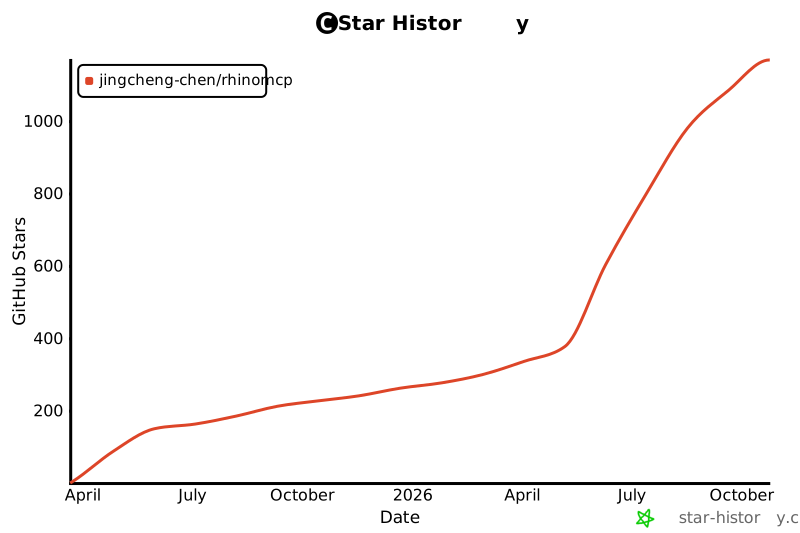](https://www.star-history.com/#jingcheng-chen/rhinomcp&Date)
- ### Modeling guidance distributed with the server
- The Python package includes reusable guidance for transforms, planar regions,
- organization, verification and recovery. Use `get_modeling_guidance("overview")`,
- the `asset_general_strategy` MCP prompt, or the `rhinomcp://guidance/{topic}` resource.
- Essential tool semantics stay in tool descriptions. No local experiment folder or
- separate skill is needed. See [packaged guidance](server/README.md#bundled-modeling-guidance)
- for available topics and release details.
Ratings and comments
Sign in to rate this skill.
Sign inFree to use. If it’s helped, pass it on.