opencli
Make Any Website into CLI & Use your logged-in browser by AI agent.
Safety scan
A static text scan, not a guarantee. Select the badge to see what was scanned and every finding.
Badge for your README

Markdown
[](/listings/jackwener--opencli)HTML
<a href="/listings/jackwener--opencli"><img src="/api/listings/jackwener--opencli/badge.svg" alt="findsafeskills safety rating" /></a>Install
Install instructions from the README
As written by the repo's author. findsafeskills has not verified these steps.
1. Install OpenCLI
For desktop use, start with **OpenCLIApp**. It bundles the OpenCLI runtime, keeps the managed `opencli` command installed, and gives you a system tray UI for setup, diagnostics, updates, browser-login keepalive, and Web → Markdown.
**Option A — OpenCLIApp (recommended for macOS / Windows):** Download the latest app from <https://opencli.info/download>, install it, then open the app once and use the System page to install or repair the `opencli` command.
**Option B — npm global install (CLI-only / CI / servers):** OpenCLI requires **Node.js >= 20.18.1** when installed through npm.
node --version
npm install -g @jackwener/opencli
2. Install the Browser Bridge Extension
OpenCLI connects to Chrome/Chromium through a lightweight Browser Bridge extension plus a small local daemon. The daemon auto-starts when needed.
**Option A — Chrome Web Store (recommended):** Install **OpenCLI** from the [Chrome Web Store](https://chromewebstore.google.com/detail/opencli/ildkmabpimmkaediidaifkhjpohdnifk).
**Option B — Manual install:** 1. Download the latest `opencli-extension-v{version}.zip` from the GitHub [Releases page](https://github.com/jackwener/opencli/releases). 2. Unzip it, open `chrome://extensions`, and enable **Developer mode**. 3. Click **Load unpacked** and select the unzipped folder.
3. Verify the setup
opencli doctor
4. Optional: name your Chrome profile
Each Chrome profile runs its own OpenCLI extension instance. If you use multiple Chrome profiles, list the connected profiles and assign local aliases:
opencli profile list
opencli profile rename <contextId> work
opencli profile use work
opencli --profile work browser main state
With only one connected profile, OpenCLI uses it automatically. With multiple connected profiles and no default, OpenCLI asks you to choose instead of guessing.
5. Run your first commands
opencli list
opencli hackernews top --limit 5
opencli bilibili hot --limit 5
What was scanned
The files the safety scan read, as written by the repository's author and shown as plain text. Lines with a finding are marked.
README.md · README · 350 lines
View this file on GitHub (read at the repository's current version: the scan did not record which commit it read)
This file has changed since it was scanned, so this is not exactly the text that was scanned, and no line is marked. The findings are listed with the safety scan above.
- # OpenCLI
- > **Convert any website into a CLI & run Browser Use on your logged-in Chrome.**
- > Turn websites and browser sessions into deterministic interfaces for humans and AI agents.
- > Or run Browser Use against any page — navigate, fill forms, click, extract, automate.
- [](./README.zh-CN.md)
- [](https://www.npmjs.com/package/@jackwener/opencli)
- [](https://chromewebstore.google.com/detail/opencli/ildkmabpimmkaediidaifkhjpohdnifk)
- [](https://nodejs.org)
- [](./LICENSE)
- OpenCLI is a **general-purpose browser automation CLI for AI agents** and an **agent-browser alternative**. Navigate, inspect, click, fill forms, extract, and screenshot websites without a site adapter. Built-in adapters add reusable, deterministic site commands. See [OpenCLI vs agent-browser and migration](./docs/guide/agent-browser-alternative.md).
- OpenCLI gives you one surface for three different kinds of automation:
- - **Use built-in adapters** for sites like Bilibili, Zhihu, Xiaohongshu, Reddit, HackerNews, Twitter/X, and [many more](#built-in-commands).
- - **Let AI Agents operate any website** — install the `opencli-browser` skill in your AI agent (Claude Code, Cursor, etc.), and it can navigate, click, type/fill, extract, and inspect any page through your logged-in browser via `opencli browser` primitives.
- - **Write new adapters** end-to-end with `opencli browser` + the `opencli-adapter-author` skill, which guides from first recon through field decoding, code, and `opencli adapter test`.
- ## Agent command contract
- Commands default to JSON: `{ "ok": true, "data": ... }`; failures return
- `{ "ok": false, "error": { "code": "...", "message": "...", "hint": "..." } }`
- on stdout with a nonzero exit code. Logs use stderr. Explicit human formats,
- help, version and completion retain their own formats; browser follow modes use JSON Lines.
- ```sh
- opencli list search --site github
- opencli browser open https://example.com --session research
- opencli browser network --static --session research
- opencli browser chrome describe
- opencli adapter check github/search
- ```
- `list` returns compact, paginated capabilities (`commands`, `total`, `nextOffset`);
- read arguments with `<command> --help -f json`. Page scope is `--session`, native
- Chrome calls need no session. Adapter authoring is grouped under `adapter init|check|test`.
- `state --diagnostics` and `network --static` replace `analyze` and `discover`.
- This changes CLI syntax and JSON output. JS adapters keep `cli({...})`,
- `func(args)` and `func(page, args)`; adapter `defaultFormat` no longer changes the CLI default.
- ## Quick Start
- ### 1. Install OpenCLI
- For desktop use, start with **OpenCLIApp**. It bundles the OpenCLI runtime,
- keeps the managed `opencli` command installed, and gives you a system tray UI
- for setup, diagnostics, updates, browser-login keepalive, and Web → Markdown.
- **Option A — OpenCLIApp (recommended for macOS / Windows):**
- Download the latest app from <https://opencli.info/download>, install it, then
- open the app once and use the System page to install or repair the `opencli`
- command.
- **Option B — npm global install (CLI-only / CI / servers):**
- OpenCLI requires **Node.js >= 20.18.1** when installed through npm.
- ```bash
- node --version
- npm install -g @jackwener/opencli
- ```
- ### 2. Install the Browser Bridge Extension
- OpenCLI connects to Chrome/Chromium through a lightweight Browser Bridge extension plus a small local daemon. The daemon auto-starts when needed.
- **Option A — Chrome Web Store (recommended):**
- Install **OpenCLI** from the [Chrome Web Store](https://chromewebstore.google.com/detail/opencli/ildkmabpimmkaediidaifkhjpohdnifk).
- **Option B — Manual install:**
- 1. Download the latest `opencli-extension-v{version}.zip` from the GitHub [Releases page](https://github.com/jackwener/opencli/releases).
- 2. Unzip it, open `chrome://extensions`, and enable **Developer mode**.
- 3. Click **Load unpacked** and select the unzipped folder.
- ### 3. Verify the setup
- ```bash
- opencli doctor
- ```
- ### 4. Optional: name your Chrome profile
- Each Chrome profile runs its own OpenCLI extension instance. If you use multiple Chrome profiles, list the connected profiles and assign local aliases:
- ```bash
- opencli profile list
- opencli profile rename <contextId> work
- opencli profile use work
- opencli --profile work browser main state
- ```
- With only one connected profile, OpenCLI uses it automatically. With multiple connected profiles and no default, OpenCLI asks you to choose instead of guessing.
- ### 5. Run your first commands
- ```bash
- opencli list
- opencli hackernews top --limit 5
- opencli bilibili hot --limit 5
- ```
- ## For Humans
- Use OpenCLI directly when you want a reliable command instead of a live browser session:
- - `opencli list` shows every registered command.
- - `opencli <site> <command>` runs a built-in or generated adapter.
- - `opencli doctor` helps diagnose browser connectivity.
- ## Extending OpenCLI
- If you want to add your own commands, start with the [Extending OpenCLI guide](./docs/guide/extending-opencli.md). README keeps this short; the guide covers the directory layout, source-control model, and install commands.
- | Need | Recommended path |
- |------|------------------|
- | Keep personal website commands in your own Git repo | `opencli plugin create` + `opencli plugin install file://...` |
- | Quickly draft a private local adapter | `opencli adapter init <site>/<command>` in `~/.opencli/clis/` |
- | Modify an official adapter locally | `opencli adapter eject <site>` + `opencli adapter reset <site>` |
- | Publish or install third-party commands | `opencli plugin install github:user/repo` |
- ### Close temporary browser tabs after use
- To remove temporary owned tabs when a workflow finishes:
- ```bash
- export OPENCLI_CLOSE_OWNED_TAB=1
- opencli web read --url https://example.com --stdout true
- # Multi-step browser sessions stay open between calls; close explicitly at the end:
- opencli browser close --session research
- ```
- This opts into closing only the current lease's owned tab. Chrome closes its
- window automatically if no tabs remain; existing user pages and other sessions
- are preserved. Bound tabs are detached and kept open. The default reusable
- container policy, idle expiry, `--keep-tab true`, and persistent site sessions
- remain unchanged. Use `--site-session ephemeral` for one-shot reads of adapters
- that otherwise keep a persistent site session.
- Cleanup uses a dedicated action, so older extensions reject it without releasing
- the lease, and requires an extension acknowledgement. If cleanup fails or the extension
- is too old, a warning reports it separately from the site action. Retry explicit
- browser cleanup, or close a remaining one-shot adapter tab manually; do not
- repeat a completed site write. Explicit `browser close` also exits
- with an error; a one-shot adapter can still return its already-completed result.
- ## For AI Agents
- OpenCLI's browser commands are designed to be used by AI Agents — not run manually. Install skills into your AI agent (Claude Code, Cursor, etc.), and the agent operates websites on your behalf using your logged-in Chrome session.
- ### Install skills (also refreshes existing installs)
- ```bash
- npx skills add jackwener/opencli
- ```
- Or install only what you need:
- ```bash
- npx skills add jackwener/opencli --skill opencli-adapter-author
- npx skills add jackwener/opencli --skill opencli-autofix
- npx skills add jackwener/opencli --skill opencli-browser
- npx skills add jackwener/opencli --skill opencli-usage
- ```
- OpenCLI no longer ships the sitemap skills. Older `opencli-sitemap-author` and
- `opencli-browser-sitemap` copies may remain in an agent's separate skills directory after an
- upgrade. If they remain, use the agent's removal flow if available; otherwise remove only those two
- directories (for example, `~/.agents/skills/opencli-sitemap-author`). The location varies by agent;
- keep the rest of the skills directory.
- ### Which skill to use
- | Skill | When to use | Example prompt to your AI agent |
- |-------|------------|-------------------------------|
- | **opencli-adapter-author** | Write a reusable adapter for a new site or add a command to an existing site | "Write an adapter for douyin trending" / "Make a command that grabs the top posts from this page" |
- | **opencli-autofix** | Repair a broken adapter when a built-in command fails | "`opencli zhihu hot` is returning empty — fix it" |
- | **opencli-browser** | Drive a real Chrome page ad-hoc — navigate, fill forms, click, extract | "Help me check my Xiaohongshu notifications" / "Help me fill out this form" / "Use browser commands to scrape this page" |
- | **opencli-usage** | Quick reference for all OpenCLI commands and sites | "What commands does OpenCLI have for Twitter?" |
- ### How it works
- Once `opencli-browser` is installed, your AI agent can:
- 1. **Navigate** to any URL using your logged-in browser
- 2. **Read** page content via structured DOM snapshots (not screenshots)
- 3. **Interact** — click buttons, fill forms, select options, press keys
- 4. **Extract** data from the page or intercept network API responses
- 5. **Wait** for elements, text, or page transitions
- The agent handles all the `opencli browser` commands internally — you just describe what you want done in natural language.
- **Skill references:**
- - [`skills/opencli-browser/SKILL.md`](./skills/opencli-browser/SKILL.md) — drive Chrome ad-hoc (navigate, fill forms, click, extract)
- - [`skills/opencli-adapter-author/SKILL.md`](./skills/opencli-adapter-author/SKILL.md) — write a new adapter end-to-end
- - [`skills/opencli-autofix/SKILL.md`](./skills/opencli-autofix/SKILL.md) — repair broken adapters
- - [`skills/opencli-usage/SKILL.md`](./skills/opencli-usage/SKILL.md) — command and site reference
- Available browser commands include `open`, `state`, `click`, `type`, `fill`, `select`, `keys`, `wait`, `get`, `find`, `extract`, `frames`, `screenshot`, `scroll`, `back`, `eval`, `network`, `tab list`, `tab new`, `tab select`, `tab close`, `chrome describe`, `chrome call`, and `close`.
- `opencli browser` commands require a `--session <name>` option for page operations. `opencli browser --session work open <url>` and `opencli browser --session work tab new [url]` both return a target ID. Use `opencli browser --session work tab list` to inspect target IDs, then pass `--tab <targetId>` to route a command to a specific tab. `tab new` creates a new tab without changing the default browser target; only `tab select <targetId>` promotes that tab to the default target for later untargeted commands in the same session.
- ## Writing a new adapter
- When the site you need is not yet covered, use the `opencli-adapter-author` skill end-to-end:
- 1. **Recon** the site and pick a pattern (SPA / SSR / JSONP / Token / Streaming).
- 2. **Discover** the right endpoint — network inspection, initial state, bundle search, token trace, or interceptor fallback.
- 3. **Pick auth** — `PUBLIC` / `COOKIE` / `INTERCEPT` / `UI` / `LOCAL`.
- 4. **Decode** response fields and design output columns.
- 5. `opencli browser recon analyze <url>` → `opencli browser recon init <site>/<name>` → write adapter → `opencli browser recon verify <site>/<name>`.
- 6. Site knowledge persists to `~/.opencli/sites/<site>/` so the next adapter for the same site starts from context.
- ## Configuration
- | Variable | Default | Description |
- |----------|---------|-------------|
- | `OPENCLI_PROFILE` | — | Browser Bridge profile alias/contextId to use when multiple Chrome profiles are connected |
- | `OPENCLI_WINDOW` | command default | Set to `foreground` or `background` to override Browser Bridge window placement. Browser-backed commands also accept `--window <foreground\|background>`. |
- | `OPENCLI_SITE_SESSION` | adapter default | Set to `ephemeral` or `persistent` to override `siteSession` metadata for browser-backed adapter commands. `ephemeral` releases the one-shot tab when the command finishes, and the automation window stays open as a reusable container; `persistent` reuses the site's session. Per-command `--site-session` takes precedence. |
- | `OPENCLI_CLOSE_OWNED_TAB` | `0` | Set to `1` to close the current owned tab on explicit session close or one-shot adapter cleanup instead of keeping a blank placeholder. Requires a supporting Browser Bridge extension. |
- | `OPENCLI_SITE_SLOTS` | — | Pool sites onto warm persistent tabs, e.g. `xiaohongshu:1:1500-3000,weibo:2` (`site:poolSize[:minMs[-maxMs]]`). Each command run borrows one slot tab exclusively (reads included) and queues when all are busy; the optional interval spaces runs by a jittered delay. Tabs share one automation window and only its active tab renders, so with `poolSize` > 1 render-dependent commands (lazy-loaded lists) can stall on background slots — use `1` for those and for risk-controlled sites. `--site-session ephemeral` opts one invocation out. |
- | `OPENCLI_BROWSER_CONNECT_TIMEOUT` | `45` | Seconds to wait for browser connection |
- | `OPENCLI_BROWSER_COMMAND_TIMEOUT` | `60` | Seconds to wait for a single browser command |
- | `OPENCLI_BROWSER_IDLE_TIMEOUT` | extension default | Owned session idle timeout in seconds; per-command `idleTimeout` takes precedence. Does not extend explicit cleanup: ephemeral adapters normally release their tab at command completion. Bound tabs and persistent adapter sessions ignore idle timeouts. Releasing a session keeps its reusable window container open. |
- | `OPENCLI_CDP_ENDPOINT` | — | Chrome DevTools Protocol endpoint for remote browsers |
- | `OPENCLI_CDP_TARGET` | — | Filter CDP targets by URL substring (e.g. `detail.1688.com`) |
- | `OPENCLI_VERBOSE` | `false` | Enable verbose logging (`-v` flag also works) |
- | `DEBUG_SNAPSHOT` | — | Set to `1` for DOM snapshot debug output |
- `opencli browser *` requires an explicit `--session <name>` option for page operations, uses a foreground browser window by default, and keeps that session's tab lease until `opencli browser --session <session> close` or idle cleanup. Browser-backed adapters use a background adapter window and release one-shot tab leases by default. Interactive adapters can declare `siteSession: 'persistent'` to keep a stable site tab for continuity; pass `--site-session ephemeral` for a one-shot tab.
- ## Built-in Commands
- | Site | Commands |
- |------|----------|
- | **xiaohongshu** | `search` `ask` `note` `comments` `feed` `user` `download` `publish` `follow` `unfollow` `notifications` `creator-notes` `creator-notes-summary` `creator-note-detail` `creator-profile` `creator-stats` |
- | **bilibili** | `hot` `search` `history` `feed` `ranking` `download` `comments` `dynamic` `favorite` `following` `follow` `unfollow` `me` `subtitle` `summary` `video` `user-videos` `creator-stats` |
- | **zhihu** | `hot` `search` `question` `download` `follow` `like` `favorite` `comment` `answer` |
- | **hackernews** | `top` `new` `best` `ask` `show` `jobs` `search` `user` |
- | **hltv** | `search` `player-summary` `player-matches` `player-form` `player-map-pool` `player-vs-team` `player-teammate-impact` `player-duel` `match-map` `match-series` `team-matches` `team-map-pool` `event-matches` |
- | **geogebra** | `eval` `add-point` `add-line` `add-circle` `add-polygon` `triangle` `hexagon` `list` `info` |
- | **linkedin** | `connect` `inbox` `job-detail` `jobs-preferences` `post-analytics` `posts` `profile-experience` `profile-projects` `profile-read` `profile-analytics` `safe-send` `search` `services-read` `sent-invitations` `thread-snapshot` `timeline` `salesnav-search` `salesnav-inbox` `salesnav-message` `salesnav-thread` |
- | **reddit** | `hot` `frontpage` `popular` `search` `subreddit` `read` `user` `user-posts` `user-comments` `upvote` `upvoted` `save` `saved` `comment` `subscribe` |
- | **twitter** | `trending` `search` `timeline` `tweets` `lists` `list-tweets` `list-create` `list-delete` `list-add` `list-add-batch` `list-remove` `list-remove-batch` `bookmarks` `post` `download` `profile` `article` `like` `likes` `notifications` `reply` `reply-dm` `thread` `follow` `unfollow` `followers` `following` `block` `unblock` `bookmark` `unbookmark` `delete` `hide-reply` `accept` |
- | **claude** | `ask` `send` `new` `status` `read` `history` `detail` |
- | **gemini** | `new` `ask` `image` `deep-research` `deep-research-result` |
- | **notebooklm** | `status` `list` `open` `current` `get` `history` `summary` `note-list` `notes-get` `source-list` `source-get` `source-fulltext` `source-guide` |
- | **amazon** | `bestsellers` `search` `product` `offer` `discussion` `movers-shakers` `new-releases` `rankings` |
- | **upwork** | `search` `feed` `detail` |
- | **slock** | `message-send` `message-read` `message-search` `channel-list` `channel-info` `channel-create` `channel-members` `channel-join` `task-list` `task-create` `task-claim` `task-status` `task-convert` `task-delete` `thread-list` `thread-follow` `attachment-upload` `attachment-download` `bookmark-add` `inbox` `dm-list` `server-list` `server-use` `whoami` |
- | **huodongxing** | `events` |
- | **midjourney** | `login` `whoami` `settings` `quota` `generate` `describe` `history` `status` `action` `download` |
- Curated highlights — **[→ see all 100+ supported sites & commands](./docs/adapters/index.md)** (douyin / weibo / spotify / 1688 / quark / nowcoder / google-scholar / hupu / xianyu / weread / weread-official / xiaoyuzhou / Chess.com / and more).
- ## Download Support
- OpenCLI supports downloading images, videos, and articles from supported platforms.
- | Platform | Content Types | Notes |
- |----------|---------------|-------|
- | **xiaohongshu** | Images, Videos | Downloads all media from a note |
- | **rednote** | Images, Videos | Downloads all media from a signed rednote note URL |
- | **bilibili** | Videos | Requires `yt-dlp` installed |
- | **twitter** | Images, Videos | From user media tab or single tweet |
- | **douban** | Images | Poster / still image lists |
- | **pixiv** | Images | Original-quality illustrations, multi-page |
- | **1688** | Images, Videos | Downloads page-visible product media from item pages |
- | **xiaoyuzhou** | Audio, Transcript | Downloads episode audio and transcript JSON/text with local credentials |
- | **zhihu** | Column articles, answers (Markdown) | Exports with optional image download |
- | **weixin** | Articles (Markdown) | WeChat Official Account articles |
- For video downloads, install `yt-dlp` first: `brew install yt-dlp`
- ```bash
- opencli xiaohongshu download "https://www.xiaohongshu.com/search_result/<id>?xsec_token=..." --output ./xhs
- opencli xiaohongshu download "https://xhslink.com/..." --output ./xhs
- opencli rednote download "https://www.rednote.com/search_result/<id>?xsec_token=..." --output ./rednote
- opencli bilibili download BV1xxx --output ./bilibili
- opencli twitter download elonmusk --limit 20 --output ./twitter
- opencli 1688 download 841141931191 --output ./1688-downloads
- opencli xiaoyuzhou download 69b3b675772ac2295bfc01d0 --output ./xiaoyuzhou
- opencli xiaoyuzhou transcript 69dd0c98e2c8be31551f6a33 --output ./xiaoyuzhou-transcripts
- ```
- `opencli xiaoyuzhou download` and `transcript` require local Xiaoyuzhou credentials in `~/.opencli/xiaoyuzhou.json`.
- ## Output Formats
- All built-in commands support `--format` / `-f` with `json` (default), `table`, `yaml`, `md`, and `csv`.
- ```bash
- opencli bilibili hot -f json # Pipe to jq or LLMs
- opencli bilibili hot -f csv # Spreadsheet-friendly
- opencli bilibili hot -v # Verbose: show pipeline debug steps
- ```
- ## Exit Codes
- opencli follows Unix `sysexits.h` so CI / scripts can branch on failure mode: `0` success, `66` empty result, `69` Browser Bridge down, `75` timeout, `77` auth required, `78` config error, `130` Ctrl-C. Full reference: [docs/guide/exit-codes.md](./docs/guide/exit-codes.md).
- ## Plugins
- Extend OpenCLI with community-contributed adapters:
- ```bash
- opencli plugin install github:user/opencli-plugin-my-tool
- opencli plugin list
- opencli plugin update --all
- opencli plugin uninstall my-tool
- ```
- Albato, Goofish and Taobao use local adapter-subdirectory installation; see the [installation notes](./docs/guide/plugins.md#community-adapter-bundles).
- | Plugin | Type | Description |
- |--------|------|-------------|
- | [opencli-plugin-albato](https://github.com/vecyang1/opencli-plugin-albato) | JS | Albato automation workflow management: scenario inspection, start/pause, failure diagnosis, and retry |
- | [opencli-plugin-amap](https://github.com/vecyang1/opencli-plugin-amap) | JS | AutoNavi / 高德地图 spot & route extraction, coordinate decoders (GCJ-02 & WGS-84), and SSR search |
- | [opencli-plugin-github-trending](https://github.com/ByteYue/opencli-plugin-github-trending) | JS | GitHub Trending repositories |
- | [opencli-plugin-goofish](https://github.com/vecyang1/opencli-plugin-goofish) | JS | Goofish / 闲鱼 buyer orders, favorites, IM chat, profile, item search, and fulfillment stats |
- | [opencli-plugin-hot-digest](https://github.com/ByteYue/opencli-plugin-hot-digest) | JS | Multi-platform trending aggregator |
- | [opencli-plugin-juejin](https://github.com/Astro-Han/opencli-plugin-juejin) | JS | 稀土掘金 (Juejin) hot articles |
- | [opencli-plugin-taobao](https://github.com/vecyang1/opencli-plugin-taobao) | JS | Taobao buyer chat history, order history, bought shops, favorites, and keyword-based chat summaries |
- | [opencli-plugin-vk](https://github.com/flobo3/opencli-plugin-vk) | JS | VK (VKontakte) wall, feed, and search |
- | [opencli-plugin-x-article-publisher](https://github.com/genoooool/opencli-plugin-x-article-publisher) | JS | Publish Markdown with local images as X long-form Articles via OpenCLI and xPoster |
- See [Plugins Guide](./docs/guide/plugins.md) for creating your own plugin.
- ## Testing
- See **[TESTING.md](./TESTING.md)** for how to run and write tests.
- ## Troubleshooting
- - **"Extension not connected"** — Ensure the Browser Bridge extension is installed from the [Chrome Web Store](https://chromewebstore.google.com/detail/opencli/ildkmabpimmkaediidaifkhjpohdnifk) and **enabled** in `chrome://extensions`.
- - **"attach failed: Cannot access a chrome-extension:// URL"** — Another extension may be interfering. Try disabling other extensions temporarily.
- - **Empty data or 'Unauthorized' error** — Your Chrome/Chromium login session may have expired. Navigate to the target site and log in again.
- - **Node API errors / missing `fetch` / startup crash on old Node** — OpenCLI requires **Node.js >= 20.18.1**. Run `node --version`, upgrade Node if needed, then retry.
- - **Daemon issues** — Check status: `curl localhost:19825/status` · View logs: `curl localhost:19825/logs`
- ## Star History
- [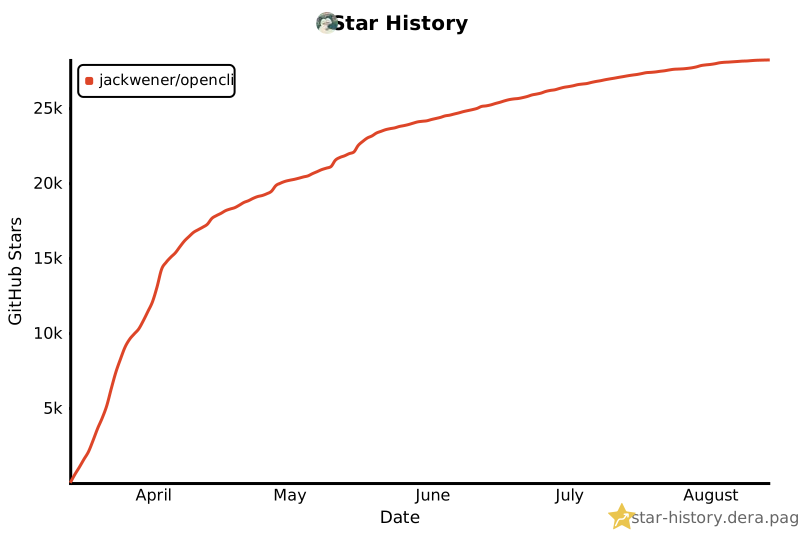](https://star-history.dera.page/#jackwener/opencli&Date)
- ## License
- [Apache-2.0](./LICENSE)
Ratings and comments
Sign in to rate this skill.
Sign inFree to use. If it’s helped, pass it on.