stata-mcp
Stata MCP Extension for VS Code, Cursor, and Antigravity IDE
Safety scan
A static text scan, not a guarantee. Select the badge to see what was scanned and every finding.
Badge for your README

Markdown
[](/listings/hanlulong--stata-mcp)HTML
<a href="/listings/hanlulong--stata-mcp"><img src="/api/listings/hanlulong--stata-mcp/badge.svg" alt="findsafeskills safety rating" /></a>Install
Install instructions from the README
As written by the repo's author. findsafeskills has not verified these steps.
> **Note:** Initial installation requires setting up dependencies which may take up to 2 minutes to complete. Please be patient during this one-time setup process. All subsequent runs will start instantly.
1. Open **VS Code**, **Cursor**, or **Antigravity** 2. Open the Extensions view (`Ctrl+Shift+X` / `Cmd+Shift+X`) 3. Search for **"Stata MCP"** 4. Click **Install**
That's it — the extension auto-starts the MCP server and appears in the status bar as **"Stata"**.
<details> <summary><strong>Other installation methods</strong> — CLI, .vsix file, Open VSX</summary>
From the command line
# VS Code
code --install-extension DeepEcon.stata-mcp

# Cursor
cursor --install-extension DeepEcon.stata-mcp

# Antigravity (installs from Open VSX Registry)
antigravity --install-extension DeepEcon.stata-mcp
From a local .vsix file
Download `stata-mcp-<version>.vsix` from the [releases page](https://github.com/hanlulong/stata-mcp/releases), then either:
code        --install-extension path/to/stata-mcp-0.5.3.vsix
cursor      --install-extension path/to/stata-mcp-0.5.3.vsix
antigravity --install-extension path/to/stata-mcp-0.5.3.vsix
…or in the UI: Extensions view → **…** menu → **Install from VSIX…** → pick the downloaded file.
Registries
- VS Code Marketplace: <https://marketplace.visualstudio.com/items?itemName=DeepEcon.stata-mcp> - Open VSX (Cursor / Antigravity): <https://open-vsx.org/extension/DeepEcon/stata-mcp>
</details>
Starting with version 0.1.8, the extension integrates a fast Python package installer called `uv` to set up the environment. If uv is not found on your system, the extension will attempt to install it automatically.
What was scanned
The files the safety scan read, as written by the repository's author and shown as plain text. Lines with a finding are marked.
README.md · README · 601 lines
View this file on GitHub (read at the repository's current version: the scan did not record which commit it read)
This file has changed since it was scanned, so this is not exactly the text that was scanned, and no line is marked. The findings are listed with the safety scan above.
- # Stata MCP Extension for VS Code, Cursor, and Antigravity
- [](./README.md)
- [](./README.zh-CN.md)
- [](https://marketplace.visualstudio.com/items?itemName=DeepEcon.stata-mcp)
- [](https://marketplace.visualstudio.com/items?itemName=DeepEcon.stata-mcp)
- [](https://open-vsx.org/extension/DeepEcon/stata-mcp)
- [](https://open-vsx.org/extension/DeepEcon/stata-mcp)
- [](https://github.com/hanlulong/stata-mcp/releases)
- [](https://github.com/hanlulong/stata-mcp/blob/main/LICENSE)
- This extension provides Stata integration for Visual Studio Code, Cursor, and Antigravity IDE using the [Model Context Protocol (MCP)](https://modelcontextprotocol.io/docs/getting-started/intro). It enables AI-powered Stata development with [GitHub Copilot](https://github.com/features/copilot), [Cursor](https://www.cursor.com/), [Antigravity](https://antigravity.google/), [Cline](https://github.com/cline/cline), [Claude Code](https://claude.com/product/claude-code), or [Codex](https://github.com/openai/codex).
- ## Features
- - **Run Stata Commands**: Execute selections or entire .do files directly from your editor
- - **Real-time Output**: See Stata results instantly in your editor
- - **Syntax Highlighting**: Full syntax support for Stata .do, .ado, .mata, and .doh files
- - **AI Assistant Integration**: Contextual help and code suggestions via MCP
- - **Cross-platform**: Works on Windows, macOS, and Linux
- - **Multi-Session Parallel Execution**: Run multiple Stata sessions simultaneously with AI coding tools
- ## Demo
- Watch how this extension enhances your Stata workflow with Cursor (or VS Code/Antigravity) and AI assistance:
- 
- **[🎬 Full Video Version](https://github.com/hanlulong/stata-mcp/raw/main/images/demo.mp4)** | **[📄 View Generated PDF Report](docs/examples/auto_report.pdf)**
- <sub>*Demo prompt: "Write and execute Stata do-files, ensuring that full absolute file paths are used in all cases. Load the auto dataset (webuse auto) and generate summary statistics for each variable. Identify and extract key features from the dataset, produce relevant plots, and save them in a folder named plots. Conduct a regression analysis to examine the main determinants of car prices. Export all outputs to a LaTeX file and compile it. Address any compilation errors automatically, and ensure that LaTeX compilation does not exceed 10 seconds. All code errors should be identified and resolved as part of the workflow."*</sub>
- ## Requirements
- - Stata 17 or higher installed on your machine
- - [UV](https://github.com/astral-sh/uv) package manager (automatically installed or can be installed manually if needed)
- ## Installation
- > **Note:** Initial installation requires setting up dependencies which may take up to 2 minutes to complete. Please be patient during this one-time setup process. All subsequent runs will start instantly.
- 1. Open **VS Code**, **Cursor**, or **Antigravity**
- 2. Open the Extensions view (`Ctrl+Shift+X` / `Cmd+Shift+X`)
- 3. Search for **"Stata MCP"**
- 4. Click **Install**
- That's it — the extension auto-starts the MCP server and appears in the status bar as **"Stata"**.
- <details>
- <summary><strong>Other installation methods</strong> — CLI, .vsix file, Open VSX</summary>
- #### From the command line
- ```bash
- # VS Code
- code --install-extension DeepEcon.stata-mcp
- # Cursor
- cursor --install-extension DeepEcon.stata-mcp
- # Antigravity (installs from Open VSX Registry)
- antigravity --install-extension DeepEcon.stata-mcp
- ```
- #### From a local .vsix file
- Download `stata-mcp-<version>.vsix` from the [releases page](https://github.com/hanlulong/stata-mcp/releases), then either:
- ```bash
- code --install-extension path/to/stata-mcp-0.5.3.vsix
- cursor --install-extension path/to/stata-mcp-0.5.3.vsix
- antigravity --install-extension path/to/stata-mcp-0.5.3.vsix
- ```
- …or in the UI: Extensions view → **…** menu → **Install from VSIX…** → pick the downloaded file.
- #### Registries
- - VS Code Marketplace: <https://marketplace.visualstudio.com/items?itemName=DeepEcon.stata-mcp>
- - Open VSX (Cursor / Antigravity): <https://open-vsx.org/extension/DeepEcon/stata-mcp>
- </details>
- Starting with version 0.1.8, the extension integrates a fast Python package installer called `uv` to set up the environment. If uv is not found on your system, the extension will attempt to install it automatically.
- ## ⚡ Connect Your AI Assistant
- Once the extension is running (status bar shows **"Stata"**), the local MCP server is listening on:
- - **`http://localhost:4000/mcp-streamable`** — Streamable HTTP (preferred for modern clients)
- - `http://localhost:4000/mcp` — SSE (legacy fallback)
- Quick health check: `curl -s http://localhost:4000/health` should print a response that includes `"status": "ok"` and `"stata_available": true`. If `stata_available` is `false`, the server is up but Stata failed to load: check the **Stata** output channel (View > Output > Stata).
- ### 📋 One-prompt setup
- Paste the block below into any MCP-aware assistant — **Claude Code**, **OpenAI Codex**, **Cursor AI**, **Copilot Chat**, etc. Hover the box on GitHub and click the copy icon in the top-right corner.
- ```text
- Set up the Stata MCP server for me. Endpoint: http://localhost:4000/mcp-streamable — setup guide: https://github.com/hanlulong/stata-mcp#detailed-configurations — if I already have a stata-mcp entry in my MCP config (e.g. using mcp-proxy), replace it rather than appending. When registration succeeds, tell me to restart the client so the stata_run_selection tool becomes available.
- ```
- The assistant reads the guide, detects which client it is, writes the right config (or runs the right CLI command), and tells you to restart. The `stata_run_selection` tool becomes visible after the restart — MCP tool lists do not refresh mid-session.
- Prefer manual setup? Expand **Detailed Configurations** below for per-client instructions.
- ## Usage
- ### Running Stata Code
- 1. Open a Stata .do file
- 2. Run commands using:
- - **Run Selection**: Select Stata code and press `Ctrl+Shift+Enter` (or `Cmd+Shift+Enter` on Mac), or click the play button in the editor toolbar
- - **Run File**: Press `Ctrl+Shift+D` (or `Cmd+Shift+D` on Mac) to run the entire .do file, or click the run-all button in the toolbar
- - **Stop Execution**: Press `Ctrl+Shift+C` (or `Cmd+Shift+C` on Mac) to stop a running command
- - **Restart Session**: Click the restart button in the editor toolbar or use the Command Palette ("Stata: Restart Session") to reset the Stata session. This clears all in-memory data, globals, and programs — equivalent to closing and reopening Stata
- - **Interactive Mode**: Click the graph button in the editor toolbar to run code in an interactive window, shown in a panel (or in your browser, per `stata-vscode.interactiveDisplayMode`)
- 3. View output in the Stata Output panel
- > **Note for Cursor/Antigravity Users**: Toolbar buttons may be hidden by default. To show them:
- > 1. Click the **...** (three dots) menu in the editor title bar
- > 2. Select **"Configure Icon Visibility"**
- > 3. Enable the Stata buttons you want to see (Run Selection, Run File, Stop, View Data, Restart Session, Interactive)
- ### Data Viewer
- Access the data viewer to inspect your Stata dataset:
- 1. Click the **View Data** button (fourth button, table icon) in the editor toolbar
- 2. View your current dataset in a table format
- 3. **Filter data**: Use Stata `if` conditions to view subsets of your data
- - Example: `price > 5000 & mpg < 30`
- - Type your condition in the filter box and click "Apply"
- - Click "Clear" to remove the filter and view all data
- ### Graph Display Options
- Control how graphs are displayed:
- 1. **Auto-display graphs**: Graphs are automatically shown when generated (default: enabled)
- - Disable in Extension Settings: `stata-vscode.autoDisplayGraphs`
- 2. **Choose display method**:
- - **VS Code webview** (default): Graphs appear in a panel within VS Code
- - **External browser**: Graphs open in your default web browser
- - Change in Extension Settings: `stata-vscode.graphDisplayMethod`
- ## Detailed Configurations
- <details>
- <summary><strong>Extension Settings</strong></summary>
- Customize the extension behavior through VS Code settings. Access these settings via:
- - **VS Code/Cursor/Antigravity**: File > Preferences > Settings (or `Ctrl+,` / `Cmd+,`)
- - Search for "Stata MCP" to find all extension settings
- ### Core Settings
- | Setting | Description | Default |
- |---------|-------------|---------|
- | `stata-vscode.stataPath` | Path to Stata installation directory | Auto-detected |
- | `stata-vscode.stataEdition` | Stata edition to use (MP, SE, BE) | `mp` |
- | `stata-vscode.autoStartServer` | Automatically start MCP server when extension activates | `true` |
- | `stata-vscode.alwaysShowStatusBar` | Always show the Stata status bar item, even when not editing a Stata file | `true` |
- ### Server Settings
- | Setting | Description | Default |
- |---------|-------------|---------|
- | `stata-vscode.mcpServerHost` | Host for MCP server | `localhost` |
- | `stata-vscode.mcpServerPort` | Port for the MCP server | `4000` |
- | `stata-vscode.forcePort` | Force the specified port even if it's already in use | `false` |
- **Keep `mcpServerHost` set to `localhost`.** `0.0.0.0` exposes an unauthenticated server that runs Stata code (including shell commands) to your network. On shared multi-user machines (for example HPC login nodes over Remote-SSH), other users of that machine can also reach `localhost:4000`, so turn `stata-vscode.autoStartServer` off there.
- ### Graph Settings
- | Setting | Description | Default |
- |---------|-------------|---------|
- | `stata-vscode.autoDisplayGraphs` | Automatically display graphs when generated by Stata commands | `true` |
- | `stata-vscode.graphDisplayMethod` | Choose how to display graphs: `vscode` (webview panel) or `browser` (external browser) | `vscode` |
- | `stata-vscode.interactiveDisplayMode` | Where the Interactive Window opens: `panel` (webview panel) or `browser` (external browser) | `panel` |
- ### Log File Settings
- | Setting | Description | Default |
- |---------|-------------|---------|
- | `stata-vscode.logFileLocation` | Location for Stata log files: `dofile` (same directory as .do file), `parent` (parent directory of .do file), `workspace` (VS Code workspace root), `extension` (logs folder in extension directory), or `custom` (user-specified directory) | `extension` |
- | `stata-vscode.customLogDirectory` | Custom directory for Stata log files (only used when logFileLocation is set to `custom`) | Empty |
- ### Advanced Settings
- | Setting | Description | Default |
- |---------|-------------|---------|
- | `stata-vscode.runFileTimeout` | Timeout in seconds for 'Run File' operations | `600` (10 minutes) |
- | `stata-vscode.runSelectionTimeout` | Timeout in seconds for 'Run Selection' and interactive window commands | `600` (10 minutes) |
- | `stata-vscode.debugMode` | Show detailed debug information in output panel | `false` |
- | `stata-vscode.dataViewerMaxRows` | Maximum number of rows the Data Viewer loads (100-500000) | `100000` |
- ### Working Directory Settings
- Control which directory Stata uses when running .do files:
- | Setting | Description | Default |
- |---------|-------------|---------|
- | `stata-vscode.workingDirectory` | Working directory when running .do files: `dofile` (same as .do file), `parent` (parent directory of .do file), `workspace` (VS Code workspace root), `extension` (logs folder in extension directory), `custom` (user-specified), or `none` (don't change directory) | `dofile` |
- | `stata-vscode.customWorkingDirectory` | Custom working directory path (only used when workingDirectory is set to `custom`) | Empty |
- **Example:** If your project structure is `project/code/analysis.do` and your do-file expects to run from `project/`, set `workingDirectory` to `parent`.
- ### MCP Output Settings
- These settings control how Stata output is returned to AI assistants (LLMs) via the MCP protocol, helping to reduce token usage:
- | Setting | Description | Default |
- |---------|-------------|---------|
- | `stata-vscode.resultDisplayMode` | Output mode for MCP returns: `compact` (filters redundant output to save tokens) or `full` (returns complete output) | `compact` |
- | `stata-vscode.maxOutputTokens` | Maximum tokens for MCP output (0 = unlimited). Large outputs are saved to file with a path returned instead | `10000` |
- **Compact mode filters:**
- - Loop code echoes (foreach/forvalues/while blocks) - keeps actual output only
- - Program definitions and Mata blocks
- - Command echoes and line continuations (for `run_file` only)
- - Verbose messages like "(N real changes made)" and "(N missing values generated)"
- ### Multi-Session Settings
- Enable parallel Stata execution with isolated sessions. Each session has its own data, variables, and macros.
- | Setting | Description | Default |
- |---------|-------------|---------|
- | `stata-vscode.multiSession` | Enable multi-session mode for parallel Stata execution | `true` |
- | `stata-vscode.maxSessions` | Maximum number of concurrent sessions (1-100) | `100` |
- | `stata-vscode.sessionTimeout` | Session idle timeout in seconds. Sessions are automatically destroyed after this period of inactivity | `3600` |
- **Note:** Each session requires ~200-300 MB RAM for Stata. Check your Stata license for concurrent instance limits.
- <br>
- </details>
- <details>
- <summary><strong>GitHub Copilot</strong></summary>
- [GitHub Copilot](https://github.com/features/copilot) supports MCP (Model Context Protocol) starting from VS Code 1.102. You can connect the Stata MCP server to Copilot for AI-powered Stata development.
- ### Configuration
- 1. **Install the Stata MCP extension** in VS Code (see [Installation](#installation) section above)
- 2. **Start the Stata MCP server**: The server should start automatically when you open VS Code with the extension installed. Verify it's running by checking the status bar (should show "Stata").
- 3. **Add the Stata MCP server to Copilot**: You can configure MCP servers either per-workspace or globally.
- **Option A: Per-Workspace Configuration**
- Create a `.vscode/mcp.json` file in your workspace root:
- ```json
- {
- "servers": {
- "stata-mcp": {
- "type": "http",
- "url": "http://localhost:4000/mcp-streamable"
- }
- }
- }
- ```
- **Option B: Global Configuration (All Workspaces)**
- 1. Open Command Palette (Ctrl+Shift+P / Cmd+Shift+P)
- 2. Type **"MCP: Open User Configuration"** and select it
- 3. Add the Stata MCP server to the `mcp.json` file:
- ```json
- {
- "servers": {
- "stata-mcp": {
- "type": "http",
- "url": "http://localhost:4000/mcp-streamable"
- }
- }
- }
- ```
- > On older VS Code versions without Streamable HTTP support, use `"type": "sse"` with `http://localhost:4000/mcp` instead.
- The user-level `mcp.json` file is located at:
- - **Windows**: `%APPDATA%\Code\User\mcp.json`
- - **macOS**: `~/Library/Application Support/Code/User/mcp.json`
- - **Linux**: `~/.config/Code/User/mcp.json`
- 4. **Reload VS Code** to apply the configuration.
- 5. GitHub Copilot will now have access to Stata tools and can help you:
- - Write and execute Stata commands
- - Analyze your data
- - Generate visualizations
- - Debug Stata code
- - Create statistical reports
- ### Verifying the Connection
- 1. Open GitHub Copilot Chat (Ctrl+Shift+I / Cmd+Shift+I)
- 2. Open **Configure Tools** in the chat input
- 3. Check that stata-mcp's tools (`stata_run_selection`, `stata_run_file`, and `stata_session` over Streamable HTTP) are listed
- ### Troubleshooting
- If Copilot is not recognizing the Stata MCP server:
- 1. Verify VS Code version 1.102 or later
- 2. Verify the MCP server is running (Status bar should show "Stata")
- 3. Check that `.vscode/mcp.json` exists with the correct content
- 4. Try restarting VS Code
- 5. Check the extension output panel (View > Output > Stata) for any errors
- 6. Ensure MCP is enabled in your organization's Copilot policy (if applicable)
- <br>
- </details>
- <details>
- <summary><strong>Claude Code</strong></summary>
- [Claude Code](https://claude.com/product/claude-code) is Anthropic's official AI coding assistant available in VS Code, Cursor, and Antigravity. Follow these steps to configure the Stata MCP server:
- ### Installation
- 1. **Install the Stata MCP extension** in VS Code, Cursor, or Antigravity (see [Installation](#installation) section above)
- 2. **Start the Stata MCP server**: The server should start automatically when you open your IDE with the extension installed. Verify it's running by checking the status bar (should show "Stata").
- ### Configuration
- Once the Stata MCP server is running, configure Claude Code to connect to it:
- 1. Open your terminal or command palette
- 2. Run the following command to add the Stata MCP server:
- ```bash
- claude mcp add --transport http stata-mcp http://localhost:4000/mcp-streamable --scope user
- ```
- > Claude Code versions older than 1.0.27 (June 2025) may not recognize `--transport http`. On those, use `--transport sse` with `http://localhost:4000/mcp` instead. Claude Code now treats SSE as legacy — prefer `http` whenever it is supported.
- 3. Restart your IDE
- 4. Claude Code will now have access to Stata tools and can help you:
- - Write and execute Stata commands
- - Analyze your data
- - Generate visualizations
- - Debug Stata code
- - Create statistical reports
- ### Verifying the Connection
- To verify Claude Code is properly connected to the Stata MCP server:
- 1. Open a Stata .do file or create a new one
- 2. Ask Claude Code to help with a Stata task (e.g., "Load the auto dataset and show summary statistics")
- 3. Claude Code should be able to execute Stata commands and show results
- ### Troubleshooting
- If Claude Code is not recognizing the Stata MCP server:
- 1. Verify the MCP server is running (Status bar should show "Stata")
- 2. Check that you ran the `claude mcp add` command with the correct URL
- 3. Try restarting your IDE
- 4. Check the extension output panel (View > Output > Stata) for any errors
- 5. Ensure there are no port conflicts (default port is 4000)
- <br>
- </details>
- <details>
- <summary><strong>Claude Desktop</strong></summary>
- [Claude Desktop](https://claude.ai/download) can use the extension's local MCP server through `claude_desktop_config.json`. Make sure the Stata MCP extension is installed and its status bar shows **"Stata"** before configuring Claude Desktop.
- Claude Desktop's JSON config doesn't accept remote URLs directly, so you need a local stdio wrapper. The easiest is [`mcp-remote`](https://www.npmjs.com/package/mcp-remote), which runs through `npx` if you have [Node.js](https://nodejs.org/):
- 1. Open the config file from Claude Desktop → **Settings** → **Developer** → **Edit Config**, or open it directly:
- - **macOS**: `~/Library/Application Support/Claude/claude_desktop_config.json`
- - **Windows**: `%APPDATA%\Claude\claude_desktop_config.json`
- 2. Add this block (merge with any existing `mcpServers` object):
- ```json
- {
- "mcpServers": {
- "stata-mcp": {
- "command": "npx",
- "args": ["-y", "mcp-remote", "http://localhost:4000/mcp-streamable"]
- }
- }
- }
- ```
- 3. Fully quit and restart Claude Desktop. The Stata tools will appear in the available-tools list.
- > **Note:** don't add this server with **Settings** → **Connectors** → **Add custom connector**. Custom connectors only accept `https://` URLs of internet-hosted servers, so they can't reach the local `http://localhost:4000` server.
- If the tools don't show up, check that `curl -s http://localhost:4000/health` responds with `"status": "ok"` and `"stata_available": true` (`false` means the server is up but Stata failed to load; see the **Stata** output channel), then look at Claude Desktop's MCP logs (`~/Library/Logs/Claude/mcp-server-stata-mcp.log` on macOS, `%APPDATA%\Claude\logs\mcp-server-stata-mcp.log` on Windows).
- <br>
- </details>
- <details>
- <summary><strong>OpenAI Codex</strong></summary>
- You can use this extension with [OpenAI Codex](https://github.com/openai/codex) — the CLI and every IDE extension share the same `~/.codex/config.toml`. Codex CLI **0.46.0+** (October 2025) connects to HTTP MCP servers directly, without a wrapper (0.46.x needed one extra flag; see Troubleshooting below). Either drive it from the command line:
- ```bash
- codex mcp add stata-mcp --url http://localhost:4000/mcp-streamable
- ```
- Then add `tool_timeout_sec = 900` under the `[mcp_servers.stata-mcp]` block that this command writes to `~/.codex/config.toml` (see below).
- Or append this block manually to `~/.codex/config.toml` (or `%USERPROFILE%\.codex\config.toml` on Windows):
- ```toml
- [mcp_servers.stata-mcp]
- url = "http://localhost:4000/mcp-streamable"
- tool_timeout_sec = 900
- ```
- Codex's default per-tool timeout (60 s in early releases, 300 s in current ones) is shorter than the server's default 600-second run limit, so raise it to keep long Stata runs from being cut off.
- > **Upgrading from an older setup?** If an existing `[mcp_servers.stata-mcp]` block uses `command = "mcp-proxy"` (or `command = "uvx"` + `mcp-proxy` in args), **delete that block** before adding the one above — TOML forbids duplicate keys, and Codex will silently skip the server if both are present.
- Then restart Codex — the `stata_run_selection`, `stata_run_file` and `stata_session` tools will appear. Run `codex mcp list` to confirm the server is registered.
- > **Note on transports.** Codex only speaks MCP's *Streamable HTTP* transport (single endpoint at `/mcp-streamable`). The extension's legacy SSE endpoint (`/mcp`) is for older clients like GitHub Copilot — don't point Codex at it.
- ### Troubleshooting Codex Configuration
- If Codex doesn't see the Stata tools:
- 1. Verify the MCP server is running (status bar shows "Stata") — try `curl -s http://localhost:4000/health`; the response should include `"status": "ok"` and `"stata_available": true` (`false` means Stata failed to load; check the *Stata* output channel)
- 2. Check `codex --version` — make sure you're on **0.46.0** or newer. Older Codex versions need the `mcp-proxy` wrapper (see note below).
- On early HTTP-capable releases (0.46.x), Codex also needed `experimental_use_rmcp_client = true` at the top level of `config.toml`; if the server doesn't load on such a release, add it or update Codex.
- 3. Verify the config file exists at `~/.codex/config.toml` and contains the exact `[mcp_servers.stata-mcp]` block above
- 4. Run `codex mcp list` — `stata-mcp` should appear as registered
- 5. Restart Codex (CLI or IDE) after config changes
- 6. Check the extension output panel (View → Output → *Stata*) for any server-side errors
- 7. Ensure no port conflict (default is 4000 — change via `stata-vscode.mcpServerPort` if needed)
- <details>
- <summary>Stuck on Codex < 0.46.0?</summary>
- If you cannot upgrade, use [`mcp-proxy`](https://github.com/sparfenyuk/mcp-proxy) as a stdio wrapper around the SSE endpoint:
- ```bash
- # Install uv first if needed:
- curl -LsSf https://astral.sh/uv/install.sh | sh # macOS/Linux
- # Windows: powershell -c "irm https://astral.sh/uv/install.ps1 | iex"
- ```
- ```toml
- [mcp_servers.stata-mcp]
- command = "uvx"
- args = ["mcp-proxy", "http://localhost:4000/mcp"]
- ```
- </details>
- <br>
- </details>
- <details>
- <summary><strong>Cline</strong></summary>
- 1. Open your [Cline](https://github.com/cline/cline) MCP settings file. The easiest way: in the Cline panel, click the **MCP Servers** icon, open the **Configure** tab and click **Configure MCP Servers**. This opens the file your Cline version uses:
- - **Newer Cline builds** (shown as "Next" next to the version in Cline's Settings > About) and the Cline CLI: `~/.cline/data/settings/cline_mcp_settings.json` (on Windows, `%USERPROFILE%\.cline\data\settings\cline_mcp_settings.json`)
- - **Older Cline builds** (or "Legacy" in Settings > About):
- - **macOS**: `~/Library/Application Support/Code/User/globalStorage/saoudrizwan.claude-dev/settings/cline_mcp_settings.json`
- - **Windows**: `%APPDATA%/Code/User/globalStorage/saoudrizwan.claude-dev/settings/cline_mcp_settings.json`
- - **Linux**: `~/.config/Code/User/globalStorage/saoudrizwan.claude-dev/settings/cline_mcp_settings.json`
- 2. Add the Stata MCP server configuration:
- ```json
- {
- "mcpServers": {
- "stata-mcp": {
- "type": "streamableHttp",
- "url": "http://localhost:4000/mcp-streamable"
- }
- }
- }
- ```
- Keep the `"type": "streamableHttp"` line: without a `type`, Cline uses the legacy SSE transport. To use SSE instead, set `"type": "sse"` with `http://localhost:4000/mcp`.
- 3. If the file already contains other MCP servers, just add the `"stata-mcp"` entry to the existing `"mcpServers"` object.
- 4. Save the file and restart VS Code.
- > **Set up stata-mcp in Cline earlier without a `type` field?** Cline treats that entry as SSE, which fails against `/mcp-streamable`. Open the settings file as in step 1 and set `"type": "streamableHttp"` on the `stata-mcp` entry. Newer ("Next") Cline builds copy old entries once into `~/.cline/data/settings/cline_mcp_settings.json` and stop reading the old globalStorage file after that, so edit the new file; a copied entry may look like `"transport": { "type": "sse", ... }`, in which case change that `type` to `"streamableHttp"`.
- ### Troubleshooting Cline Configuration
- If Cline is not recognizing the Stata MCP server:
- 1. Verify the MCP server is running (Status bar should show "Stata")
- 2. Check that the configuration file exists with the correct content
- 3. Try restarting VS Code
- 4. Check the extension output panel (View > Output > Stata) for any errors
- <br>
- </details>
- <details>
- <summary><strong>Cursor</strong></summary>
- The extension automatically configures [Cursor](https://www.cursor.com/) MCP integration. To verify it's working:
- 1. Open Cursor
- 2. Press `Ctrl+Shift+P` (or `Cmd+Shift+P` on Mac) to open the Command Palette
- 3. Type "Stata: Test MCP Server Connection" and press Enter
- 4. You should see a success message if the server is properly connected
- ### Cursor Configuration File Paths
- Cursor reads user-level MCP config from:
- - **macOS / Linux**: `~/.cursor/mcp.json`
- - **Windows**: `%USERPROFILE%\.cursor\mcp.json`
- Workspace-level config (overrides user-level for that project) goes in `.cursor/mcp.json` at the workspace root.
- ### Manual Cursor Configuration
- If you need to manually configure Cursor MCP:
- 1. Create or edit the MCP configuration file:
- - **macOS/Linux**: `~/.cursor/mcp.json`
- - **Windows**: `%USERPROFILE%\.cursor\mcp.json`
- 2. Add the Stata MCP server configuration:
- ```json
- {
- "mcpServers": {
- "stata-mcp": {
- "url": "http://localhost:4000/mcp-streamable"
- }
- }
- }
- ```
- Cursor auto-detects the transport from the URL — no `transport` key needed. It tries Streamable HTTP first and falls back to SSE if the server advertises it.
- 3. If the file already contains other MCP servers, just add the `"stata-mcp"` entry to the existing `"mcpServers"` object.
- 4. Save the file and restart Cursor.
- ### Troubleshooting Cursor Configuration
- If Cursor is not recognizing the Stata MCP server:
- 1. Verify the MCP server is running
- 2. Check that the configuration file exists with the correct content
- 3. Try restarting Cursor
- 4. Ensure there are no port conflicts with other running applications
- <br>
- </details>
- <details>
- <summary><strong>Python Environment Management</strong></summary>
- This extension uses [uv](https://github.com/astral-sh/uv), a fast Python package installer built in Rust, to manage Python dependencies. Key features:
- - Automatic Python setup and dependency management
- - Creates isolated environments that won't conflict with your system
- - Works across Windows, macOS, and Linux
- - 10-100x faster than traditional pip installations
- **If you encounter any UV-related errors during installation:**
- 1. Install UV manually:
- ```bash
- # Windows (PowerShell as Administrator)
- powershell -ExecutionPolicy ByPass -c "irm https://astral.sh/uv/install.ps1 | iex"
- # macOS/Linux
- curl -LsSf https://astral.sh/uv/install.sh | sh
- ```
- 2. Follow the [clean-reinstall steps in the troubleshooting guide](docs/troubleshooting.md) to reinstall the extension.
- <br>
- </details>
- ## Troubleshooting
- Running into trouble? The full troubleshooting guide — clean reinstall steps for Windows / macOS / Linux, common Python and UV issues, Stata-edition mismatches, and what to include when opening a GitHub issue — lives in [docs/troubleshooting.md](docs/troubleshooting.md).
- ## Star History
- [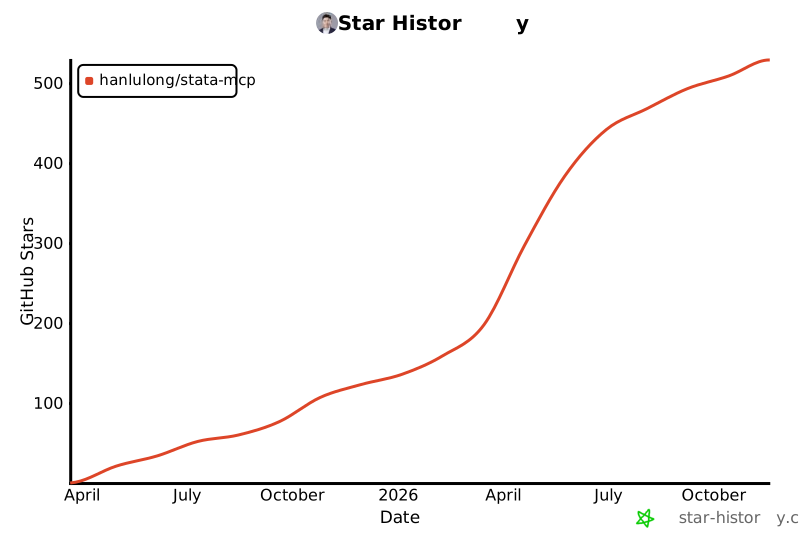](https://star-history.com/#hanlulong/stata-mcp&Date)
- ## License
- MIT
- ## Credits
- Created by Lu Han,
- Published by [OpenEcon.ai](https://openecon.ai/)
Ratings and comments
Sign in to rate this skill.
Sign inFree to use. If it’s helped, pass it on.