figma-mcp-bridge
Figma Plugin & MCP server to bypass API limits
Safety scan
A static text scan, not a guarantee. Select the badge to see what was scanned and every finding.
Check it deeper on your machine
It has changed since its scan on 11 Nov 2026.
As a Claude Code plugin, install it and then ask Claude Code:
/plugin marketplace add keithmackay/mackayi/plugin install scanskillsafety@mackayiDo a deep scan of https://github.com/gethopp/figma-mcp-bridge with scanskillsafety
Or from a terminal, clone it and run it:
git clone https://github.com/keithmackay/scanskillsafety-skill ~/.claude/skills/scanskillsafetynode ~/.claude/skills/scanskillsafety/cli.cjs --deep 'https://github.com/gethopp/figma-mcp-bridge'
It checks the exact commit: every file, its packages against OSV (api.osv.dev), how it compares with this page's scan (findsafeskills.com receives the repository's address), and, if you agree, Claude reading every file with your own Claude subscription. It never runs the code.
Badge for your README

Markdown
[](/listings/gethopp--figma-mcp-bridge)HTML
<a href="/listings/gethopp--figma-mcp-bridge"><img src="/api/listings/gethopp--figma-mcp-bridge/badge.svg" alt="findsafeskills safety rating" /></a>Install
Install instructions from the README
As written by the repo's author. findsafeskills has not verified these steps.
1. Add the MCP server to your favourite AI tool
Add the following to your AI tool's MCP configuration (e.g. Cursor, Windsurf, Claude Desktop):
{
  "figma-bridge": {
    "command": "npx",
    "args": ["-y", "@gethopp/figma-mcp-bridge"]
  }
}That's it — no binaries to download or install.
2. Add the Figma plugin
Download the plugin from the [latest release](https://github.com/gethopp/figma-mcp-bridge/releases) page, then in Figma go to `Plugins > Development > Import plugin from manifest` and select the `manifest.json` file from the `plugin/` folder. The same plugin runs in Figma design files, Dev Mode (read-only), and FigJam boards.
3. Start using it 🎉
Open a Figma file, run the plugin, and start prompting your AI tool. The MCP server will automatically connect to the plugin.
To work across multiple files, just open the plugin in each Figma file. The bridge keeps all connections active and your AI agent can target any of them by `fileKey`.
If you want to know more about how it works, read the [How it works](#how-it-works) section.
What was scanned
The files the safety scan read, as written by the repository's author and shown as plain text. Lines with a finding are marked.
README.md · README · 312 lines
View this file on GitHub (read at the repository's current version: the scan did not record which commit it read)
This file has changed since it was scanned, so this is not exactly the text that was scanned, and no line is marked. The findings are listed with the safety scan above.
- # Figma MCP Bridge
- [](https://gethopp.app)
- - [Demo](#demo)
- - [Quick Start](#quick-start)
- - [Available Tools](#available-tools)
- - [Local development](#local-development)
- - [Structure](#structure)
- - [How it works](#how-it-works)
- <br/>
- <img src="https://raw.githubusercontent.com/gethopp/figma-mcp-bridge/main/logo.png" alt="Figma MCP Bridge" align="center" />
- <br/>
- > [!NOTE]
- > Requires the Figma desktop app (macOS/Windows). The browser version of Figma does not support importing development plugins.
- While other amazing Figma MCP servers like [Figma-Context-MCP](https://github.com/GLips/Figma-Context-MCP/) exist, one issues is the [API limiting](https://github.com/GLips/Figma-Context-MCP/issues/258) for free users.
- The limit for free accounts is 6 requests per month, yes **per month**.
- Figma MCP Bridge is a solution to this problem. It is a plugin + MCP server that streams live Figma document data to AI tools without hitting Figma API rate limits, so its Figma MCP for the rest of us ✊
- It supports **multiple Figma files connected simultaneously**; open the plugin in each file and your AI agent can query any of them by `fileKey`. Single-file setups work exactly as before with no changes required.
- It also includes a small, opt-in set of **write tools** for safe agent-driven edits — see [Editing Notes](#editing-notes) below.
- ## Demo
- [Watch a demo of building a UI in Cursor with Figma MCP Bridge](https://youtu.be/ouygIhFBx0g)
- [](https://youtu.be/ouygIhFBx0g)
- ## Quick Start
- ### 1. Add the MCP server to your favourite AI tool
- Add the following to your AI tool's MCP configuration (e.g. Cursor, Windsurf, Claude Desktop):
- ```json
- {
- "figma-bridge": {
- "command": "npx",
- "args": ["-y", "@gethopp/figma-mcp-bridge"]
- }
- }
- ```
- That's it — no binaries to download or install.
- ### 2. Add the Figma plugin
- Download the plugin from the [latest release](https://github.com/gethopp/figma-mcp-bridge/releases) page, then in Figma go to `Plugins > Development > Import plugin from manifest` and select the `manifest.json` file from the `plugin/` folder. The same plugin runs in Figma design files, Dev Mode (read-only), and FigJam boards.
- ### 3. Start using it 🎉
- Open a Figma file, run the plugin, and start prompting your AI tool. The MCP server will automatically connect to the plugin.
- To work across multiple files, just open the plugin in each Figma file. The bridge keeps all connections active and your AI agent can target any of them by `fileKey`.
- If you want to know more about how it works, read the [How it works](#how-it-works) section.
- ## Available Tools
- | Tool | Description |
- | ------------------------------ | -------------------------------------------------------------------------------------------------------- |
- | `list_files` | List all connected Figma files (supports multi-file workflows) |
- | `get_document` | Get the current Figma page document tree |
- | `get_selection` | Get the currently selected nodes in Figma |
- | `get_node` | Get a specific Figma node by ID (colon format, e.g. `4029:12345`) |
- | `get_prototype_connections` | Read prototype interactions on a node and its descendants |
- | `trace_prototype_flow` | Trace prototype navigation between screens |
- | `get_styles` | Get all local paint, text, effect, and grid styles |
- | `get_metadata` | Get file name, pages, and current page info |
- | `get_design_context` | Get a depth-limited tree optimized for understanding design context |
- | `get_variable_defs` | Get all variable collections, modes, and values (design tokens) |
- | `get_screenshot` | Export nodes as PNG/SVG/JPG/PDF (base64-encoded) |
- | `save_screenshots` | Export and save screenshots directly to the local filesystem |
- | `get_motion_styles` | List all available animation presets (beta) |
- | `get_node_motion` | Read a node's current animation styles and properties (beta) |
- | `apply_animation_style` | Apply a preset animation style to a node (beta) |
- | `remove_animation_style` | Remove an applied animation style from a node (beta) |
- | `apply_manual_keyframe_track` | Apply a manual keyframe track to a node property (beta) |
- | `remove_manual_keyframe_track` | Remove a manual keyframe track from a node property (beta) |
- | `set_timeline_duration` | Set the duration of a timeline in seconds (beta) |
- | `set_node_visibility` | Show or hide specific nodes |
- | `set_text_content` | Replace the contents of a text node (TEXT, FigJam sticky, or shape label) |
- | `set_text_properties` | Patch font, size, alignment, auto-resize, color, and bounds on text nodes/sublayers |
- | `set_node_properties` | Patch common node properties: name, position, size, visibility, opacity, corner radius (single or batch) |
- | `set_node_constraints` | Set native Figma constraints (horizontal/vertical) for one or multiple compatible nodes |
- | `apply_paint_style` | Link local Figma Paint Styles to fills or strokes (single or batch), preserving the native style ID |
- | `set_solid_fill` | Replace a node's fill or stroke with a single solid paint |
- | `set_gradient_fill` | Replace a node's fill or stroke with a linear/radial/angular/diamond gradient |
- | `set_effects` | Replace a node's effects list (drop/inner shadows, layer/background blurs) |
- | `set_stroke_properties` | Patch stroke weight, align, dash pattern, cap, and join |
- | `set_auto_layout` | Configure auto-layout direction, padding, gap, alignment, sizing, and wrap (not sections) |
- | `create_page` | Create a new page in the document, optionally switching to it |
- | `create_frame` | Create a new frame, optionally under a parent |
- | `create_section` | Create a section — a named, resizable container (Figma and FigJam) |
- | `create_text` | Create a new text node |
- | `create_shape` | Create a rectangle, ellipse, or line |
- | `create_shape_with_text` | Create a FigJam shape with its own text label (SHAPE_WITH_TEXT), incl. text fill |
- | `create_image` | Create an image-backed rectangle from a local path, URL, or data URI |
- | `create_svg` | Import raw SVG markup or a workspace-local SVG file as editable vector layers |
- | `create_sticky` | Create a sticky note in FigJam |
- | `create_connector` | Create a connector between two nodes in FigJam, with attachment anchors |
- | `import_html_layers` | Bulk-import an html-figma layer tree (JSON) as frames, text, rectangles, and vectors |
- | `duplicate_nodes` | Duplicate nodes in place |
- | `duplicate_with_offset` | Duplicate nodes and move each duplicate by a fixed offset |
- | `fit_to_content` | Resize a SECTION around its children with optional padding |
- | `distribute_horizontally` | Space 3+ nodes with equal horizontal gaps (first/last stay fixed) |
- | `distribute_vertically` | Space 3+ nodes with equal vertical gaps (first/last stay fixed) |
- | `align_to_grid` | Snap node positions to a grid of the given size |
- | `place_below` | Move a node below another with gap and start/center alignment |
- | `place_right_of` | Move a node to the right of another with gap and start/center alignment |
- | `reparent_nodes` | Move nodes into another parent |
- | `group_nodes` | Wrap a list of nodes (sharing a parent) in a new group |
- | `ungroup_node` | Ungroup a group or frame — children move up to its parent |
- | `set_selection` | Set the page selection to a list of node IDs (works in Dev Mode) |
- | `scroll_and_zoom_into_view` | Frame the viewport around the given nodes (works in Dev Mode) |
- | `delete_nodes` | Delete nodes with explicit confirmation |
- | `run_script` | Run Plugin API JavaScript in the plugin sandbox (opt-in, see Editing Notes) |
- All tools accept an optional `fileKey` parameter when multiple Figma files are connected. Use `list_files` to discover connected files and their keys.
- ### Prototype Notes
- - Prototype tools are read-only and unavailable in FigJam. Set `includePrototype: true` on `get_node` to include the same interactions.
- - Reactions are Figma's own trigger and action data, with destinations, variables, and modes resolved to names.
- - Flow edges list their enclosing branch `conditions` from outermost to innermost (`null` marks an else branch).
- - Observed `AFTER_TIMEOUT` values are in seconds (for example, `0.8` for 800 ms).
- ### Editing Notes
- - Edit tools work only when the plugin is opened in Figma's design editor (Dev Mode is read-only — they will return a clear error there).
- - In **FigJam**, read tools plus the write tools (`set_text_content`, `set_text_properties`, `set_node_properties`, `set_solid_fill`, `create_text`, `create_shape`, `create_shape_with_text`, `create_sticky`, `create_connector`, `create_section`, `duplicate_nodes`, `duplicate_with_offset`, `fit_to_content`, `distribute_horizontally`, `distribute_vertically`, `align_to_grid`, `place_below`, `place_right_of`, `delete_nodes`, ...) are available. Auto-layout and motion/animation tools return a clear error in FigJam.
- - `set_text_content` / `set_text_properties` edit a TEXT node's content directly, or the text sublayer of a FigJam STICKY / SHAPE_WITH_TEXT node. Alignment and auto-resize are TEXT-node-only — they return a clear error on stickies and shapes (x/y/width/height still apply to the containing node).
- - `set_node_properties` accepts either `nodeId` or a `nodeIds` array to apply the same property changes to several nodes in one call.
- - `apply_paint_style` accepts `nodeId` or `nodeIds`, a local `styleId` from `get_styles`, and `target` (`fill` default, or `stroke`). It works in Figma Design only, applies the native style (replacing paints on the selected target), and reports the linked ID; a batch reports successes and per-node errors. `get_node` exposes `styles.fillStyleId` and `styles.strokeStyleId` for independent verification (an empty ID means unlinked; `mixed` means the property has mixed values across the node). It does not import shared libraries or style individual text ranges.
- - `set_node_constraints` accepts `nodeId` or `nodeIds` with `horizontal` and/or `vertical` (`MIN`, `MAX`, `CENTER`, `STRETCH`, `SCALE`). `MIN` means Left/Top, `MAX` Right/Bottom, and `STRETCH` Left & Right/Top & Bottom. Unspecified axes are preserved. It requires nodes inside a Figma frame, component, or instance; Auto Layout children must use absolute positioning. It is unavailable in FigJam and Dev Mode. The response reports previous and applied constraints.
- - `set_auto_layout` targets frames; SECTION nodes have no auto-layout in Figma's API and return an explicit error.
- - `fit_to_content` works on SECTION nodes only (Figma's API exposes no equivalent for other containers): it shifts children so their bounding box starts at `padding` and resizes the section to bbox + 2×padding.
- - The current user must have permission to edit the target file.
- - `delete_nodes` is intentionally gated behind `confirm: true`.
- - `run_script` executes arbitrary JavaScript in the open file, so it is off unless the MCP server runs with `FIGMA_BRIDGE_ENABLE_RUN_SCRIPT=1` (see [Enabling `run_script`](#enabling-run_script)). The code is the body of an async function with `figma` in scope, and its `return` value must be JSON-serializable. Code that calls `.remove()` is rejected unless `allowRemove: true` is passed; this guards against accidental deletions and is not a security boundary. The server stops waiting after 3 minutes, but a script stuck in a loop keeps the plugin busy until it is closed. Works in Figma and FigJam.
- - Text edits automatically load the fonts currently used by the target text node before applying the new content.
- - New text nodes default to `Inter Regular` unless a font is provided.
- - `create_image` reads local paths relative to the MCP server working directory unless you pass an absolute path.
- - `create_svg` accepts raw `<svg>` markup or a local SVG path inside the MCP server working directory. SVG payloads are limited to 2 MiB.
- - `import_html_layers` takes a JSON file produced by [html-figma](https://github.com/sergcen/html-to-figma)'s browser `htmlToFigma()`. The path resolves relative to the MCP server working directory and must stay inside it, even when absolute. Everything lands inside one wrapper frame, and the response reports `layerCount` against `expectedLayerCount` so partial imports are visible.
- - `create_page` returns the new page's ID — pass it as `parentId` to `create_frame` / `create_text` / `create_shape` / `create_image` to author content on that page without switching the editor.
- ### Enabling `run_script`
- `run_script` is off by default. To turn it on, add `FIGMA_BRIDGE_ENABLE_RUN_SCRIPT` to the server's `env` in your MCP configuration and restart your AI tool:
- ```json
- {
- "figma-bridge": {
- "command": "npx",
- "args": ["-y", "@gethopp/figma-mcp-bridge"],
- "env": {
- "FIGMA_BRIDGE_ENABLE_RUN_SCRIPT": "1"
- }
- }
- }
- ```
- If several AI tools run the bridge at the same time, set the variable in each of their configurations. Only one bridge process talks to Figma at a time, and it rejects `run_script` unless it was started with the variable.
- ### What You Can Build
- With the current write surface, an agent can build a basic slide deck in a new empty Figma file: create slide frames, style titles and body copy, lay out rectangles/ellipses/lines for cards and dividers, duplicate slide templates, reparent content into the right frame, and adjust common geometry/visual properties — including solid/gradient paints, shadows and blurs, stroke geometry, and auto-layout configuration.
- The current version is intentionally limited — no components/instances, no variables/styles authoring, no per-segment text styling, and no vector boolean operations yet.
- ## Local development
- This repo uses [Bun](https://bun.sh) as its package manager and script runner throughout. Install it first if you don't have it.
- #### 1. Clone this repository locally
- ```bash
- git clone git@github.com:gethopp/figma-mcp-bridge.git
- ```
- #### 2. Install root tooling
- Install the root dependencies once. This runs Husky's `prepare` script, which installs the Git pre-commit hook that formats staged files with Prettier.
- ```bash
- cd figma-mcp-bridge && bun install
- ```
- #### 3. Build the server
- ```bash
- cd server && bun install && bun run build
- ```
- #### 4. Build the plugin
- ```bash
- cd plugin && bun install && bun run build
- ```
- #### 5. Add the MCP server to your favourite AI tool
- For local development, add the following to your AI tool's MCP config:
- ```json
- {
- "figma-bridge": {
- "command": "node",
- "args": ["/path/to/figma-mcp-bridge/server/dist/index.js"]
- }
- }
- ```
- ### Code style
- The repo is formatted with [Prettier](https://prettier.io) (config in `.prettierrc`). A Husky pre-commit hook runs `lint-staged`, which formats only your staged files, so commits stay formatted automatically. You can also run it manually:
- ```bash
- bun run format # format the whole repo
- bun run format:check # verify formatting without writing (useful in CI)
- ```
- ## Structure
- ```
- Figma-MCP-Bridge/
- ├── plugin/ # Figma plugin (TypeScript/React)
- └── server/ # MCP server (TypeScript/Node.js)
- └── src/
- ├── index.ts # Entry point
- ├── bridge.ts # WebSocket bridge to Figma plugin
- ├── leader.ts # Leader: HTTP server + bridge
- ├── follower.ts # Follower: proxies to leader via HTTP
- ├── node.ts # Dynamic leader/follower role switching
- ├── election.ts # Leader election & health monitoring
- ├── tools.ts # MCP tool definitions
- └── types.ts # Shared types
- ```
- ## How it works
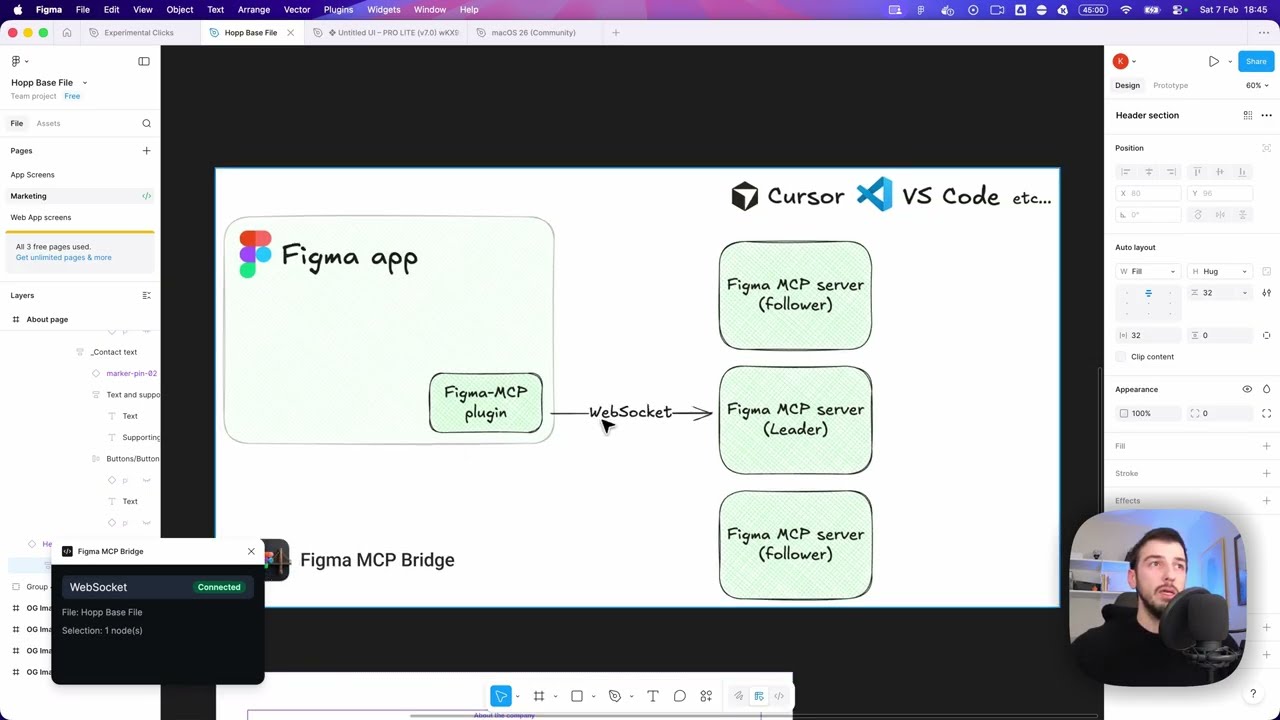
- There are two main components to the Figma MCP Bridge:
- ### 1. The Figma Plugin
- The Figma plugin is the user interface for the Figma MCP Bridge. You run this inside the Figma file you want to use the MCP server for, and its responsible for getting you all the information you need.
- ### 2. The MCP Server
- The MCP server is the core of the Figma MCP Bridge. It maintains a registry of WebSocket connections keyed by `fileKey`, so multiple Figma files can be connected simultaneously. The server is responsible for:
- - Handling WebSocket connections from one or more Figma plugin instances
- - Routing tool calls to the correct file based on `fileKey`
- - Forwarding responses back to the AI client
- - Handling leader election (as we can have only one WS connection to an MCP server at a time)
- The leader listens on `127.0.0.1` only. Its endpoints have no authentication, so other machines on the network must not reach them. If the plugin runs on another host (for example, the MCP server runs in a VM or a container), set `FIGMA_BRIDGE_HOST=0.0.0.0` (or `::`) in the MCP server environment. Use this only on a network that you trust.
- ```
- ┌─────────────────────────────────────────────────────────────────────────────┐
- │ FIGMA (Desktop app) │
- │ ┌───────────────────────────────────────────────────────────────────────┐ │
- │ │ Figma Plugin │ │
- │ │ (TypeScript/React) │ │
- │ └───────────────────────────────────────────────────────────────────────┘ │
- └─────────────────────────────────────────────────────────────────────────────┘
- │
- │ WebSocket
- │ (ws://localhost:1994/ws)
- ▼
- ┌─────────────────────────────────────────────────────────────────────────────┐
- │ PRIMARY MCP SERVER │
- │ (Leader on :1994) │
- │ ┌─────────────────────────────────────────────────────────────────────┐ │
- │ │ Bridge Endpoints: │ │
- │ │ • Manages WebSocket conn • /ws (plugin) │ │
- │ │ • Forwards requests to plugin • /ping (health) │ │
- │ │ • Routes responses back • /rpc (followers) │ │
- │ └─────────────────────────────────────────────────────────────────────┘ │
- └─────────────────────────────────────────────────────────────────────────────┘
- ▲ ▲
- │ HTTP /rpc │ HTTP /rpc
- │ POST requests │ POST requests
- │ │
- ┌─────────────────┴───────────┐ ┌─────────────┴───────────────┐
- │ FOLLOWER MCP SERVER 1 │ │ FOLLOWER MCP SERVER 2 │
- │ │ │ │
- │ • Pings leader /ping │ │ • Pings leader /ping │
- │ • Forwards tool calls │ │ • Forwards tool calls │
- │ via HTTP /rpc │ │ via HTTP /rpc │
- │ • If leader dies → │ │ • If leader dies → │
- │ attempts takeover │ │ attempts takeover │
- └─────────────────────────────┘ └─────────────────────────────┘
- ▲ ▲
- │ │
- │ MCP Protocol │ MCP Protocol
- │ (stdio) │ (stdio)
- ▼ ▼
- ┌─────────────────────────────┐ ┌─────────────────────────────┐
- │ AI Tool / IDE 1 │ │ AI Tool / IDE 2 │
- │ (e.g., Cursor) │ │ (e.g., Cursor) │
- └─────────────────────────────┘ └─────────────────────────────┘
- ```
Ratings and comments
Sign in to rate this skill.
Sign inFree to use. If it’s helped, pass it on.