powerpoint-mcp
Open Source Model Context Protocol server for PowerPoint automation on Windows via pywin32
Safety scan
A static text scan, not a guarantee. Select the badge to see what was scanned and every finding.
Badge for your README

Markdown
[](/listings/ayushmaniar--powerpoint-mcp)HTML
<a href="/listings/ayushmaniar--powerpoint-mcp"><img src="/api/listings/ayushmaniar--powerpoint-mcp/badge.svg" alt="findsafeskills safety rating" /></a>Install
Install instructions from the README
As written by the repo's author. findsafeskills has not verified these steps.
**Step 1: Install**
claude mcp add powerpoint -- uvx powerpoint-mcp
**Step 2: Open PowerPoint** Open Microsoft PowerPoint (any presentation, or just the blank start screen).
**Step 3: Give Claude a command**
Make a 10-slide presentation on machine learning fundamentals using my company template.
Add equations where relevant and animate the bullet points on each slide.
That is it. Claude handles the rest.
---
What was scanned
The files the safety scan read, as written by the repository's author and shown as plain text. Lines with a finding are marked.
README.md · README · 348 lines
View this file on GitHub (read at the repository's current version: the scan did not record which commit it read)
- # PowerPoint MCP Server
- The best open-source MCP server for PowerPoint automation. Free, no subscriptions, no credits.
- Built by a UCSD grad student who was tired of spending 3-4 hours per week making presentations.
- **Languages**
- - [English](#powerpoint-mcp-server)
- - [中文](README.zh-CN.md)
- - [日本語](README.ja.md)
- [](https://badge.fury.io/py/powerpoint-mcp)
- [](https://opensource.org/licenses/MIT)
- [](https://www.python.org/downloads/)
- ---
- ## Demo Video
- [](https://www.youtube.com/watch?v=5p24Vr36py8)
- *Watch Claude build a complete "Fourier Transform and Fourier Series" lecture from scratch - equations, diagrams, and animations included.*
- ---
- ## Windows Only
- **This MCP server works exclusively on Windows** because it uses `pywin32` COM automation to control the PowerPoint application directly. This is what enables bidirectional read/write access, real-time editing, LaTeX rendering, templates, and animations.
- macOS/Linux alternatives like `python-pptx` don't get access to the full PowerPoint feature set. PRs for an AppleScript-based macOS version are welcome.
- ---
- ## Why This Is Different
- There are a lot of PowerPoint automation tools out there. Here is why this one is actually worth using:
- **Template-first design**
- Point the LLM at your desired template and it just works. Tell Claude: *"Make a GPU performance comparison presentation using our company's Nvidia_Black_Green_2025 template"* - it discovers the template, analyzes its layouts, and populates them correctly.
- **Actually bidirectional and real-time**
- Unlike `python-pptx` (write-only) or other popular MCP implementations, this uses COM automation. Claude can READ your existing presentations and edit them in real time without closing PowerPoint first.
- **Multimodal slide analysis**
- The `slide_snapshot` tool gives the LLM both visual context (screenshots with annotated bounding boxes) AND detailed text/chart/table extraction. Claude can literally see what is on your slides.
- **LaTeX rendering that actually works**
- The server renders LaTeX equations by controlling PowerPoint's built-in equation editor directly. Just write `<latex>E=mc^2</latex>` and it appears as a native PowerPoint equation object.
- **HTML formatting that saves tokens**
- Bold, italic, colors, and bullet points via HTML tags (`<b>`, `<i>`, `<red>`, `<ul>`, `<ol>`). One formatting pass, no repeated tool calls to apply fonts and colors separately.
- **Animations with progressive disclosure**
- Real controllable PowerPoint animations, including paragraph-level entrance effects. Bullet-by-bullet reveals work out of the box - no need to split content across multiple shapes.
- **One-line install, no subscriptions**
- ```bash
- claude mcp add powerpoint -- uvx powerpoint-mcp
- ```
- Works with Claude Code, Cursor, GitHub Copilot, or any MCP client. No third-party services, no monthly fees, no expiring credits.
- **11 focused tools, not 30+**
- LLM decision paralysis is real. Every tool has a clear purpose and sensible defaults so Claude spends time building your presentation, not figuring out which tool to call.
- ---
- ## Real Workflows
- These are actual workflows tested in production:
- **Research and Create**
- > "Research the latest developments in quantum computing, then create a 15-slide presentation on it"
- Claude uses web search to find sources, then builds the deck with citations and formatted content.
- **Data Analysis and Visualization**
- > "Analyze Titanic_dataset.csv, perform a detailed EDA, and make a presentation explaining the findings"
- Free-form Python/matplotlib plotting that renders directly into slide placeholders.
- **Codebase Documentation**
- > "Analyze my entire repository and create a technical architecture presentation"
- Claude reads your local files, understands the structure, and generates slides explaining the system.
- **Template-Driven Corporate Decks**
- > "Use the Nvidia_Black_Green_template to create a Q4 sales presentation from nvidia_quarterly_sales_data.csv"
- Template layouts are discovered automatically, placeholders are identified and populated correctly.
- **Academic LaTeX Heavy**
- > "Make a 20-slide lecture teaching Fourier Series and Fourier Transforms with equations"
- Native PowerPoint equation objects rendered from LaTeX, with animations for progressive disclosure.
- **Interactive Learning**
- > "Help me understand this presentation on PAM and BLOSUM matrices from my Computational Biology course, explain each slide and quiz me after each section"
- Claude reads your slides (including charts, tables, and speaker notes), explains the content, and creates an interactive quiz.
- ---
- ## Quick Start
- **Step 1: Install**
- ```bash
- claude mcp add powerpoint -- uvx powerpoint-mcp
- ```
- **Step 2: Open PowerPoint**
- Open Microsoft PowerPoint (any presentation, or just the blank start screen).
- **Step 3: Give Claude a command**
- ```
- Make a 10-slide presentation on machine learning fundamentals using my company template.
- Add equations where relevant and animate the bullet points on each slide.
- ```
- That is it. Claude handles the rest.
- ---
- ## Installation
- ### Prerequisites
- - Windows 10/11
- - Microsoft PowerPoint installed
- - Python 3.10+
- ### Claude Code
- ```bash
- # Single project
- claude mcp add powerpoint -- uvx powerpoint-mcp
- # Available across all projects (install once, use everywhere)
- claude mcp add powerpoint --scope user -- uvx powerpoint-mcp
- ```
- ### Cursor
- 1. Click Settings -> Tools & MCP -> New MCP Server
- 2. `~/.cursor/mcp.json` will open
- 3. Add the following:
- ```json
- {
- "mcpServers": {
- "powerpoint": {
- "command": "uvx",
- "args": ["powerpoint-mcp"]
- }
- }
- }
- ```
- 4. Restart your IDE after configuration.
- ### Trae
- 1. Create `.trae/mcp.json` in your project root
- 2. Add the following:
- ```json
- {
- "mcpServers": {
- "powerpoint": {
- "command": "uvx",
- "args": ["powerpoint-mcp"]
- }
- }
- }
- ```
- 3. Restart Trae after configuration and use an MCP-enabled agent mode
- ### Trae CN
- 1. Trae CN currently supports the same project-level `.trae/mcp.json` format
- 2. Add the following to `.trae/mcp.json` in your project root:
- ```json
- {
- "mcpServers": {
- "powerpoint": {
- "command": "uvx",
- "args": ["powerpoint-mcp"]
- }
- }
- }
- ```
- 3. Restart Trae CN after configuration and use an MCP-enabled agent mode such as Builder with MCP / SOLO Coder if available in your build
- ### Codex
- This server is Windows-only, so on Windows PowerShell use:
- ```bash
- codex mcp add powerpoint -- cmd /c uvx powerpoint-mcp
- ```
- After adding it, restart Codex CLI or run `/mcp` to verify the server is available.
- ### CodeBuddy
- 1. In the sidebar chat panel, click the CodeBuddy Settings button
- 2. Open the MCP tab
- 3. Click Add MCP
- 4. Add the following JSON:
- ```json
- {
- "mcpServers": {
- "powerpoint": {
- "type": "stdio",
- "command": "uvx",
- "args": ["powerpoint-mcp"],
- "description": "PowerPoint automation on Windows"
- }
- }
- }
- ```
- 5. Save the configuration, then use Try to Run or invoke it from an agent
- ### CodeBuddy CN
- 1. 在侧栏对话面板右上方点击 CodeBuddy Settings
- 2. 切换到 MCP 标签页
- 3. 点击 Add MCP
- 4. 添加以下 JSON:
- ```json
- {
- "mcpServers": {
- "powerpoint": {
- "type": "stdio",
- "command": "uvx",
- "args": ["powerpoint-mcp"],
- "description": "PowerPoint automation on Windows"
- }
- }
- }
- ```
- 5. 保存配置后,可通过 Try to Run 验证,或直接在 Agent 中调用
- ### OpenCode
- 1. Open `~/.config/opencode/opencode.json` for a global setup, or `opencode.json` in your project root for a project-specific setup
- 2. Add the following:
- ```json
- {
- "$schema": "https://opencode.ai/config.json",
- "mcp": {
- "powerpoint": {
- "type": "local",
- "command": ["uvx", "powerpoint-mcp"]
- }
- }
- }
- ```
- 3. Restart OpenCode after configuration.
- ### VS Code (GitHub Copilot)
- 1. Open `C:\Users\Your_User_Name\AppData\Roaming\Code\User\mcp.json`
- 2. Add the following:
- ```json
- {
- "mcpServers": {
- "powerpoint": {
- "command": "uvx",
- "args": ["powerpoint-mcp"]
- }
- }
- }
- ```
- 3. Restart your IDE after configuration.
- ### Google Antigravity
- 1. Open an Agent session in Antigravity
- 2. Click the **"..."** (dot menu) at the top of the editor's side panel
- 3. Select **MCP Servers** → **Manage MCP Servers** → **View raw config**
- - This opens `mcp_config.json` directly. You can also edit it manually at:
- - Windows: `C:\Users\<USERNAME>\.gemini\antigravity\mcp_config.json`
- - macOS / Linux: `~/.gemini/antigravity/mcp_config.json`
- 4. Add the following:
- ```json
- {
- "mcpServers": {
- "powerpoint": {
- "command": "uvx",
- "args": ["powerpoint-mcp"]
- }
- }
- }
- ```
- 5. Return to **Manage MCP Servers** and click **Refresh** to activate the server.
- ---
- ## Tool Reference
- All 11 tools, each with a single clear responsibility:
- | Tool | What It Does |
- |------|-------------|
- | `manage_presentation` | Open, close, create, or save presentations. The entry point for any workflow. |
- | `slide_snapshot` | Comprehensive slide analysis: screenshot with annotated bounding boxes, text extraction, chart data, table parsing, hyperlinks, comments, and speaker notes. |
- | `switch_slide` | Navigate to a specific slide number in the active presentation. |
- | `add_speaker_notes` | Add or replace speaker notes on any slide using the official COM approach. |
- | `populate_placeholder` | Fill any placeholder with text (HTML formatting), LaTeX equations, or matplotlib plots. |
- | `manage_slide` | Duplicate, delete, or move slides within the presentation. |
- | `list_templates` | Discover all available PowerPoint templates from Personal, User, and System template directories. |
- | `analyze_template` | Analyze a template's layouts with placeholder positions and screenshots. |
- | `add_slide_with_layout` | Add a new slide using a specific layout from a template, preserving all template styling. |
- | `add_animation` | Add entrance animations (fade, appear, fly, wipe, zoom) to shapes with optional paragraph-level progressive disclosure. |
- | `powerpoint_evaluate` | Execute arbitrary Python code in the PowerPoint context for complex batch operations. |
- ---
- ## Content Formatting Reference
- The `populate_placeholder` tool accepts HTML-style tags for rich formatting:
- ```
- <b>bold text</b>
- <i>italic text</i>
- <u>underlined text</u>
- <red>colored text</red> (also: blue, green, orange, purple, white, black)
- <ul><li>unordered list item</li></ul>
- <ol><li>ordered list item</li></ol>
- <latex>E = mc^2</latex>
- ```
- For matplotlib plots, pass your plotting code directly as the content with `content_type="plot"` - the server executes it and inserts the resulting image.
- ---
- ## How It Works
- PowerPoint MCP uses Windows COM automation (`pywin32`) to control Microsoft PowerPoint directly, the same mechanism used by VBA macros and Office add-ins. This gives it full access to every PowerPoint feature: the equation editor, animation engine, template system, and real-time slide reading.
- The server is built on [FastMCP](https://github.com/jlowin/fastmcp) and published on [PyPI](https://pypi.org/project/powerpoint-mcp/) for easy installation via `uvx`.
- Screenshots are saved automatically to `~/.powerpoint-mcp/` with timestamp-based filenames.
- ---
- ## Limitations
- - **Windows only**: COM automation is a Windows technology. No macOS or Linux support currently.
- - **PowerPoint required**: Microsoft PowerPoint must be installed. LibreOffice is not supported.
- - **Python 3.10+**: Required for the server runtime.
- ---
- ## Star History
- [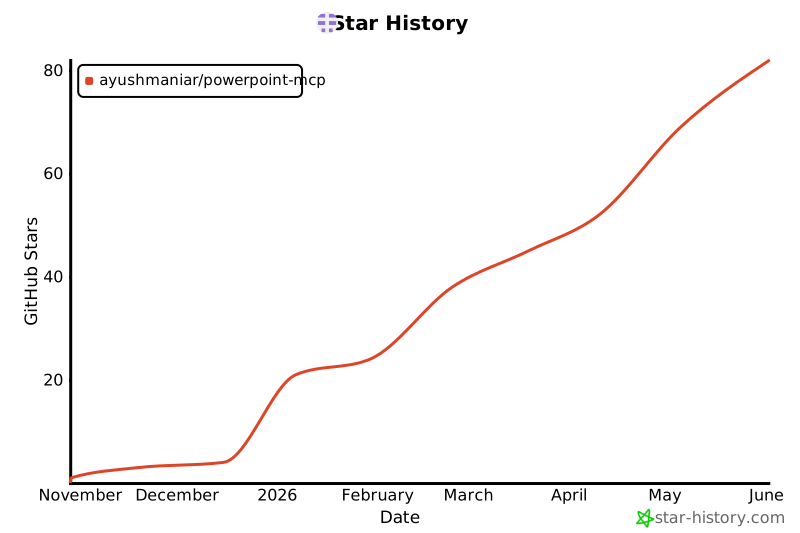](https://www.star-history.com/#ayushmaniar/powerpoint-mcp&type=date&legend=top-left)
- ---
- Fully open source (MIT License). If this saves you time, a star on GitHub goes a long way.
- **GitHub:** https://github.com/Ayushmaniar/powerpoint-mcp
Ratings and comments
Sign in to rate this skill.
Sign inFree to use. If it’s helped, pass it on.