vscode-as-mcp-server
Expose VSCode features such as file viewing and editing as MCP, enabling advanced AI-assisted coding directly from tools like Claude Desktop
Safety scan
A static text scan, not a guarantee. Select the badge to see what was scanned and every finding.
Badge for your README

Markdown
[](/listings/acomagu--vscode-as-mcp-server)HTML
<a href="/listings/acomagu--vscode-as-mcp-server"><img src="/api/listings/acomagu--vscode-as-mcp-server/badge.svg" alt="findsafeskills safety rating" /></a>Install
Install instructions from the README
As written by the repo's author. findsafeskills has not verified these steps.
1. Install the extension from the [VSCode Marketplace](https://marketplace.visualstudio.com/items?itemName=acomagu.vscode-as-mcp-server).
2. Configure your MCP client:
- **Using mcp-installer**: You can simply instruct it to "install the vscode-as-mcp-server MCP server". - **Other clients like Claude Desktop**: Add the following to your configuration file (`claude_desktop_config.json`):
```json { "mcpServers": { "vscode": { "command": "npx", "args": ["vscode-as-mcp-server"] } } } ```
3. Check the MCP server status in the bottom-right VSCode status bar:
- (Server icon): Server is running - ∅: Click to start the server
What was scanned
The files the safety scan read, as written by the repository's author and shown as plain text. Lines with a finding are marked.
README.md · README · 83 lines
View this file on GitHub (read at the repository's current version: the scan did not record which commit it read)
- # VSCode as MCP Server
- [Marketplace](https://marketplace.visualstudio.com/items?itemName=acomagu.vscode-as-mcp-server)
- A VSCode extension that turns your VSCode into an MCP server, enabling advanced coding assistance from MCP clients like Claude Desktop.
- ## Key Features
- ### Code Editing Support
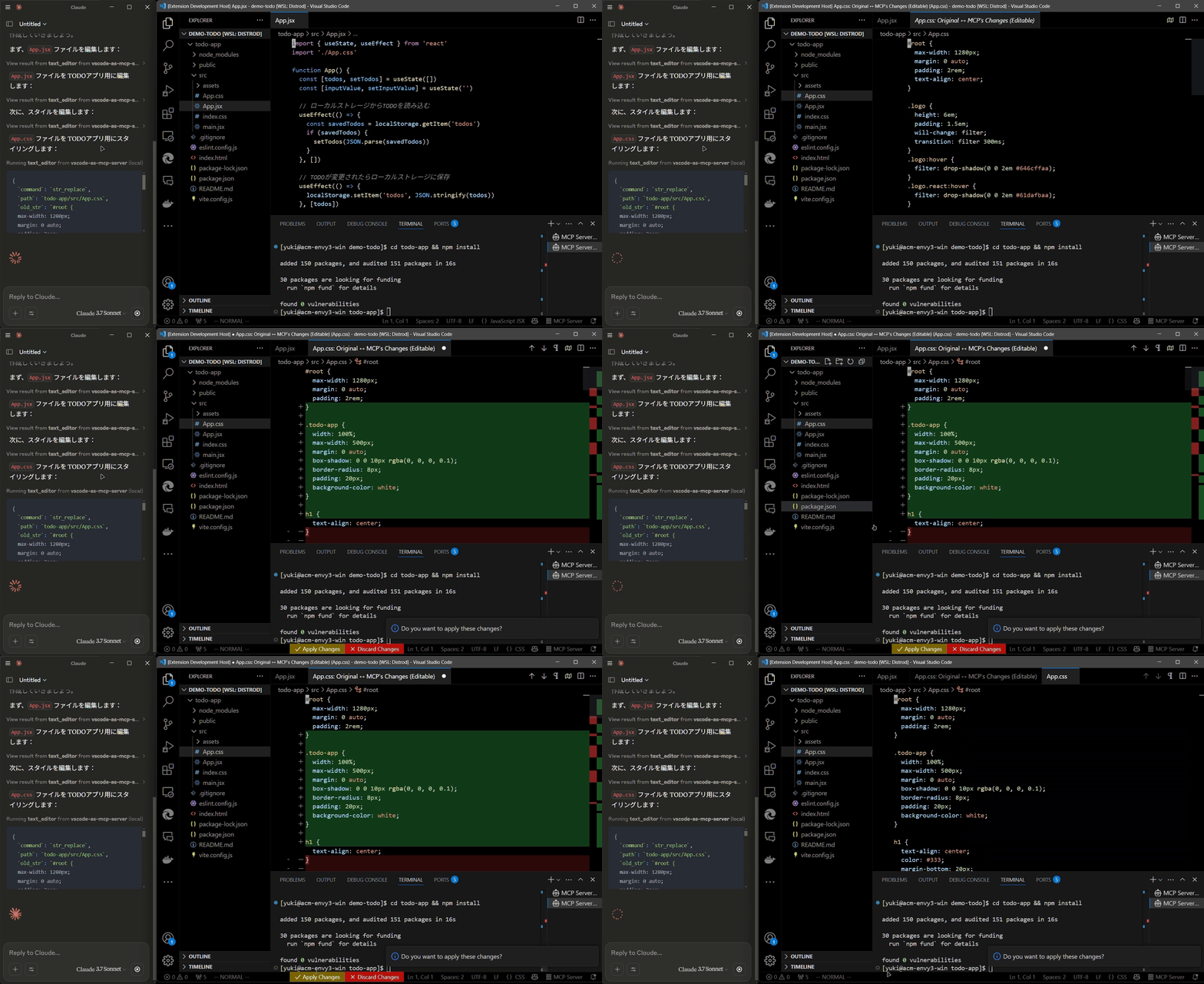
- - Review proposed code changes from an LLM through diffs, allowing you to accept, reject, or provide feedback.
- - Real-time diagnostic messages (e.g., type errors) sent instantly to the LLM for immediate corrections.
- 
- ### Terminal Operations
- - Execute commands within VSCode’s integrated terminal (supports background/foreground execution, and timeout settings).
- ### Preview Tools
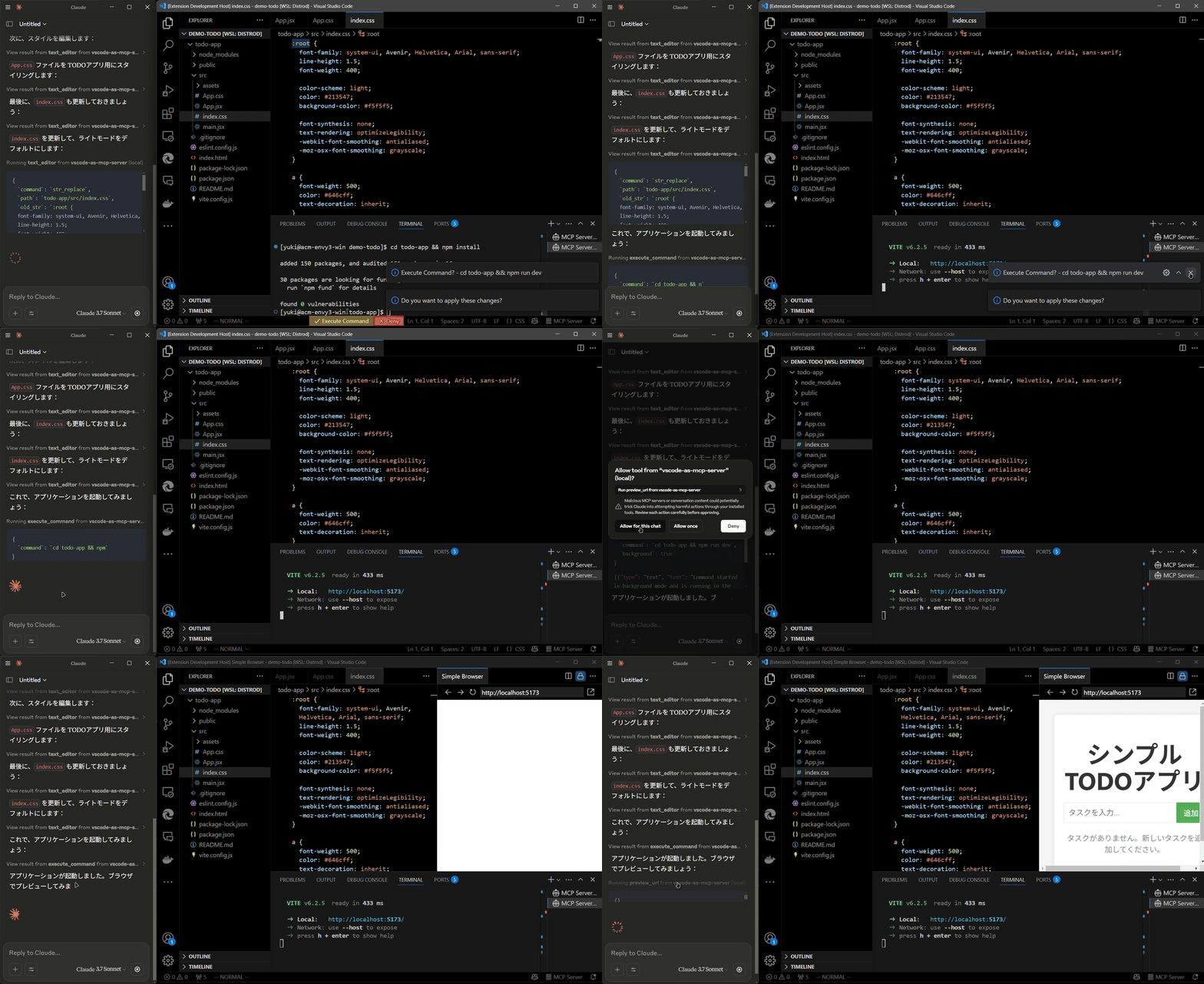
- - Preview URLs directly within VSCode’s built-in browser (e.g., automatically opens browser preview after starting a Vite server).
- 
- ### Multi-instance Switching
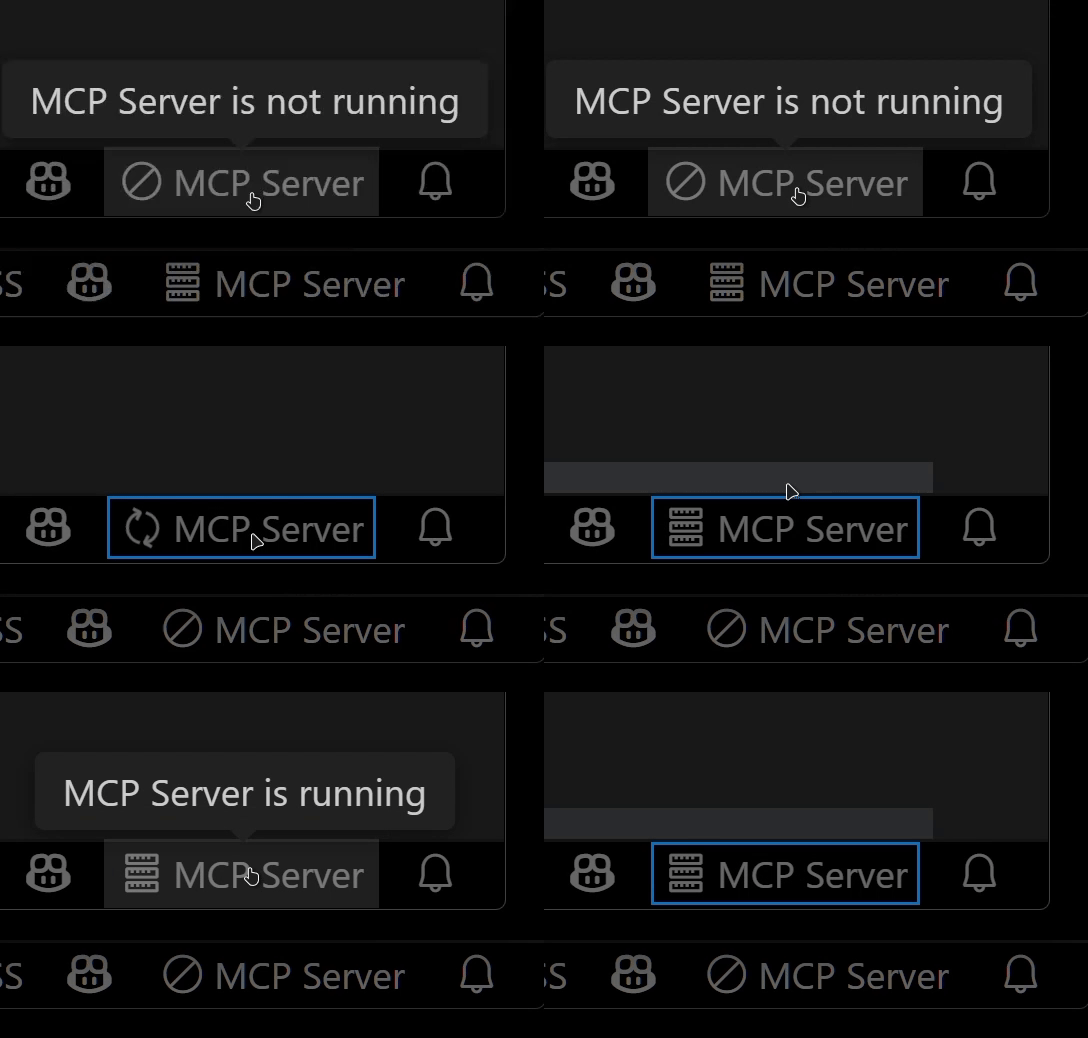
- - Easily switch the MCP server between multiple open VSCode windows.(Just by clicking the status bar item)
- 
- ### Relay Functionality (Experimental)
- - Relay and expose built-in MCP servers introduced in VSCode 1.99 externally.
- - Allows external access to tools provided by other MCP extensions, such as GitHub Copilot.
- ## Available Built-in Tools
- - **execute_command**: Execute commands in VSCode’s integrated terminal
- - **code_checker**: Retrieve current diagnostics for your code
- - **focus_editor**: Focus specific locations within files
- - **list_debug_sessions** / **start_debug_session** / **restart_debug_session** / **stop_debug_session**: Manage debug sessions
- - **text_editor**: File operations (view, replace, create, insert, undo)
- - **list_directory**: List directory contents in a tree format
- - **get_terminal_output**: Fetch output from a specified terminal
- - **list_vscode_commands** / **execute_vscode_command**: List and execute arbitrary VSCode commands
- - **preview_url**: Open URLs within VSCode’s integrated browser
- ## Installation & Setup
- 1. Install the extension from the [VSCode Marketplace](https://marketplace.visualstudio.com/items?itemName=acomagu.vscode-as-mcp-server).
- 2. Configure your MCP client:
- - **Using mcp-installer**: You can simply instruct it to "install the vscode-as-mcp-server MCP server".
- - **Other clients like Claude Desktop**: Add the following to your configuration file (`claude_desktop_config.json`):
- ```json
- {
- "mcpServers": {
- "vscode": {
- "command": "npx",
- "args": ["vscode-as-mcp-server"]
- }
- }
- }
- ```
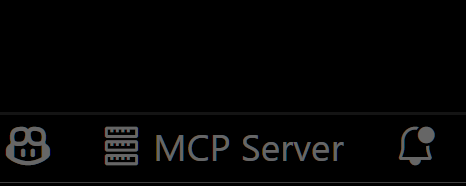
- 3. Check the MCP server status in the bottom-right VSCode status bar:
- - (Server icon): Server is running
- - ∅: Click to start the server
- 
- ## Motivation
- This extension was developed to mitigate high costs associated with metered coding tools (like Roo Code and Cursor). It's an affordable, self-hosted alternative built directly into VSCode.
- Bug reports and feedback are very welcome! 🙇
- ## Future Roadmap
- - Ability to select which built-in MCP servers to expose
- - WebView-based approval UI (similar to Roo Code)
- - Integration with VSCode's file history (Timeline)
- - Instant toggling of auto-approvals and tool activation/deactivation
- - Customizable server port configuration
Ratings and comments
Sign in to rate this skill.
Sign inFree to use. If it’s helped, pass it on.