pandoc-docx-template
"Use this skill when converting Markdown to Word DOCX or DOCX back to Markdown with Pandoc, especially when the output should use the bundled Chinese Word reference templates, heading numbering variants, list indentation variants, SCI paper templates, and Lua filters for HTML tags, image captions, font color, and inline code styles."
Safety scan
A static text scan, not a guarantee. Select the badge to see what was scanned and every finding.
Badge for your README

Markdown
[](/listings/achuan-2--pandoc-docx-template)HTML
<a href="/listings/achuan-2--pandoc-docx-template"><img src="/api/listings/achuan-2--pandoc-docx-template/badge.svg" alt="findsafeskills safety rating" /></a>Install
What was scanned
The files the safety scan read, as written by the repository's author and shown as plain text. Lines with a finding are marked.
SKILL.md · Manifest · 96 lines
View this file on GitHub (read at the repository's current version: the scan did not record which commit it read)
- ---
- name: pandoc-docx-template
- description: "Use this skill when converting Markdown to Word DOCX or DOCX back to Markdown with Pandoc, especially when the output should use the bundled Chinese Word reference templates, heading numbering variants, list indentation variants, SCI paper templates, and Lua filters for HTML tags, image captions, font color, and inline code styles."
- ---
- # Pandoc DOCX Template
- ## Overview
- Use this skill to convert Markdown and DOCX files with Pandoc while applying the bundled Word reference templates in `templates/` and Lua filters in this folder. Prefer the scripts in `scripts/` for repeatable conversions, and call Pandoc directly when the local shell cannot run Bash scripts.
- ## Workflow
- 1. Check that Pandoc is available:
- ```bash
- pandoc --version
- ```
- 2. Choose the conversion direction:
- - Markdown to DOCX: use `scripts/md2docx.py`.
- - DOCX to Markdown: use `scripts/docx2md.py`.
- 3. Choose a reference DOCX template when exporting Word:
- | Template | Use for |
- | --- | --- |
- | `templates/template_标题不编号-列表第二行顶格.docx` | Default Chinese layout, headings without numbering, wrapped list lines flush left |
- | `templates/template_标题不编号-列表第二行缩进.docx` | Headings without numbering, wrapped list lines indented |
- | `templates/template_标题编号-列表第二行顶格.docx` | Numbered headings, wrapped list lines flush left |
- | `templates/template_标题编号-列表第二行缩进.docx` | Numbered headings, wrapped list lines indented |
- | `templates/template_标题不编号-列表第二行顶格-无首行缩进.docx` | No heading numbering and no first-line paragraph indent |
- | `templates/template_sci论文-标题编号.docx` | SCI-style paper layout with numbered headings |
- | `templates/template_sci论文-标题不编号.docx` | SCI-style paper layout without heading numbering |
- ## Markdown to DOCX
- Use the default template and bundled aggregate Lua filter:
- ```bash
- python scripts/md2docx.py input.md -o output.docx
- ```
- Choose another template:
- ```bash
- python scripts/md2docx.py input.md -o output.docx \
- --reference "templates/template_sci论文-标题编号.docx"
- ```
- Pass additional Pandoc options after `--`:
- ```bash
- python scripts/md2docx.py input.md -o output.docx \
- --reference "templates/template_标题编号-列表第二行顶格.docx" \
- -- --highlight-style tango
- ```
- If Bash is unavailable, run the equivalent Pandoc pipeline from the skill folder:
- ```powershell
- pandoc input.md -t html | pandoc -f html -o output.docx `
- --reference-doc "templates/template_标题不编号-列表第二行顶格.docx" `
- --lua-filter "markdown-to-docx.lua"
- ```
- The Markdown-to-DOCX workflow intentionally converts Markdown to HTML first, then HTML to DOCX. This preserves more HTML-like Markdown content than a direct Markdown-to-DOCX conversion, including common tags handled by the Lua filters.
- ## DOCX to Markdown
- Convert Word to GitHub Flavored Markdown and extract embedded media:
- ```bash
- python scripts/docx2md.py input.docx -o output.md --media-dir assets
- ```
- If Bash is unavailable, run Pandoc directly:
- ```powershell
- pandoc "input.docx" -t gfm -o output.md --extract-media=./assets --wrap=none
- ```
- ## Lua Filters
- Use `markdown-to-docx.lua` as the default aggregate filter for Markdown-to-DOCX exports. Load individual filters only when a narrower conversion is needed:
- - `lua/markdown-html-recognition.lua`: recognize Markdown content containing HTML tags such as `<sub>`, `<sup>`, and `<img>`.
- - `lua/image-title-to-caption.lua`: use image title text as the Word caption and apply the `Figure` style.
- - `lua/image-title-to-caption-add-number.lua`: add numbering for image captions.
- - `lua/preserve_font_color.lua`: preserve text color from HTML spans such as `<span style="color:red">`.
- - `lua/add-inline-code.lua`: apply the custom `Inline Code` style to inline code, separate from code block styling.
- ## Validation
- After conversion, verify that the expected output file exists and that Pandoc did not report filter or reference-document errors. For DOCX output intended for final delivery, inspect it in Windows Microsoft Word because these templates were tested primarily with Windows Office and may render differently in WPS or macOS Word.
README.md · README · 271 lines
View this file on GitHub (read at the repository's current version: the scan did not record which commit it read)
- ## Star History
- <a href="https://www.star-history.com/?repos=Achuan-2%2Fpandoc_docx_template&type=date&legend=top-left">
- <picture>
- <source media="(prefers-color-scheme: dark)" srcset="https://api.star-history.com/chart?repos=Achuan-2/pandoc_docx_template&type=date&theme=dark&legend=top-left&sealed_token=3yf6BizOWcOhV9m8ZDq_IV6I7udWM7ZeUtLv5jmby0wBpkuiSRDIIA2KbSLIpHNJgG2-WEOrDgP3o7L3c1JaQtmC90Ei2CuFN4EyczkRXEtO4OJwSIG3Iw1WpAuwVTbLIL4x90irpaK66E-MDIE3LgXOdIXjrrRuv7258hLS3IqEZSxV1ZfV-4pWlruo" />
- <source media="(prefers-color-scheme: light)" srcset="https://api.star-history.com/chart?repos=Achuan-2/pandoc_docx_template&type=date&legend=top-left&sealed_token=3yf6BizOWcOhV9m8ZDq_IV6I7udWM7ZeUtLv5jmby0wBpkuiSRDIIA2KbSLIpHNJgG2-WEOrDgP3o7L3c1JaQtmC90Ei2CuFN4EyczkRXEtO4OJwSIG3Iw1WpAuwVTbLIL4x90irpaK66E-MDIE3LgXOdIXjrrRuv7258hLS3IqEZSxV1ZfV-4pWlruo" />
- <img alt="Star History Chart" src="https://api.star-history.com/chart?repos=Achuan-2/pandoc_docx_template&type=date&legend=top-left&sealed_token=3yf6BizOWcOhV9m8ZDq_IV6I7udWM7ZeUtLv5jmby0wBpkuiSRDIIA2KbSLIpHNJgG2-WEOrDgP3o7L3c1JaQtmC90Ei2CuFN4EyczkRXEtO4OJwSIG3Iw1WpAuwVTbLIL4x90irpaK66E-MDIE3LgXOdIXjrrRuv7258hLS3IqEZSxV1ZfV-4pWlruo" />
- </picture>
- </a>
- > 大多数 Markdown 笔记应用程序使用 Pandoc 将笔记转换为 Word 文档,例如我主要使用的思源笔记。然而,Pandoc 默认导出的 Word 文档样式往往不美观,不符合中文排版习惯。
- >
- > 幸运的是,pandoc 可以自定义 Word 模板,用于导出时的自动格式化以美化文档,但是很奇怪的是,全网很少有人分享自己是如何具体制作模板的,就算提到也只是泛泛而谈。我自己在制作模板中遇到很多问题,比如怎么设置表格样式、怎么设置列表样式。这里分享下目前在用的 word 模板,也当做一个抛砖引用,希望有更多人能分享自己的模板!😁
- ## 前排提示
- - 本模板仅在Windows端的Office Word进行测试,可能不适用于**WPS**和**苹果端的Office**。
- ## 样式预览
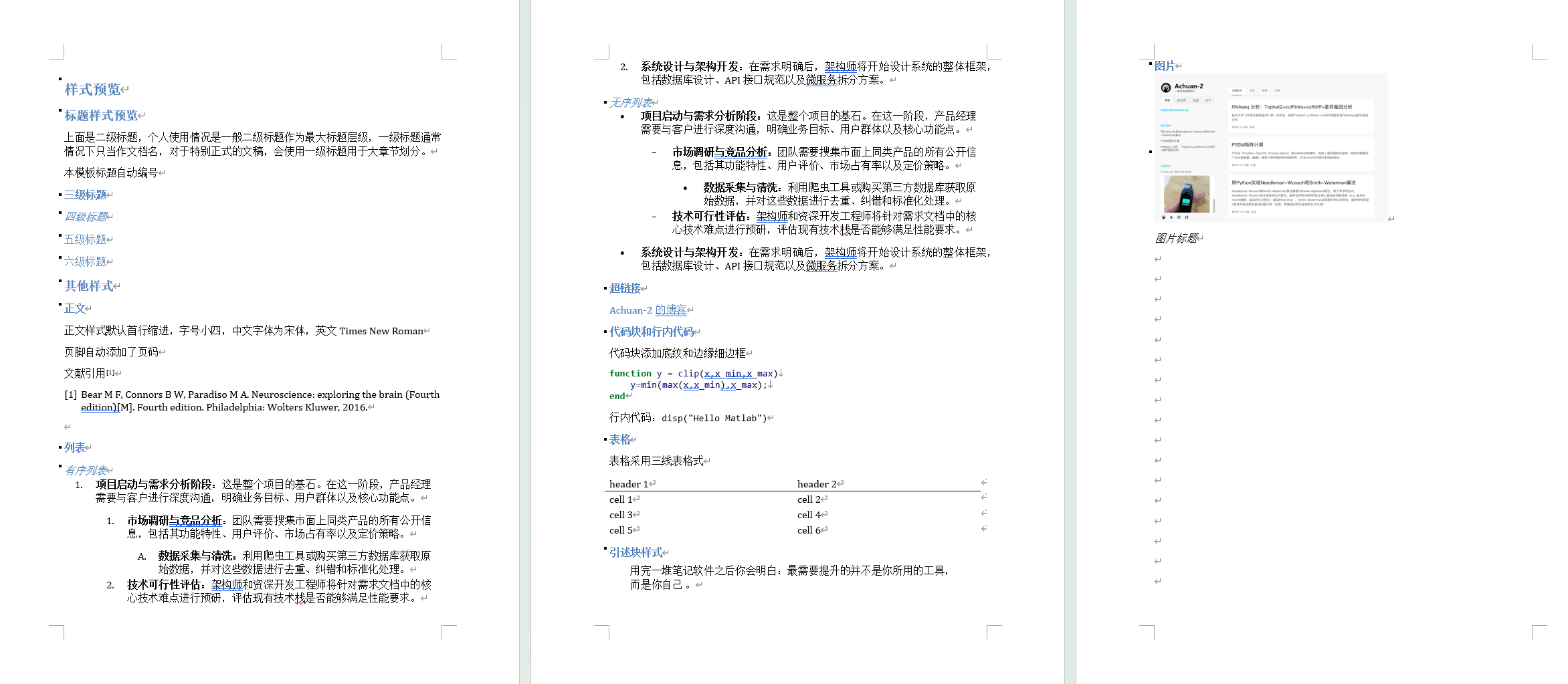
- pandoc 不设置模板导出 docx 的样式
- 
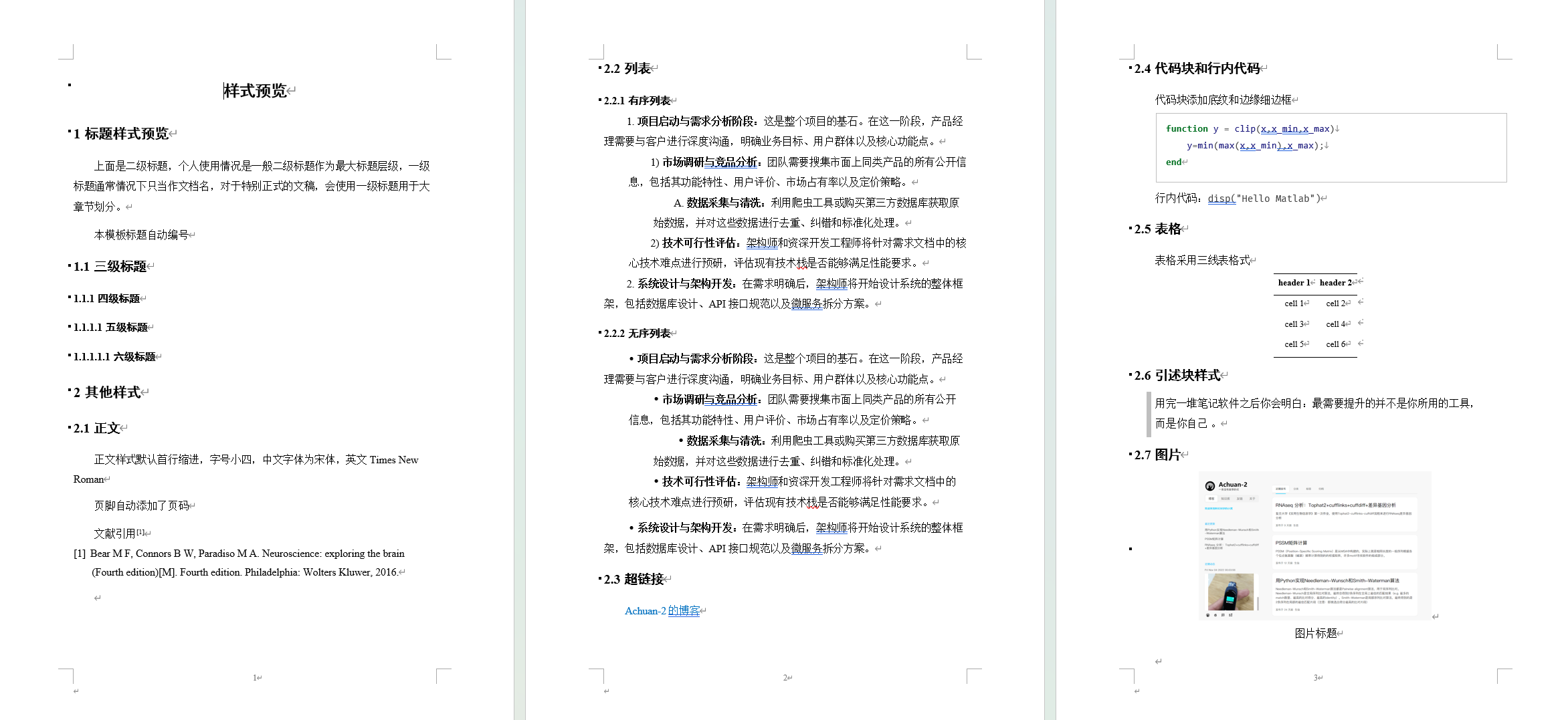
- 设置本模板导出 docx 的样式
- 
- ## 模板介绍
- - 标题编号 or 不编号
- - 列表第二行缩进 or 列表第二行顶格
- <img alt="image" src="https://github.com/user-attachments/assets/f1443f6e-92d1-495c-bead-c5cf510675e7" />
- - sci论文模板:
- - 正文双倍行距
- - 使用引述块作为Figure图注样式
- - 添加行号
- ## 如何使用此模板
- ### 通过pandoc命令使用
- pandoc通过 `--reference-doc `参数来设置模板路径,可以使用下面命令来设置导出Word(.docx)模板:
- ```bash
- pandoc input.md --reference-doc templates/template_标题不编号-列表第二行顶格.docx -o output.docx
- ```
- 为保证Markdown中的HTML标签转换正常,可以使用下面命令:
- ```bash
- pandoc README.md -t html | \
- pandoc -f html -o README.docx \
- --reference-doc templates/template_标题不编号-列表第二行顶格.docx
- ```
- ### 在笔记软件使用
- - **Typora如何设置导出为Word(.docx)的模板**
- 在Typora的偏好设置中的「导出-Word(.docx)」设置样式文件路径
- <img alt="PixPin_2026-05-17_16-46-12" src="https://assets.b3logfile.com/siyuan/1610205759005/assets/PixPin_2026-05-17_16-46-12-20260517164614-82839lh.png" />
- - **思源笔记如何设置导出为Word(.docx)的模板**
- 在思源笔记的设置中的「导出-Pandoc执行参数」设置`--reference-doc "word模板路径"`
- <img alt="PixPin_2026-05-17_17-20-28" src="https://assets.b3logfile.com/siyuan/1610205759005/assets/PixPin_2026-05-17_17-20-28-20260517172031-ihus3h7.png" />
- 然后即可通过文档块的菜单的「导出-Word(.docx)」按钮导出为Word(.docx)
- <img alt="PixPin_2026-05-17_17-20-55" src="https://assets.b3logfile.com/siyuan/1610205759005/assets/PixPin_2026-05-17_17-20-55-20260517172101-dbm1lkh.png" />
- - Obsidian如何设置导出为Word(.docx)的模板
- 安装**obsidian-enhancing-export插件**
- 在插件设置的「编辑命令模板」,选择Word(.docx),设置自定义参数为`--reference-doc "word模板路径"`
- <img alt="PixPin_2026-05-17_17-08-56" src="https://assets.b3logfile.com/siyuan/1610205759005/assets/PixPin_2026-05-17_17-08-56-20260517170858-2crlf4r.png" />
- 然后即可点击文档右键菜单中的「导出为……」导出为Word(.docx)
- <img alt="PixPin_2026-05-17_17-11-32" src="https://assets.b3logfile.com/siyuan/1610205759005/assets/PixPin_2026-05-17_17-11-32-20260517171134-9kwxous.png" />
- ### 在 Agent 中使用
- 本仓库已经提供了可供 Agent 识别的 `SKILL.md`,适合在 Codex,Claude Code 等支持 Skill 的 Agent 中使用。当用户要求“把 Markdown 转成 Word”“套用中文 Word 模板导出 docx”“使用本仓库模板转换文档”时,Agent 会使用本仓库的 `pandoc-docx-template` skill。
- 默认会使用 `templates/template_标题不编号-列表第二行顶格.docx` 作为 Word 参考模板,并加载 `markdown-to-docx.lua` 过滤器,以便处理图片标题、字体颜色、行内代码等 Pandoc 默认转换效果不理想的内容。
- Agent 安装Skill方式:
- 方式一:让AI自己安装
- 在 Claude Code、Codex、OpenClaw 等支持 Skill 的 Agent 里,直接说:
- ```
- 帮我安装这个 skill:https://github.com/Achuan-2/pandoc_docx_template
- ```
- 方式二:人工手动安装
- - Codex
- 创建并打开`%USERPROFILE%\.codex\skills\pandoc-docx-template`文件夹,存放本Skill相关文件
- <img alt="PixPin_2026-05-17_18-14-59" src="https://assets.b3logfile.com/siyuan/1610205759005/assets/PixPin_2026-05-17_18-14-59-20260517181501-phkv6e5.png" />
- - Claude Code
- 创建并打开`%USERPROFILE%\.claude\skills\pandoc-docx-template`文件夹,存放本Skill相关文件
- <img alt="PixPin_2026-05-17_18-17-55" src="https://assets.b3logfile.com/siyuan/1610205759005/assets/PixPin_2026-05-17_18-17-55-20260517181800-k2i6z8j.png" />
- ## 进阶:pandoc在markdown转docx中存在的问题及解决方案
- pandoc在处理markdown转docx中存在以下问题
- - **问题**:不支持解析markdown中的html标签,比如`<sub>`、`<sup>`、`<img>`等
- - 解决方案1:可以使用lua过滤器来解决这个问题,使用本repo的`lua/markdown-html-recognition.lua`文件
- - 解决方案2:先转html再转docx
- - **问题**:pandoc默认的图片标题是alt文本,我习惯是用title文本而不是alt文本作为图片标题(这也是思源笔记、语雀等笔记软件的语法解析规则)
- - 解决方案:使用本repo的`lua/image-title-to-caption.lua`文件,,并且这个lua还能把图片都添加Figure样式,就可以用Figure样式整体控制图片是居左还是居右了
- - **问题**:markdown设置了字体颜色,比如`<span style="color:red">红色文字</span>`,但是导出时颜色丢失
- - 解决方案:使用本repo的`lua/preserve_font_color.lua`文件
- - **问题**:图片编号无法自定义
- - 解决方案:使用本repo 的`lua/image-title-to-caption-add-number.lua`
- - **问题**:pandoc代码块和行内代码都是在word里默认都是用一个样式的Source Code,比如我想要代码块只加边框没有底纹,行内代码有底纹就做不到
- - 解决方案:使用本repo 的`lua/add-inline-code.lua`,为行内代码添加自定义样式`Inline Code`,然后在word模板中修改该样式即可
- 本repo提供了一个lua过滤器合集markdown-to-docx.lua,可以根据需要选用lua,这样可以让导出的docx文件更符合自己的需求:
- ```bash
- pandoc input.md -t html | pandoc -f html -o output.docx --reference-doc templates/template_标题不编号-列表第二行顶格.docx --lua-filter markdown-to-docx.lua
- ```
- 我的pandoc使用博客:
- - [pandoc 导出docx如何对图表进行编号](https://zhuanlan.zhihu.com/p/1996674548762944192)
- - [pandoc将markdown导出为docx,如何修改图片标题为title文本而不是alt文本](https://zhuanlan.zhihu.com/p/1947343878836459221)
- - [pandoc 导出markdown为word不支持html标签](https://zhuanlan.zhihu.com/p/1947342033103623722)
- - [pandoc 将Markdown/Html导出为Docx,如何保留字体颜色](https://zhuanlan.zhihu.com/p/1996639589587231070)
- 其他经验博客
- - [设置word模板,Markdown 也能自动转换为美观规范的 Word 文档](https://zhuanlan.zhihu.com/p/581000852)
- - [全网找不到满意的 Markdown 转 Docx 模板,那就自己动手吧](https://zhuanlan.zhihu.com/p/672376543)
- - [科研写作之Docx格式(Word)与Markdown如何互转](https://zhuanlan.zhihu.com/p/1984680822465376921)
- ## 如何修改docx模板
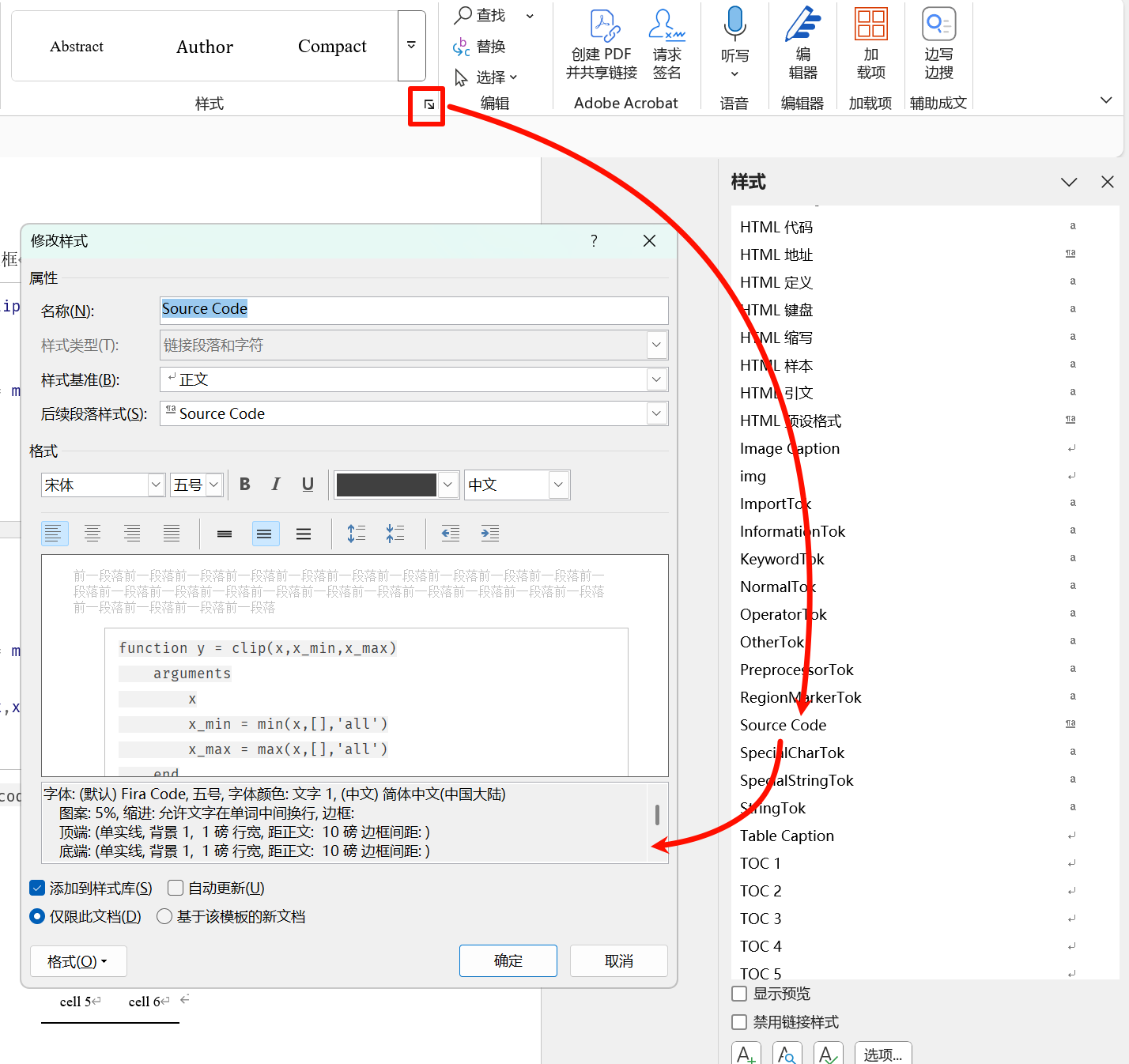
- 注意,要修改模板,需要更改每个类型所对应的Word的样式,而不是只是自己改改当前段落的样式就能生效的。
- ### 一般样式
- 一般样式,只需要打开word的样式面板,鼠标点击该行,将自动显示对应的样式,然后点击【修改】根据自己的需求修改样式就可以了
- 
- 一般样式如下:
- | **样式名** | **描述** | **默认样式** |
- | ---------------------- | ---------------------- | -------------------------------------------------------------------------------- |
- | 正文文本 | 在正文段落中应用 | 首行缩进,<br /> 字号小四,中文字体为宋体,英文Times New Roman<br /><br /> |
- | First Paragraph | 段落首段 | 首行缩进,<br /> 字号小四,中文字体为宋体,英文Times New Roman<br /><br /> |
- | Compact | 表格单元格 | 字号10,中文字体为宋体,英文Times New Roman |
- | Heading 1(标题1) | 一级标题 | 字号小二,加粗,中文字体为黑体,英文Times New Roman,<br /> 段前24磅,段后24磅<br /><br /> |
- | Heading 2(标题2) | 二级标题 | 字号三号,加粗,中文字体为黑体,英文Times New Roman |
- | Heading 3(标题3) | 三级标题 | 字号小三,加粗,中文字体为黑体,英文Times New Roman |
- | Heading 4(标题4) | 四级标题 | 字号小四,加粗,中文字体为黑体,英文Times New Roman |
- | Heading 5(标题5) | 五级标题 | 字号小四,加粗,中文字体为黑体,英文Times New Roman |
- | Heading 6(标题6) | 六级标题 | 字号小四,加粗,中文字体为黑体,英文Times New Roman |
- | Block Text(文本块) | 引述块样式 | 左侧设置为6磅粗边框 |
- | Source Code | 行内代码和代码块样式 | 四周添加1磅边框 | |
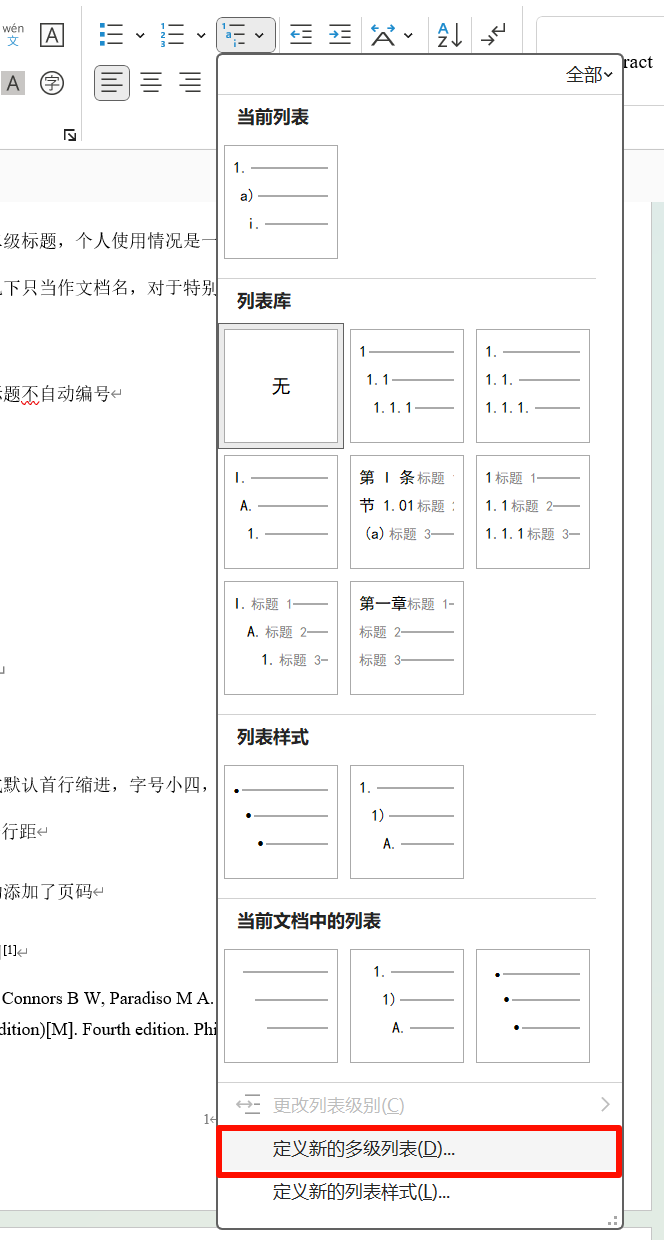
- ### 标题设置编号
- 点击「多级列表」,点击「定义新的多级列表」,打开弹窗后点击「更多」进行展开
- 
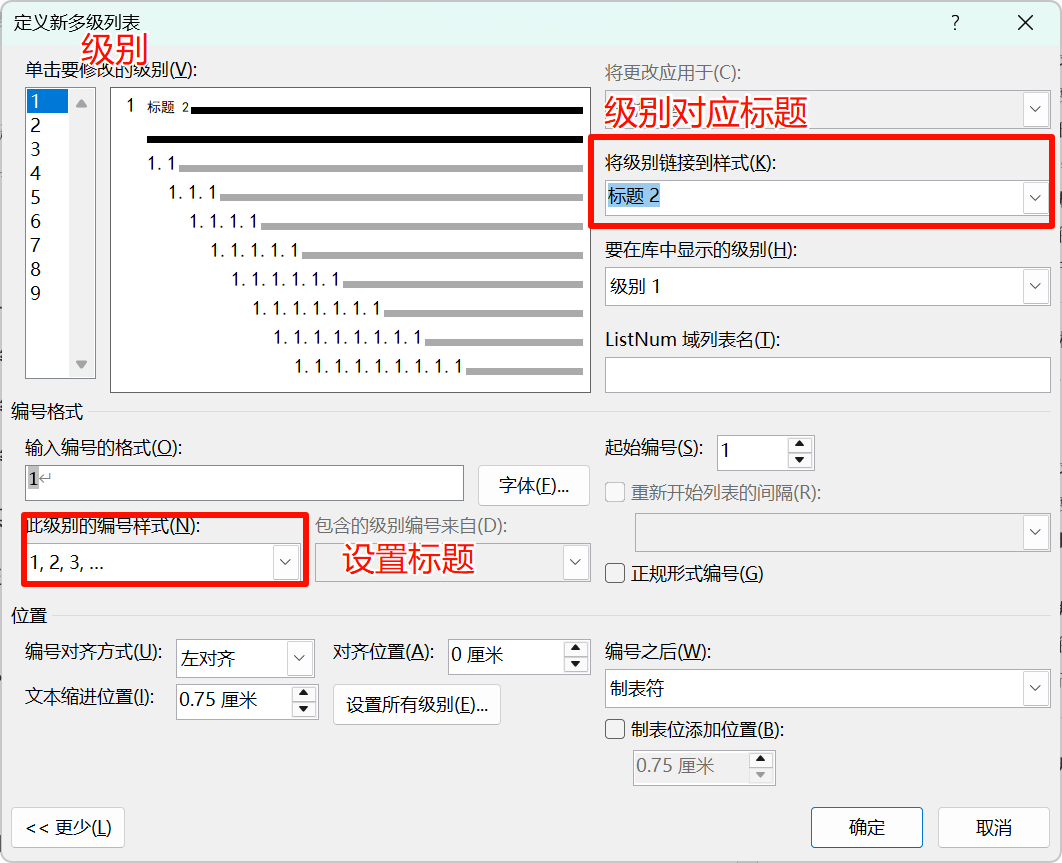
- 在「定义新的多级列表」弹窗,对每个级别设置编号格式和对应的标题
- 
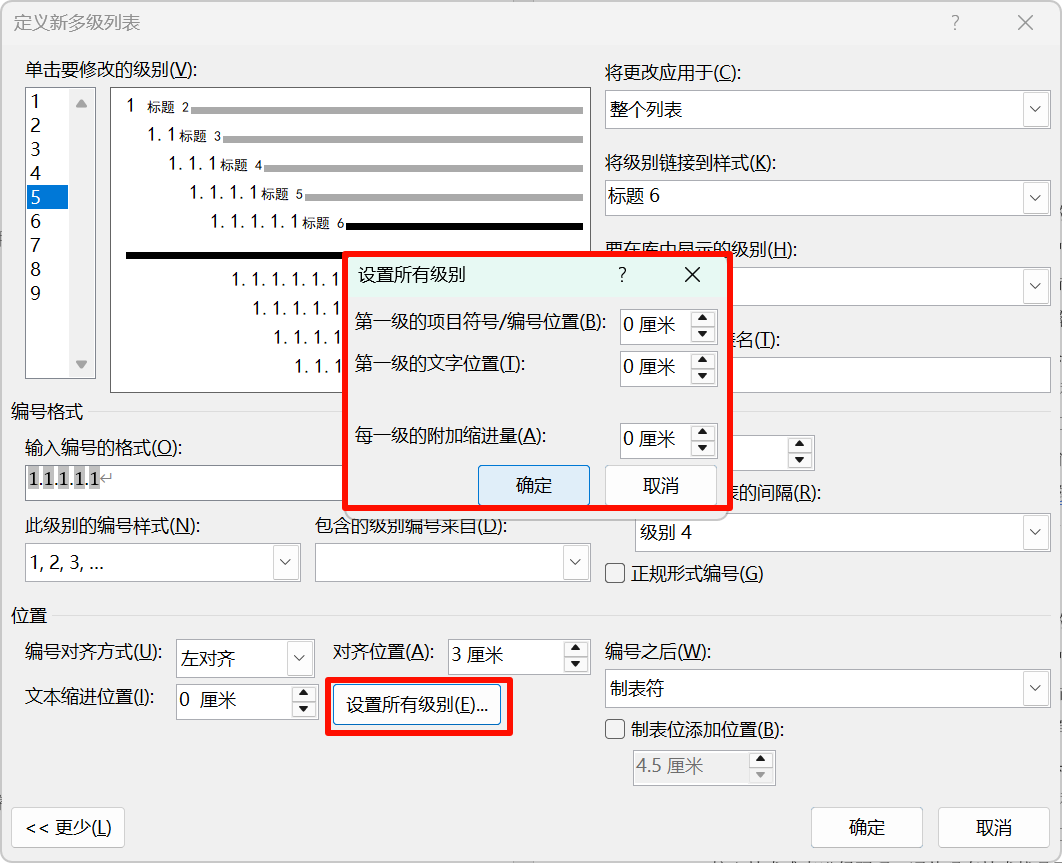
- 设置文本缩进位置为0,并设置所有级别
- 
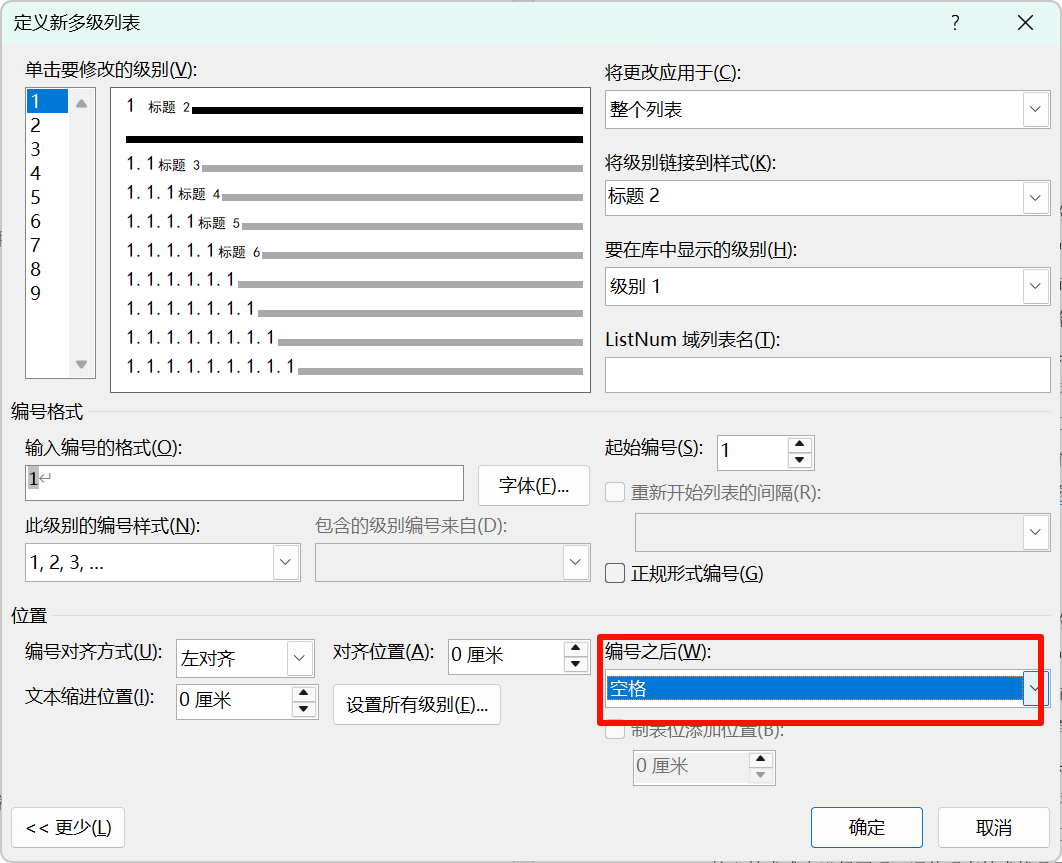
- 设置每个级别的「编号之后」是空格
- 
- ### 表格样式
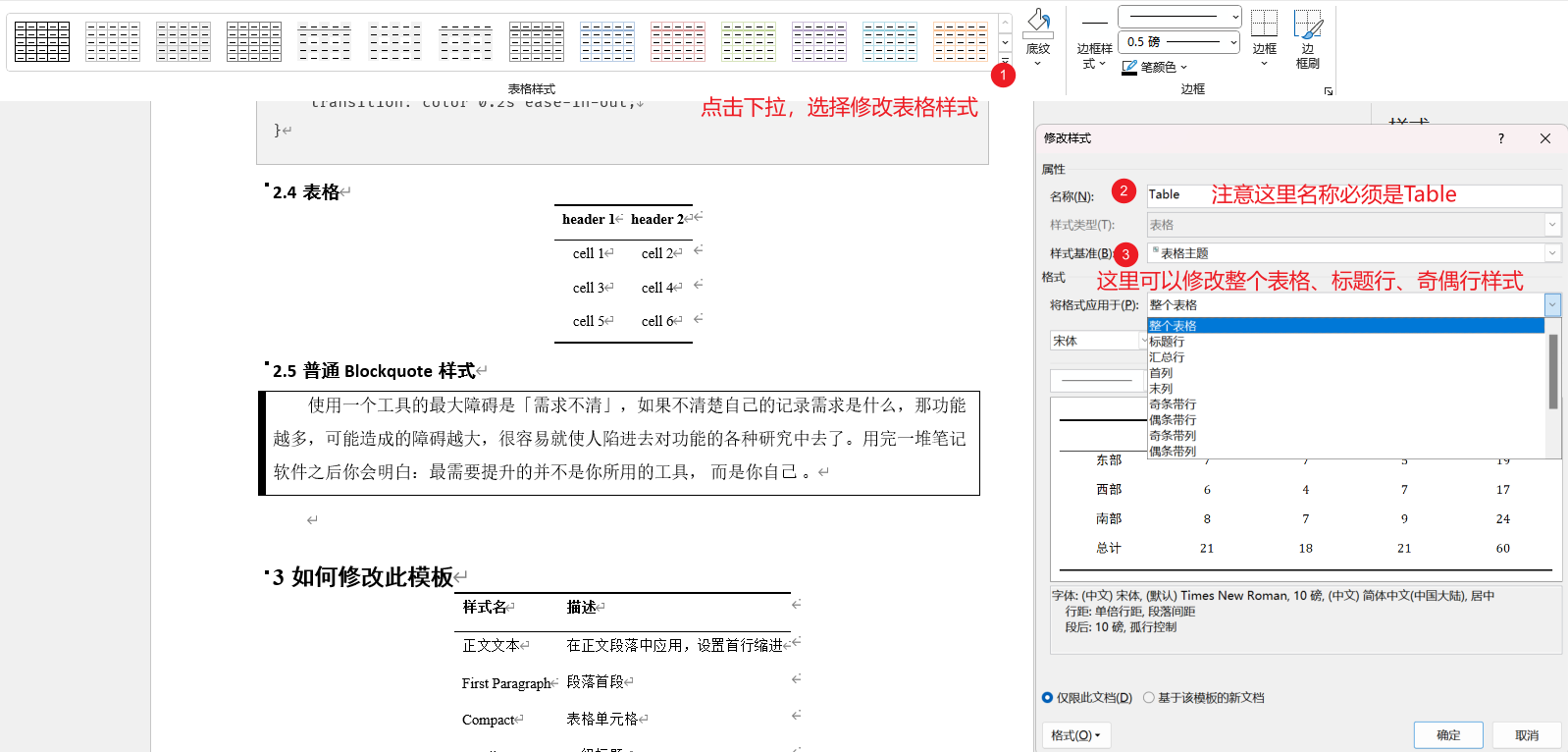
- 修改表格需要点击表格后,在【表设计】下拉,点击【修改表格样式】,进行修改
- 
- ### 列表样式
- #### 修改列表层级样式
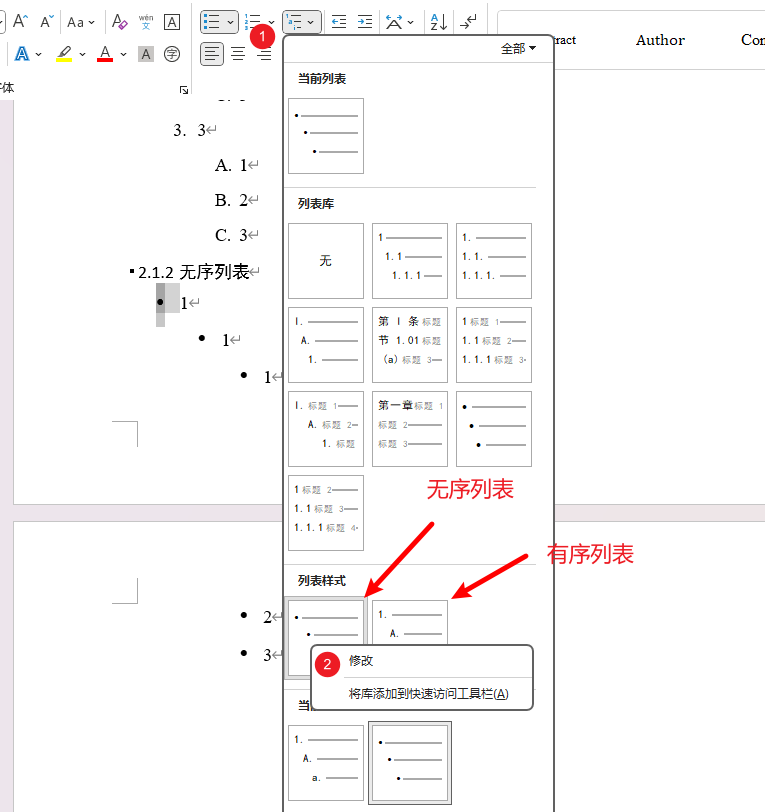
- > 所谓的层级样式是无序列表不同层级是圆点还是方块,有序列表则是不同层级的编号格式。
- 在下图①的位置点击,可以看到列表样式有两个样式,分别对应无序列表和有序列表样式,右键修改。
- 
- 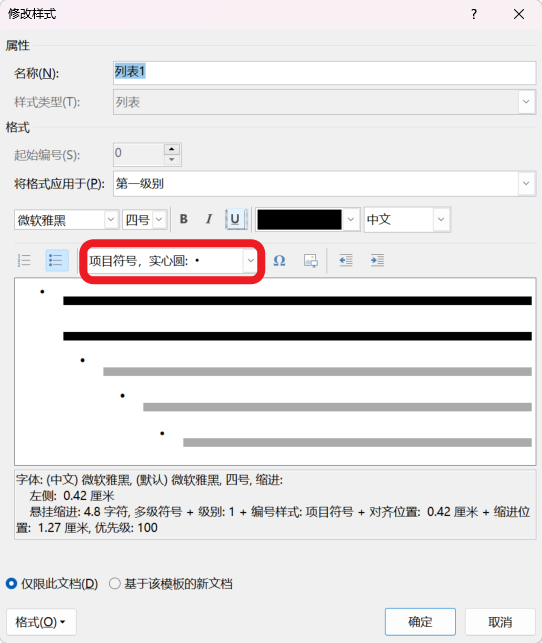
- > 有序列表和无序列表可以基于模板改动项目符号,老实说这是我误打误撞搞出来的😂……目前自己都没能复现,所以大家不想折腾,还是基于本模板改动,且用且珍惜(如果有知道怎么复现的,欢迎指教🙏)。
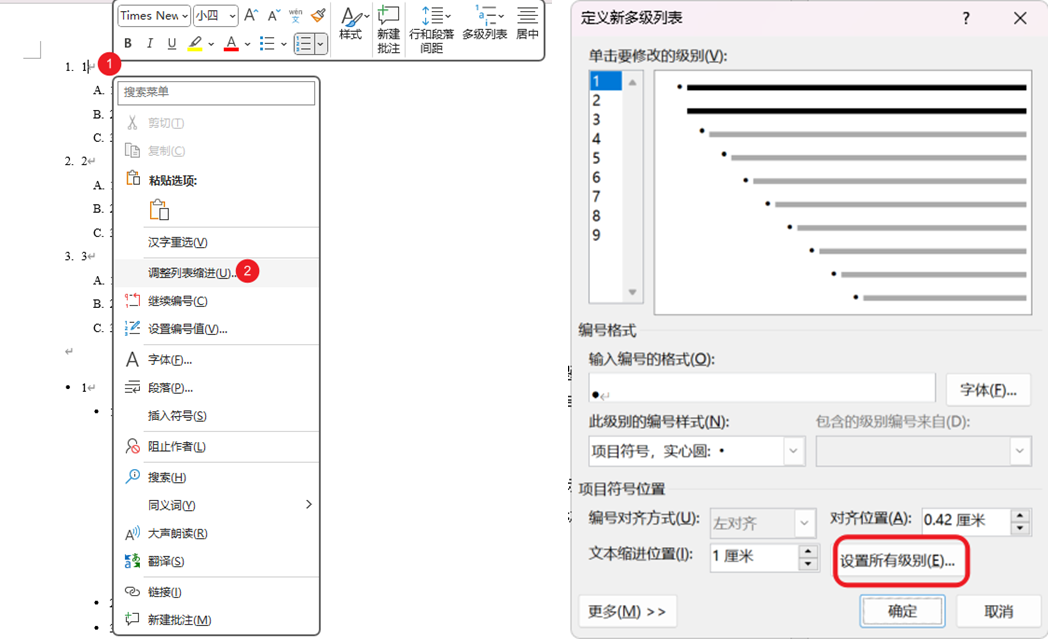
- #### 修改列表缩进
- 鼠标点击列表所在行,右键点击【调整列表缩进】,选择【设置所有级别】
- 
- #### 修改列表项间距
- 每个列表项的间距与【正文】样式的行间距有关,此外列表项的子文本段落也是【正文】样式而不是【正文文本样式】。所以要修改列表项间距,需要修改【正文】样式的行间距。
- 一般段落其实是【First Paragraph】、【正文文本】样式,而这两个样式都是继承于【正文】样式的,所以调整列表行间距而改动【正文】样式有可能会影响到普通文本样式。
- 为了让列表更美观,我把【正文】样式设置为1.5倍行距,不设置段前和段后距离,【First Paragraph】、【正文文本】会设置段前和段后距离
- ## pandoc的其他使用问题记录
- ### WPS和Mac版本的Word可能有兼容性问题
- 如果使用WPS和Mac版本的Word打开基于模板导出的文档,可能存在兼容性问题,建议还是用Windows端的Office Word打开
- ### 导出docx的表格居中问题
- 模板可以做到表格整体居中,但是表格单元格自动居中需要表格本身先设置居中,否则不居中。这是因为markdown表格默认是居左的。markdown的居中语法如下:
- ```markdown
- | header 1 | header 2 |
- | :------: | :------: |
- | cell 1 | cell 2 |
- | cell 3 | cell 4 |
- | cell 5 | cell 6 |
- ```
- ### 设置了代码块高亮样式,却发现导出的docx文件代码块高亮样式无法修改?
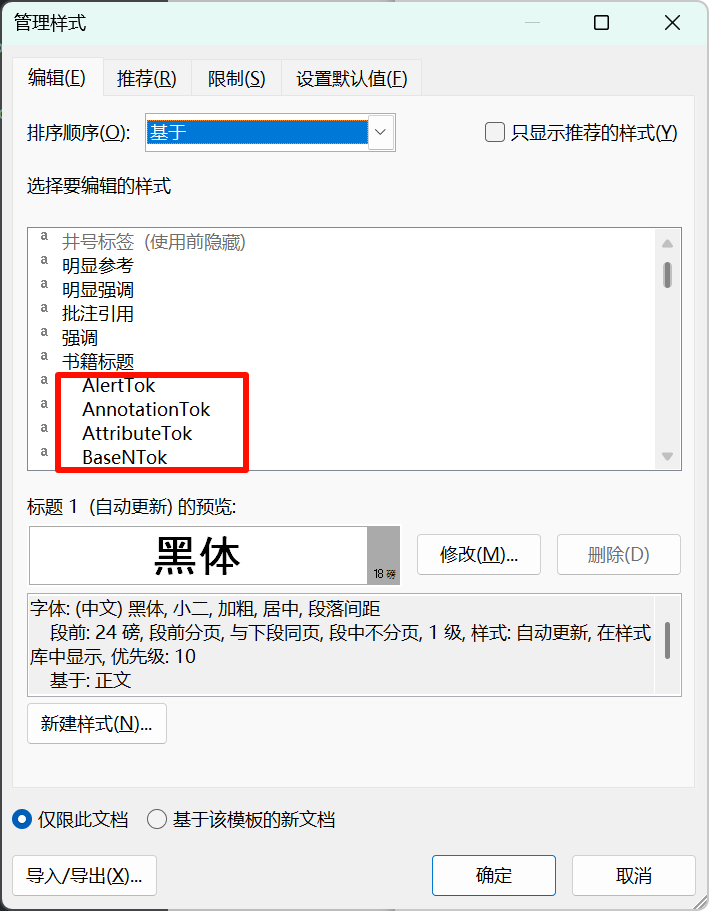
- 当使用`--highlight-style xxx`参数导出时,代码块的高亮样式会根据 `xxx` 的值来决定。pandoc 支持多种高亮样式,如 `pygments`、`breezeDark`、`tango`、`zenburn` 等。
- 但是如果你用markdown转docx得到的文件再作为模板的话,docx文件会有带有-Tok结尾的样式,导致代码块高亮样式无法修改。所以请直接使用本repo的docx文件作为模板。也可以尝试删除docx中的代码高亮样式(所有Tok结尾的样式),然后再重新导出。
- 
- pandoc 相关issue:[When pandoc sets a Word template, it cannot set highlight-style · Issue #10896 · jgm/pandoc](https://github.com/jgm/pandoc/issues/10896)
- ## ❤用爱发电
- 如果这个项目对你有帮助,欢迎给我打赏!
- <img src="https://fastly.jsdelivr.net/gh/Achuan-2/PicBed/assets/20241128221208-2024-11-28.png" width="50%" >
Ratings and comments
Sign in to rate this skill.
Sign inFree to use. If it’s helped, pass it on.